Welcome to XboxIssues

Welcome. I decided to make this blog after being a Xbox Ambassador for a number of years.

If you don't know an Ambassador is a Volunteer that Microsoft uses to help ease the load on the actual hard working support people.

I noticed that alot of the questions I would get could easily be solved by using Microsofts Xbox.com site.

Since some of the help articles may be hard to find, understand or the issue may be called something different in the gaming community making it more difficult to solve, I've decided to make this blog to make it easier for fellow gamers to get xbox assistance, news and all things Xbox.

If you have any Xbox related question you can find the answer to feel free to contact me on YouTube, twitter or in the comments.
Showing posts with label Dashboard. Show all posts

Wednesday, August 28, 2024

SYSTEM UPDATE: Xbox August 2024 Update Is Rolling Out with Updates to Cloud Gaming, Consoles, PC Gaming, and Accessories

Team Xbox is bringing new ways to make Xbox better based on your feedback. This month’s update has brand-new experiences across Xbox Cloud Gaming (Beta), consoles, PC gaming, and wireless controllers.


Xbox Cloud Gaming

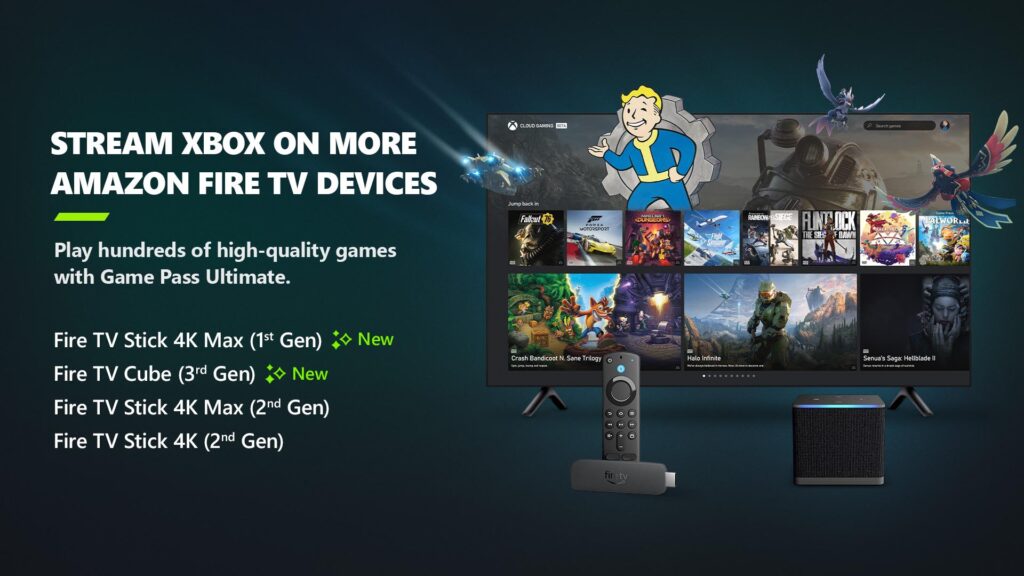
Xbox app on Fire TV now available on Fire TV Stick (1st Gen) and Fire TV Cube (2nd Gen)
Earlier in the year, Xbox announced a collaboration with Amazon where Xbox Game Pass Ultimate members in over 25 countries can play games directly from the Xbox app on select Fire TV devices via cloud gaming, giving people even more choice in how they play their favorite games. Now, alongside the Fire TV Stick 4K Max (2nd Gen) and Fire TV Stick 4K (2nd Gen), the Xbox app on Fire TV is available for customers with a Fire TV Stick 4K Max (1st Gen) and Fire TV Cube (3rd Gen). This expansion offers players even more choice in how they play their favorite games on devices they already own.

Players will have the opportunity to play current games in the Game Pass Ultimate catalog. To get started, download the Xbox app on your eligible Fire TV device via the Amazon Appstore. Once you install and open the app, you’ll be prompted to sign in with your Microsoft account. If you’re already an Xbox Game Pass Ultimate member, you’ll have instant access to stream and play any of the hundreds of cloud-enabled titles in the Game Pass Ultimate library.

Not a member yet? You can easily sign up for Xbox Game Pass Ultimate through the app.

Then, all you have to do is connect a compatible Bluetooth controller and you’re ready to start gaming! The Xbox Wireless Controller, Xbox Adaptive Controller, DualSense or DualShock 4 controllers all work seamlessly. Once connected, you’re all set!

Xbox Consoles

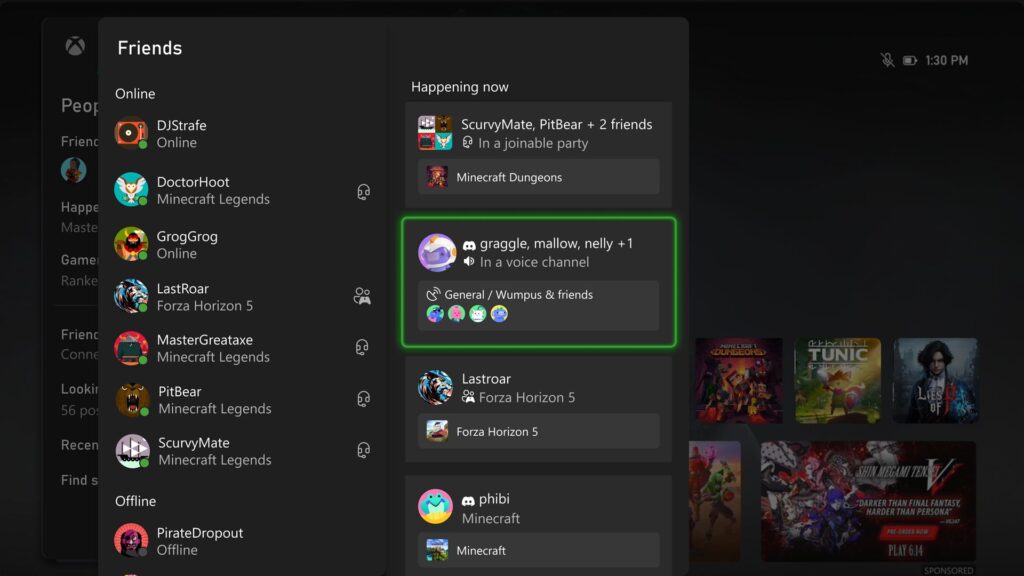
Happening Now – Find your Discord friends and channels from your Xbox
It’s now easier to get updates when one of your Discord friends is playing, chatting, or streaming. Now you can jump into voice chat with them or watch their stream – all on your Xbox console, without having to use the Discord app on PC or mobile.

If your Xbox and Discord accounts are linked, you can opt-in to have your Discord friends included in your Friends list on the Xbox guide by re-linking your accounts. Once you relink your Xbox profile and Discord account, head to the Friends list of the Xbox guide.

Your Discord friends will show up on the right side under “Happening now” whenever they’re playing a game or chatting in Discord voice.
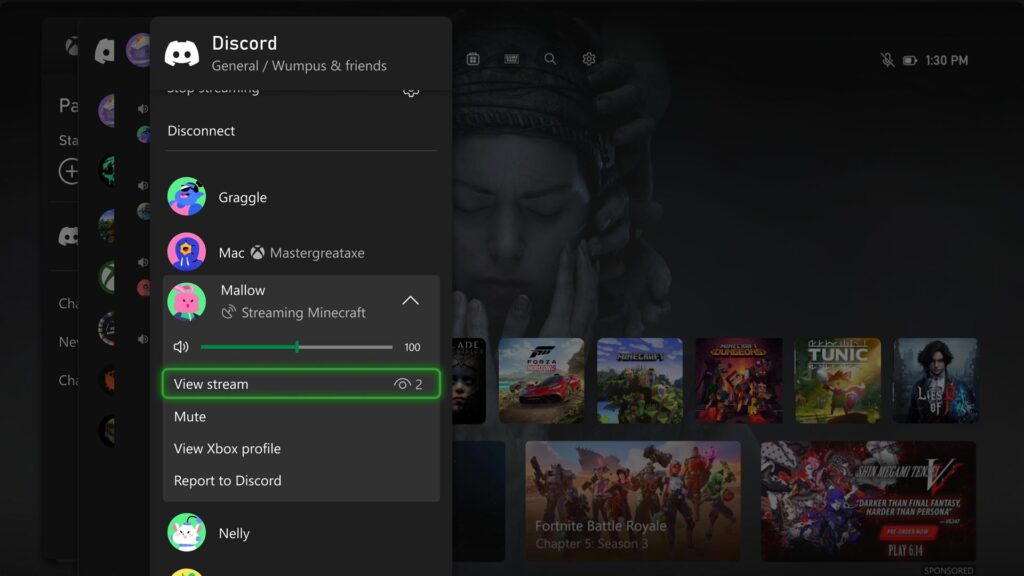
Watch Discord streams on your Xbox console
You can now watch anyone who is streaming directly on your Xbox console when you’re connected to a Discord call or in a voice channel! Are you having an epic moment you want to share? You can stream your gameplay to your Discord friends, too.
DON'T FORGET TO SHARE:


Wednesday, February 14, 2024

SYSTEM UPDATE: The February 2024 System Update is Starting to Roll Out

Team Xbox continues to bring new ways to make Xbox better, with players at the center, as we refine the experience and deliver brand-new features based on player feedback. This month’s update offers touch controls enabled in Xbox remote play, and improved filtering and sorting in My games & apps. There’s a new thumbstick calibration tool for Xbox Wireless Controllers, and a new access restriction option to make it easier for many players to play on shared consoles in places like hospitals.


Touch controls enabled in Xbox remote play
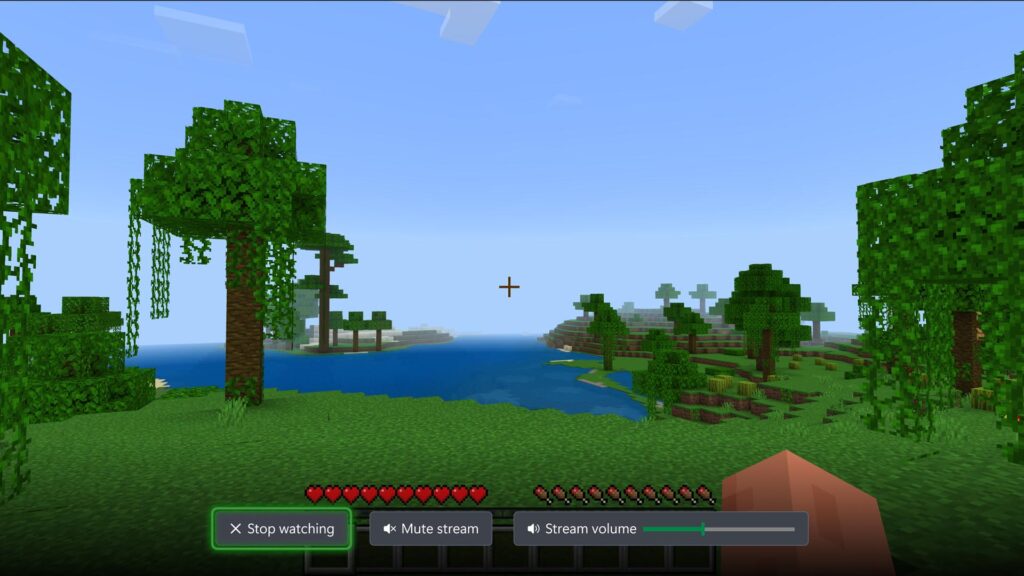
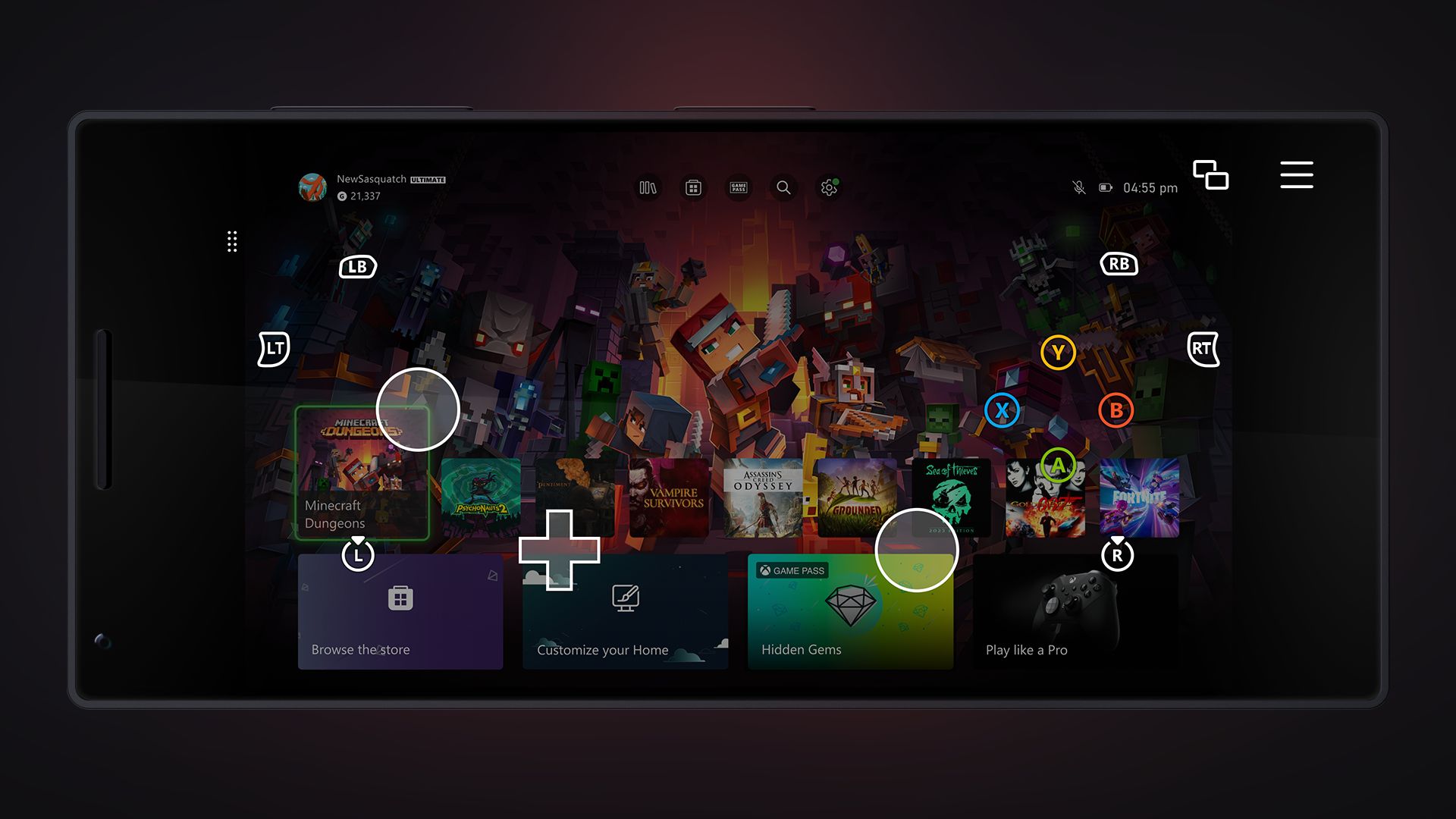
Want to play games when away from your console, but don’t have your Xbox Wireless Controller handy? No problem! Xbox remote play now supports custom touch control layouts on more than a hundred games when using the Xbox app on iOS, Android, and Windows devices. The same custom touch layouts available through Xbox Cloud Gaming (Beta) will now be available when remotely playing games from your personal console. This includes games like Minecraft Dungeons, Psychonauts 2, Sea of Thieves, and many more. Additionally, a basic touch control layout can now be used for most other games.


New thumbstick recalibration tool for Xbox Wireless Controllers
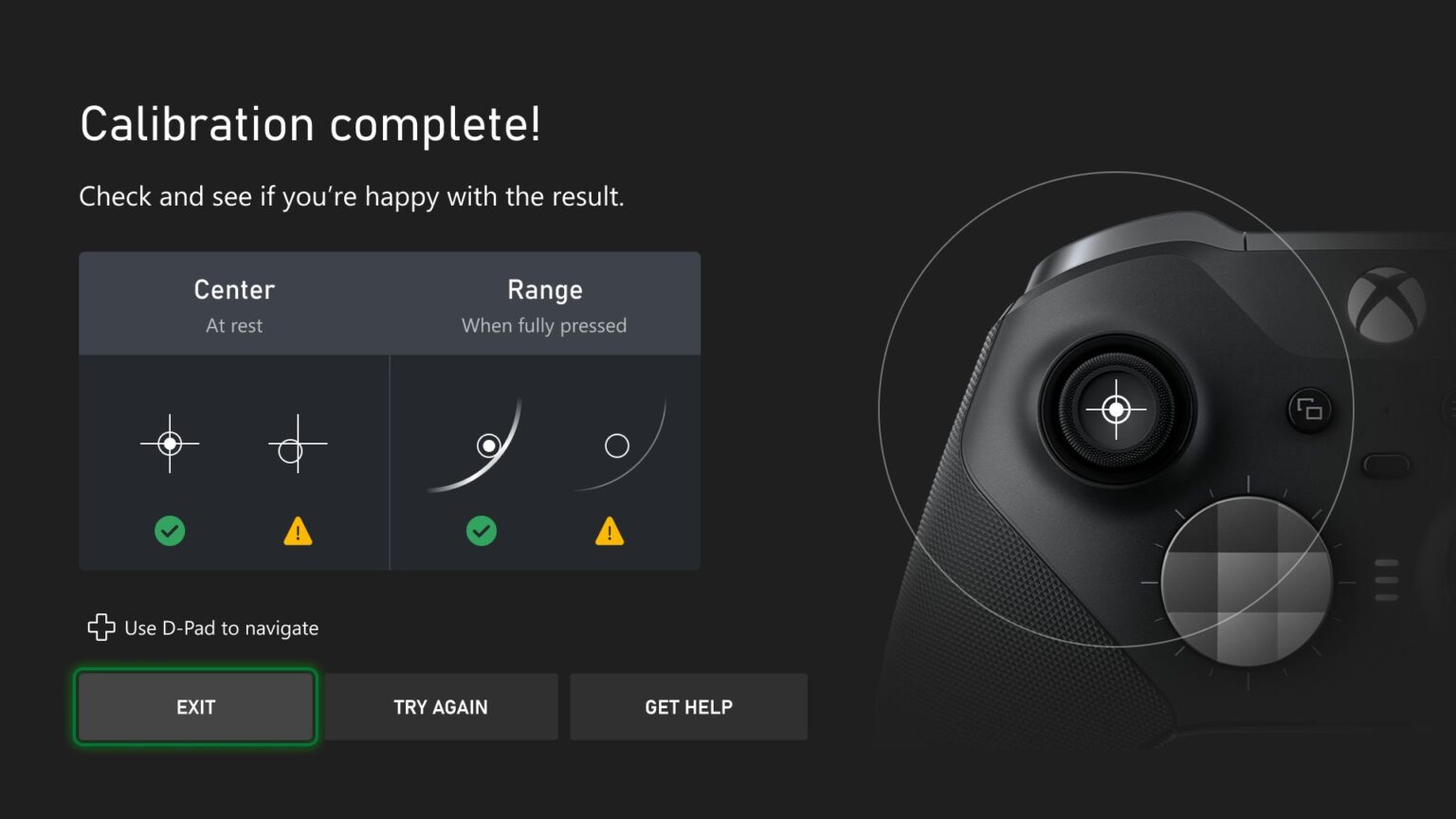
We’re excited to release a user-guided, self-calibration tool on the Xbox Accessories app that helps you to recalibrate thumbsticks for Xbox Wireless Controllers. This is part of Xbox’s continued investment in improving the repairability experience of controllers. To address minor thumbstick issues such as inconsistent responses, use the self-calibration tool in the Xbox Accessories app on console or PC to resolve issues without the need for support calls, controller repairs, or returns. 

Xbox enables owners of Xbox Wireless Controllers to self-repair their devices by selling official replacement parts in the Microsoft Store. If you’re self-repairing your controller, the thumbstick recalibration tool should be used after you have replaced the controller’s base and circuit board, as that will likely disrupt thumbstick calibration values. Not all thumbstick issues can be resolved with this recalibration tool, including drift due to normal wear and tear.


Improved filtering and sorting – My games & apps
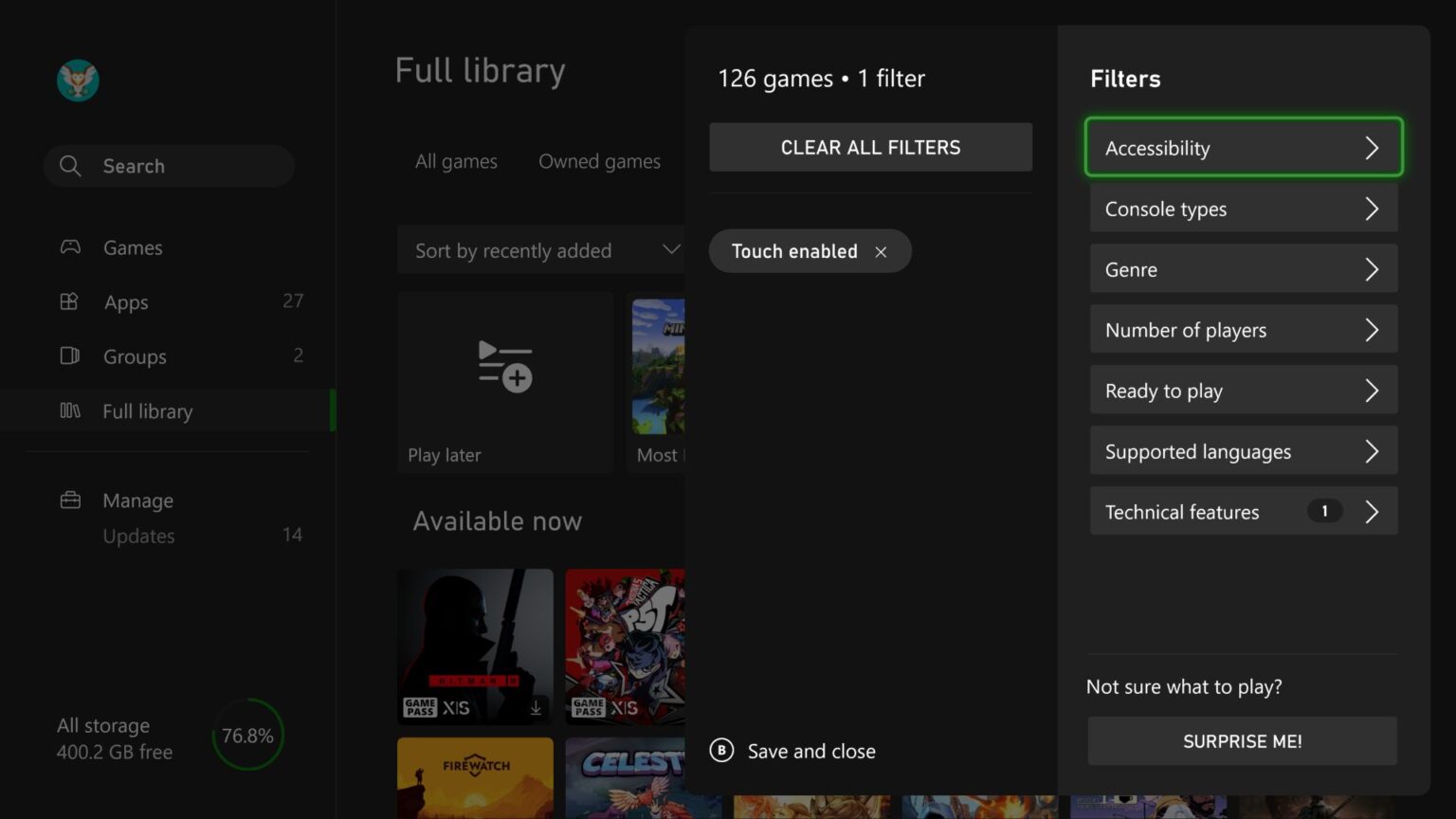
We’ve added new filters and sorts to My games & apps to help you find exactly what you’re looking for on your Xbox. You can now filter games by accessibility, supported languages, and technical features. For example, if you want to see which games are touch-enabled for remote play, you can filter by Technical features > Touch enabled and find your next game to play.

Additionally, subscription tabs in your full library have been updated to sort by Recently added, making it easier to see what’s new in subscriptions like Xbox Game Pass and EA Play. You can always adjust the sorting to find games to play in your library. Just head to My games & apps > Full library, and you’ll find all the new filtering and sorting options.


Automatic profile sign-out
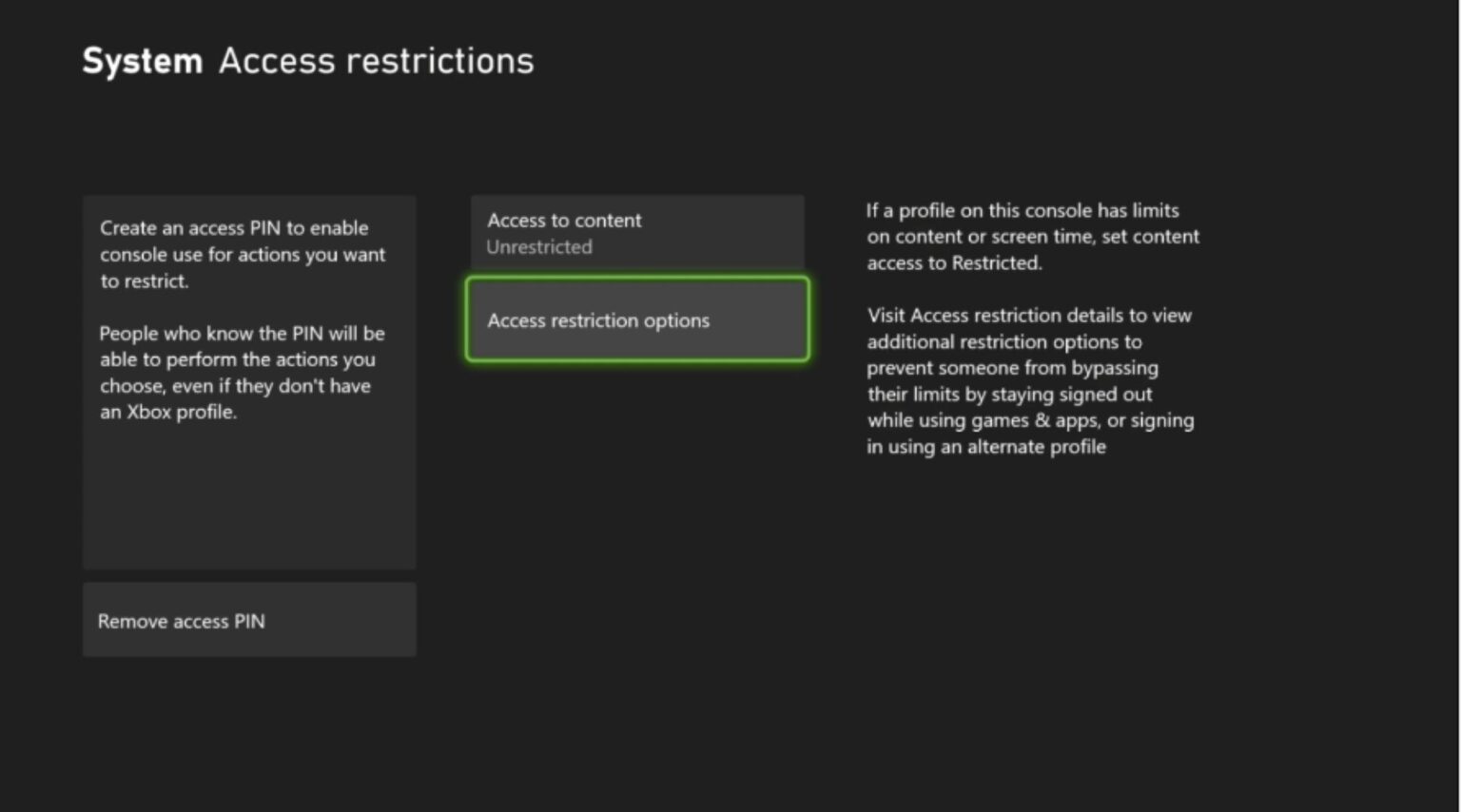
A new access restriction option has been created to make it easier to play on shared consoles in places like hospitals. Some children’s hospitals have programs to provide consoles that can be wheeled into a patient’s room and give them time to play and connect with friends. The new option makes it easier for player’s profiles to be deleted when they sign out, and it removes the need to check if patients have signed out of the consoles when the gaming cart gets moved between patients.

To view and adjust the new options, navigate to Settings > System > Access restrictions to allow use of the Edge web browser, set a Home console, and to delete profiles on sign-out.

SOURCE


DON'T FORGET TO SHARE:


Tuesday, September 5, 2023

NEWS: The Xbox September Update is Coming Soon

Team Xbox is continuing to make Xbox better, refining our experiences and delivering brand-new features based on your feedback. This update is bringing you the highly requested ability to stream your Xbox gameplay to your Discord friends! Additionally, they are updating the variable refresh rate for Xbox Series X|S consoles, giving you new places to view and redeem Rewards, and providing new wish list notifications to track your games. They are continuing their commitment to safety on our platform by rolling out Xbox voice reporting, which allows you to report inappropriate in-game voice chat. On PC, we have some great updates that allow you to easily navigate your library and track the countdown to a game launch.


Stream your games from your Xbox to your Discord friends
We heard that you wanted more Discord features! Starting this week, you can stream gameplay directly from your Xbox to your Discord friends. With a simple click on “Stream your game,” your Discord friends can now watch as you play your favorite console games.

To get started, first link your Discord account. Then you can join voice channels from your Discord servers directly from your Xbox console. To navigate there, press the Xbox button on your controller to open the guide, scroll to Parties & chats, and select Discord. Then scroll through your available Discord servers, jump into a voice channel with friends, and share your gameplay!!

This feature is out just in time for Starfield! Share as you make your custom character, uncover new planets, build some amazing ships, and discover all there is in Bethesda’s amazing new universe. Be sure to join the official Bethesda Discord channel to stay up to date on the Starfield launch and more!

Whether you are planning to stream Starfield or any of your other favorite games, it is easy to get started and have fun with your friends cheering you on.


Variable Refresh Rate (VRR) update for Xbox Series X|S consoles
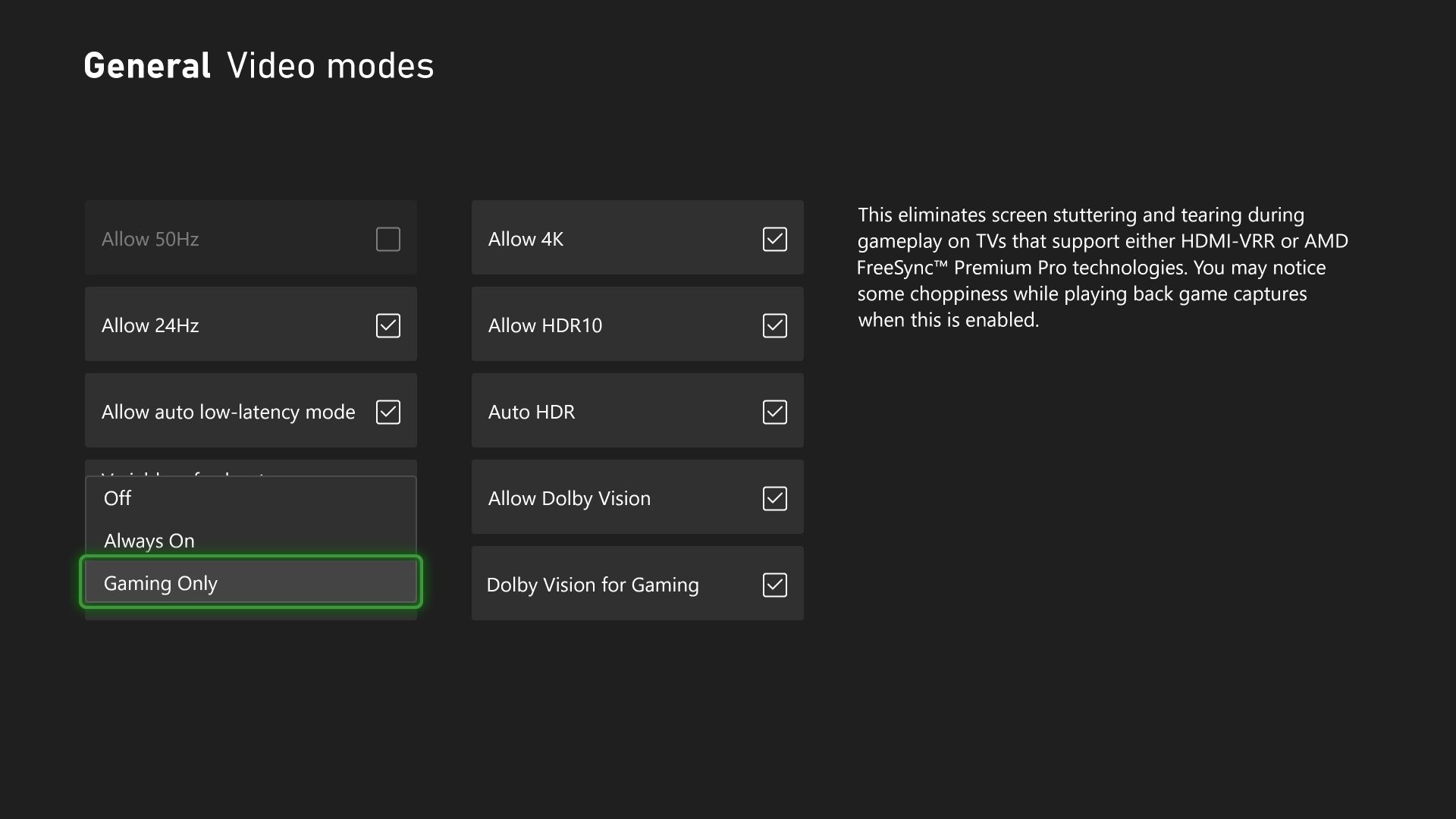
Variable Refresh Rate (VRR) allows your TV or monitor to dynamically adjust its refresh rate based on the frame rate of the content you’re viewing to give you a smooth, artifact-free experience while you game. However, if you’re using your Xbox Series X|S for entertainment experiences, you may not always want VRR enabled.

Starting this week, you can choose how you want VRR enabled on your Xbox Series X or Series S console. To select your option, go to General > TV & display options > Video,and then go to the dropdown menu for VRR. You can select if you want VRR to be “Always On,” “Gaming Only,” or “Off.”


New places to view and redeem Rewards
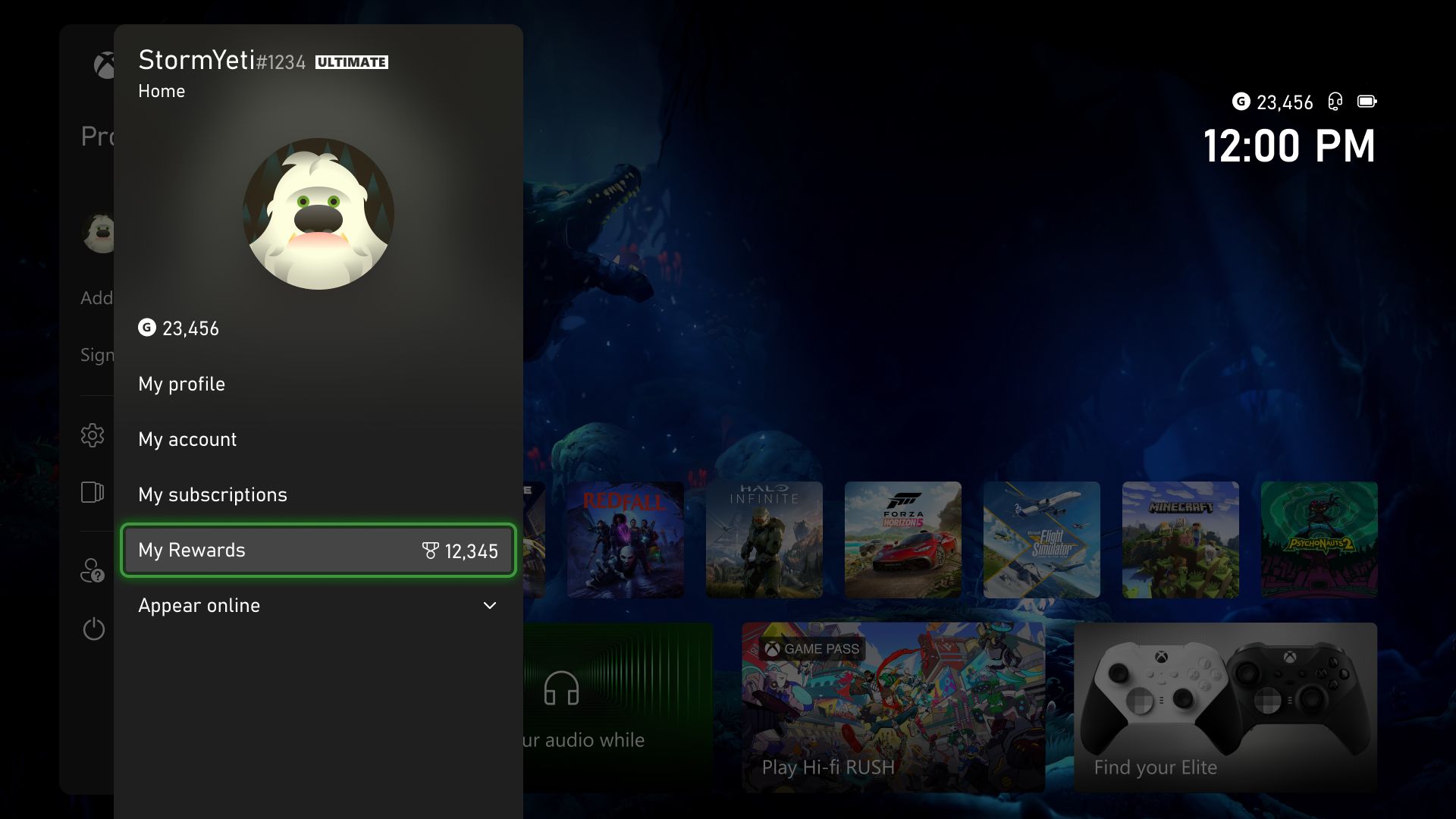
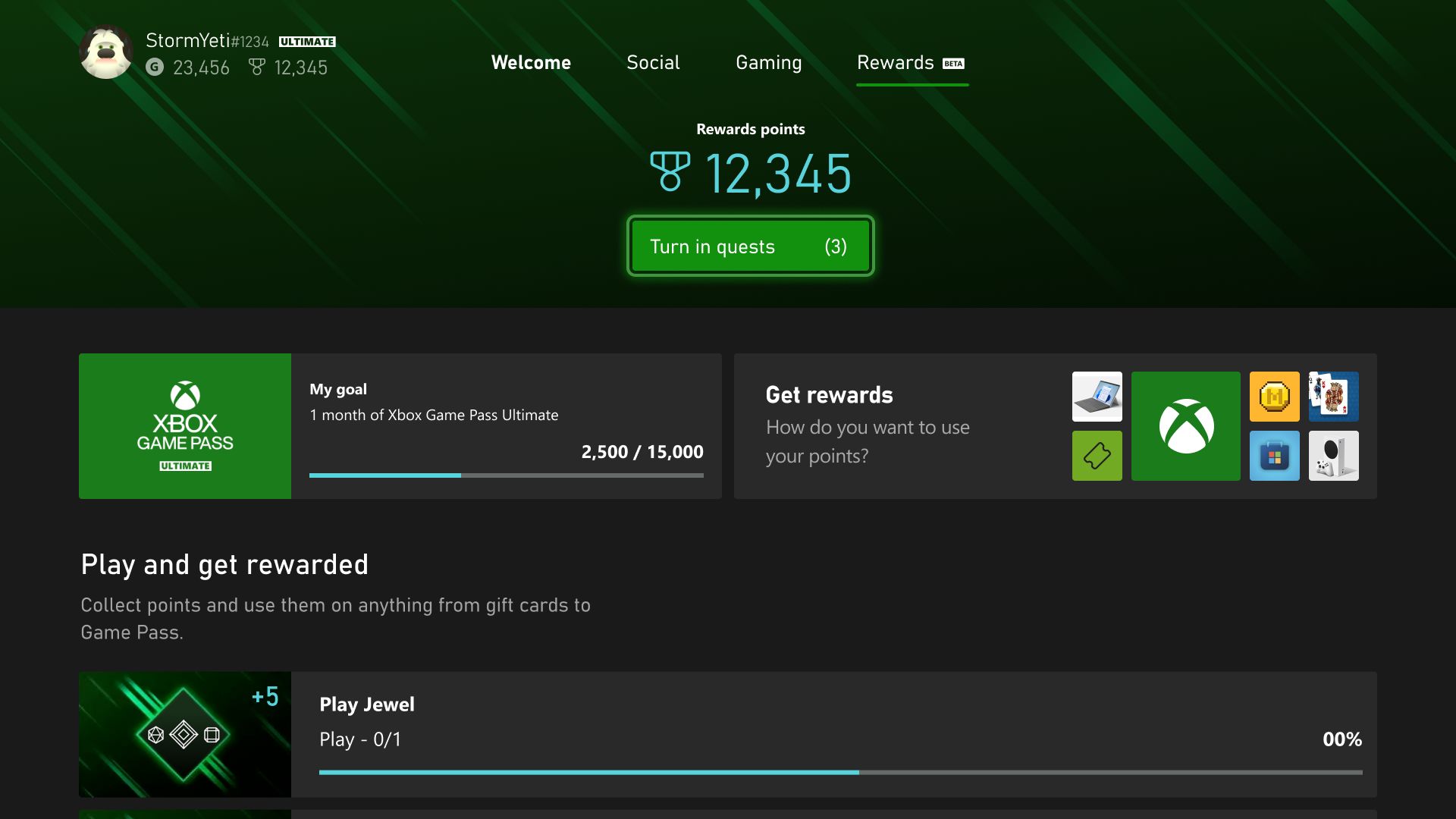
Rewards are now easier to find on your Xbox with the new Rewards tab. You can jump to them quickly by pressing the Xbox button to open the guide, choosing Profile & system, selecting your profile, and then choosing My Rewards, where you’ll find your Xbox Game Pass Quests.

Additionally, you can now find the Redeem Rewards catalog directly from the Rewards tab in your profile. To check it out, open the guide and go to Profile & system > your profile > My Rewards.

CLICK READ MORE TO SEE WHAT ELSE IS INCLUDED IN THIS UPDATE


Thursday, October 21, 2021

SYSTEM UPDATE: October Xbox Update 4K Dashboard and more

Team Xbox is excited to continue bringing new ways to make Xbox better, with you at the center, as we refine the experience and deliver brand new features based on your feedback. This month’s update includes the natively rendered 4K dashboard on Xbox Series X consoles, Xbox night mode, Quick Settings and more.

4K Dashboard on Xbox Series X
One of the ways Xbox Series X delivers next gen gaming is with true-to-life 4K gaming. Prior to today’s update, the Xbox Series X dashboard, Guide, and other menus were upscaled from 1080p to 4K. We know players with an eye for detail and an appreciation for 4K wanted a crisp experience even when navigating the dashboard. We heard your feedback and started testing increased resolution for the dashboard.

We’re excited to share that starting today, players with an Xbox Series X connected to a 4K display will see the dashboard natively rendered in 4K. You can experience 4K while browsing the Home, My Games & Apps, Guide, and many other experiences. UI elements on the screen, such as game art and buttons, will have increased sharpness and improved text readability.


Xbox Night Mode


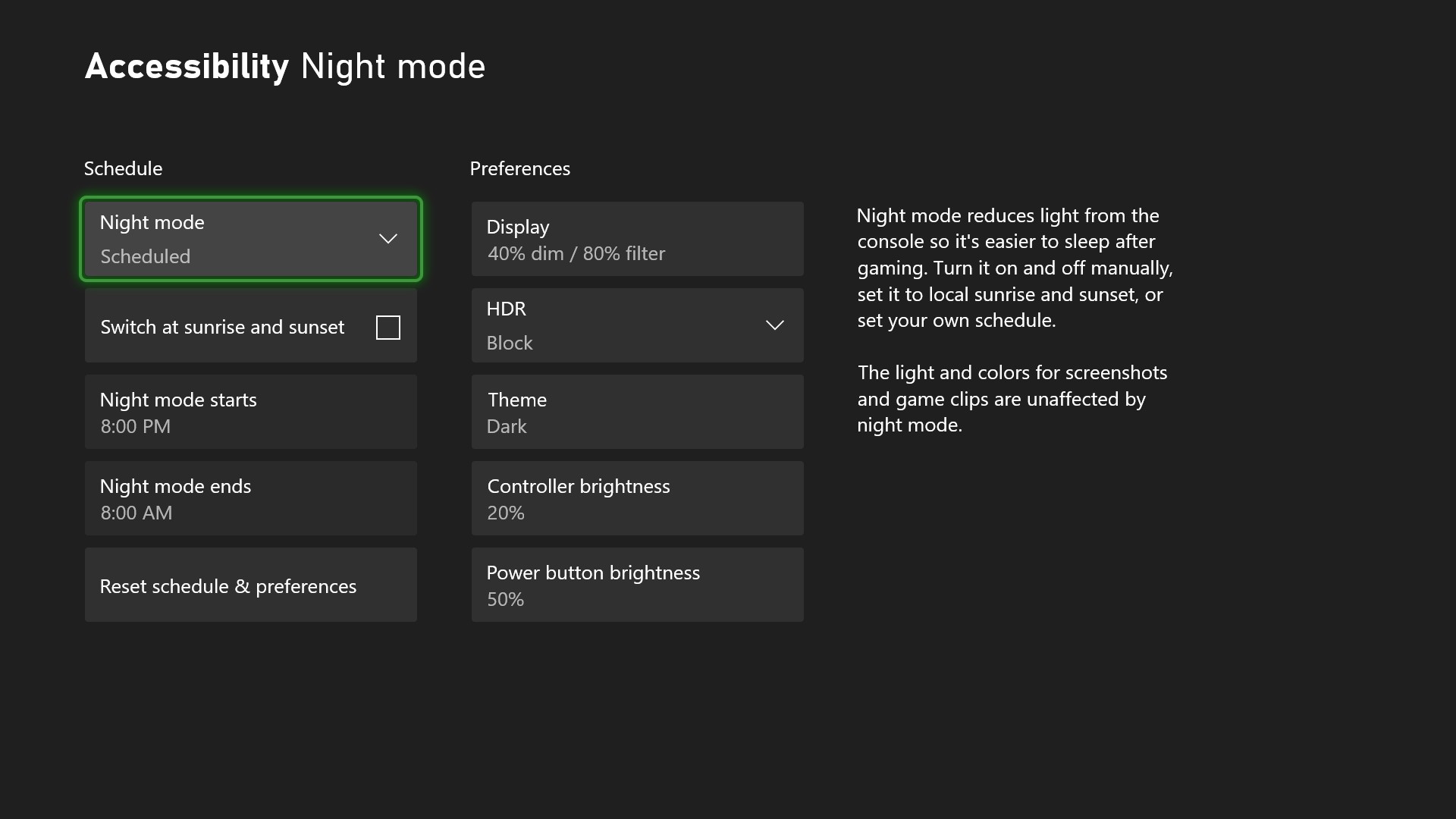
Xbox night mode is a suite of settings that adjusts light sources to help keep rooms dark at night and support gamers who are sensitive to light. You can dim and customize the light from the connected display, the power button on your controller, and the power light on your console. If you’re a movie fan, you can now enjoy theater-like total darkness while watching your favorite films!


In addition to dimming, Xbox night mode also adds a customizable blue light filter for your display. This feature is specific for Xbox Series X|S consoles.

All of this customization works across the Xbox system, apps, and games, and does not impact performance, screenshots or game clips.

You can also create a night mode schedule that will dynamically switch between Dark and Light theme. You can manually toggle night mode on and off, time it with the sunrise and sunset, or create your own schedule.


To start using Xbox night mode to dim and filter your screen, as well as dim your console & controller LED brightness, go to Settings > Accessibility > Night mode or Settings > TV & display options > Night mode.

Quick Settings
We are making it even easier for you to quickly access and customize your accessibility settings by adding the Quick Settings menu to the Xbox Guide. This allows you to quickly toggle accessibility features without leaving your game or app. It’s also a big benefit for families if you share a console with others who have different accessibility needs. You can use quick settings to switch features on or off, depending on who is currently using the console. That means everyone in the family can easily flip the settings to their tailored experience.


Please Don't Forget To Share:

Tuesday, June 16, 2020

SYSTEM UPDATE: Xbox June 2020 Update

Many Xbox gamers use a digital game library, downloading titles to their consoles through memberships like Xbox Game Pass, Xbox Live Gold or EA Access. This month we’re announcing updates that make it easier to manage that ever-growing digital games collection. The June 2020 Update is available now and includes improvements for digital game management, verified Official Clubs and more.


Managing Your Digital Games
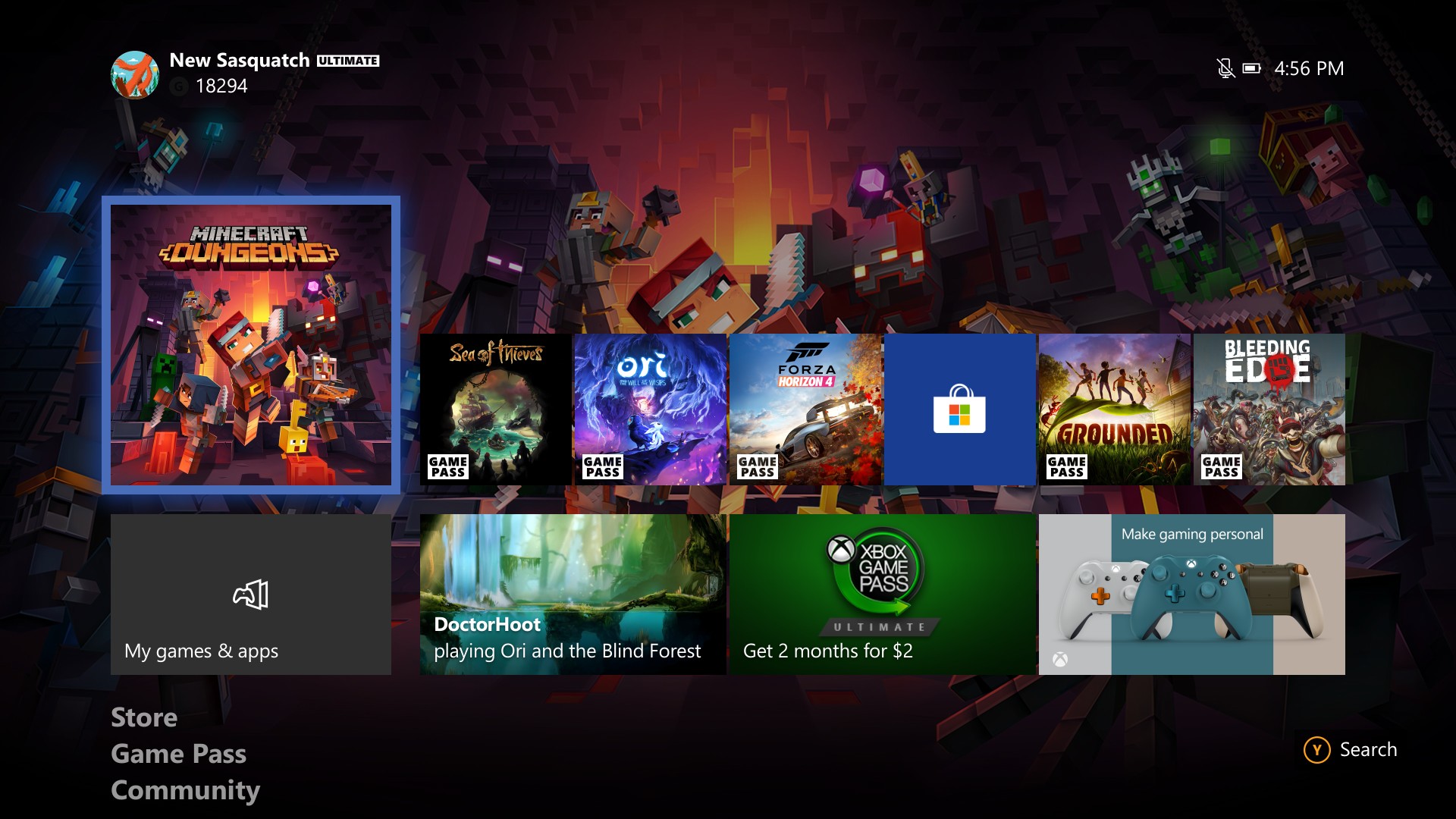
Today’s game collections are often a mix of games played on a disc, purchased via a digital store, or downloaded with a subscription like Xbox Game Pass. All these great games can make it tough to decide which ones to keep local when you run low on storage space. The June 2020 Update adds overlays to game tiles in My Games & Apps, Home, and Guide to make it easier to tell at-a-glance where you got a game. This release will support games from Xbox Game Pass, Xbox Live Gold, and EA Access subscriptions.


Xbox Home, shown with new game tile overlays and membership badge.


Celebrating Your Membership
Members of any Xbox Game Pass membership or Xbox Live Gold will also now see a badge next to their Gamertag on Home and in the Guide, highlighting those memberships. In addition, we want Xbox Game Pass members to have an easier time finding their subscription-related content. When a new member joins, we will add the Xbox Game Pass content block to the top of their Xbox One dashboard so they can start discovering new games right away!

Official Clubs Get Verified
Team Xbox is always looking for ways to bring players together, and we love seeing how active Clubs have become on Xbox One since they were first introduced. Since the start, a plethora of fan-based and Official Clubs have cropped up, creating homes for communities within the Xbox ecosystem.

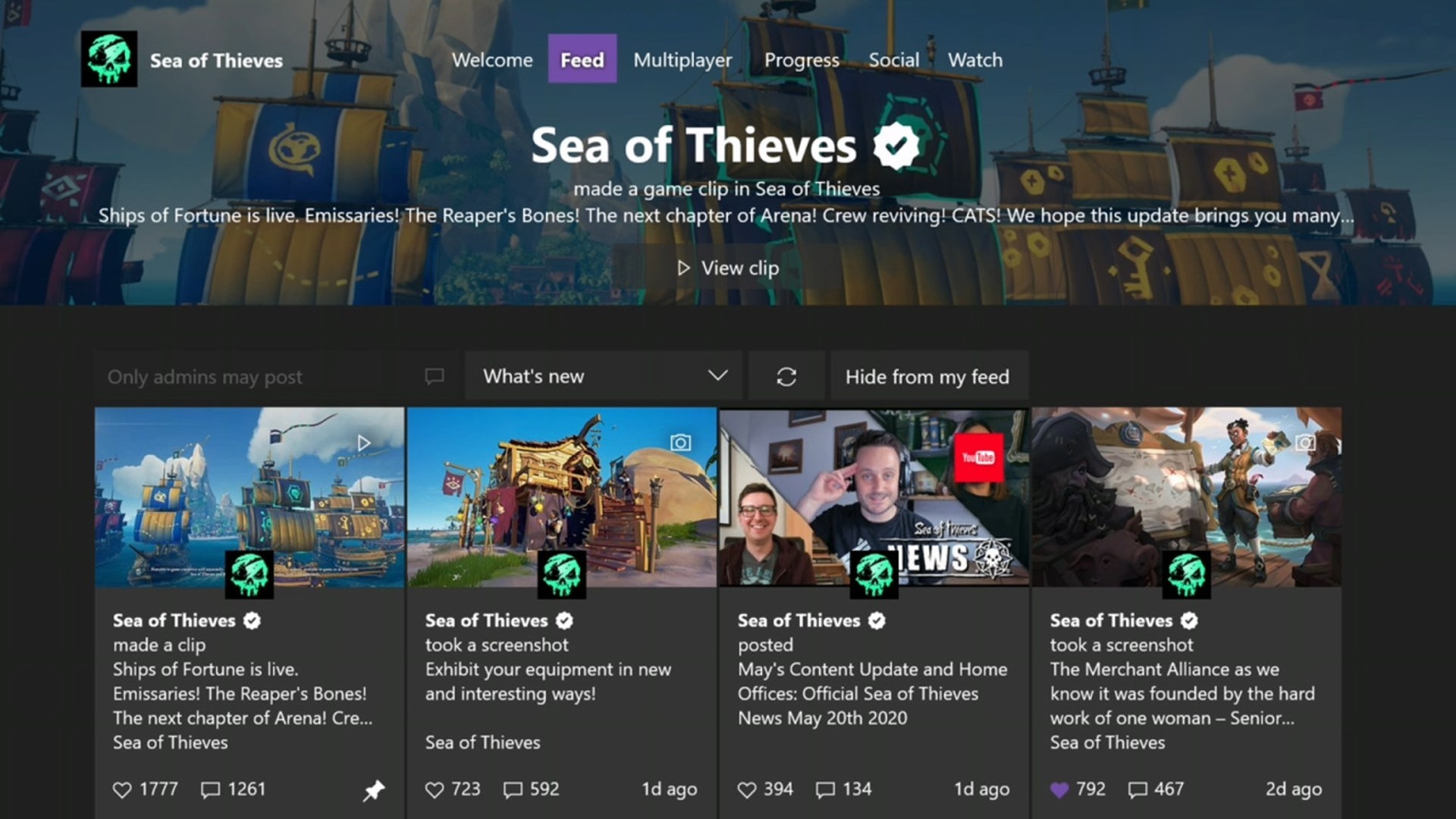
But how are Official Clubs different from fan-based ones? Official Clubs are created and managed by game developers and their community managers, and serve as an official source for information and updates. With all the Clubs on Xbox, it can be tough to immediately tell if the one you’re looking at is the Official Club. We’ve added verification badges to make it easier to see which Clubs are run by the developers directly.


Please Don't Forget To Share:

Thursday, July 5, 2018

SYSTEM UPDATE: July Xbox Update Rolling Out Today

E3 may be in our rear view like a fall leaf in Forza Horizon 4, but we’ve been busy updating the Xbox experience and adding features that you’ve requested. The July Xbox Update adds features that make finding content even easier and offers a host of improvements to Mixer. Here’s what’s new:


FastStart Enabled for Select Titles
Announced back at E3 2018, FastStart is a new innovation from our Xbox Platform team that allows you to jump into your games twice as fast and play after downloading just a fraction of it. FastStart works by identifying which files are needed to begin playing and prioritizes the download of those files first, enabling you to quickly jump into full-fidelity gameplay while the remainder of your title downloads in the background. Simply find the FastStart-enabled title you want to play in our catalog, hit ‘Download’ and your console will take care of the rest. It’s that simple. What’s more, it’s now enabled for select English language titles in our Xbox Game Pass catalog, and will expand to more games in more languages over time. You can learn more about FastStart here.


Group Your Games and Apps
With so much content available, fans have asked for more options to organize libraries of games and apps.  Today, we’re introducing a powerful new enhancement to Pins, which we call “Groups.” With Groups, you can create multiple collections of content made up of anything from within My Games & Apps. You can also assign custom names to each Group, organize and order them, and add individual Groups to Home. Groups will appear across My Games & Apps, Home and Guide, so you’ll be able to access your Groups at a moment’s notice. Best of all, Groups are tied to your Xbox Live account, so they will automatically sync across multiple Xbox One consoles. We’ve started you off with a Group that should look very familiar — your Pins!

More Search Options
Searching for content is now even easier!  Now pressing the Y button anywhere in the dashboard will bring up the search dialog, allowing you to easily launch your content, sift through Settings, or find products in the Store.  This process is found in many apps, but now you can do it anywhere within the dashboard.  Not seeing enough results for your search? Hit enter or click the “more results” button to view a full page for your search results.


 Mixer Share Controller Improvements
We’ve made it easier to use Share Controller on the web. First, we’ve enabled full mouse and keyboard support for PC users, along with Share Controller Key Bindings.

Second, we’ve added multi-touch support for touch-enabled devices. This allows multiple controls to be used at the same time! For example, you can control the joystick and press A at the same time on your touch laptop.

And lastly, we’ve added a per-channel leaderboard that spotlights viewers who have contributed to a streamer’s channel the most during a Share Controller session.

Full Screen Broadcasting on Mixer
Mixer streamers can now go full screen with their webcam while broadcasting. You can switch to full screen webcam broadcasting at any time you want. While in this mode game audio is muted, making it perfect for talking to your audience while switching from game to game or setting up before you start playing. You can even do all IRL broadcasts!

For the best experience we recommend using one of these cameras:

  • Microsoft LifeCam Studio
  • Logitech HD Pro Webcam C922
  • Logitech Webcam C930e
  • Microsoft LifeCam HD-3000


Console broadcasting quality and stability improvements
We’ve made a number of changes and fixes to improve overall broadcast video quality.  You will now experience improved performance when broadcasting bandwidth-heavy multiplayer.

All of these updates are available because of the Xbox Insiders who have helped shape these features, so big thanks to all of you for your valuable input.  If you’d like to help create the future of Xbox and get access to early features, download the Xbox Insider Hub app on your Xbox One or Windows 10 PC.  You can also visit the Xbox Insider blog here for the latest release notes and to learn more. Happy gaming!


Thursday, May 17, 2018

SYSTEM UPDATE: May Xbox Update Becomes Available Today

Today the May Xbox One update arrives for gamers around the world.  As part of our ongoing effort to continually improve the Xbox experience, we’ve got a feature-packed update that enables you to get even more out of your console with some exciting new features. Here’s what’s new:


Connect with Gamers Across Xbox Live and Discord
In response to your feedback, you now have the option to link your Discord account to your Xbox account, making it easier than ever to see what your friends are playing. Starting from the Discord app on PC or on a mobile device, you will see an option to link your Xbox account with your Discord account through the Connections tab under User Settings. Click on the Xbox Live option and sign in to your account. After enabling permission, your accounts will be linked. Starting from your Xbox One, open the Account Settings menu and select “Linked social accounts.” Here, you will see a new option for linking your Discord account. Once you receive your unique code from Xbox, open the Discord app and insert the code within the Connections tab. After following these few simple steps, your accounts will be linked and your Xbox Live presence will be shared across Discord, enabling friends and users in your same Discord servers to see what you are playing on Xbox Live.

How To Set It Up: http://xboxoneguide.blogspot.com/2018/05/how-to-link-your-discord-account-to.html


120Hz Video Refresh Rate Support
Console owners already enjoy variable refresh rates, the option of 1440p resolution, and auto low latency mode (read more about that here).  In this update, we’re adding support for additional panel refresh rates. Gamers using monitors and televisions that support a 120Hz refresh rate can now turn on 120Hz support for 1080p and 1440p output resolutions on Xbox One S and Xbox One X. This high refresh rate option means you can now take full advantage of displays with 120Hz capabilities. High refresh rate support can provide a smoother gaming experience and lower latency on some displays, and games may benefit from reduced tearing and stuttering via 120Hz output.


Trim Clips Directly in the Guide
With the April Xbox Update, we added a new sharing feature that helps gamers upload their captured screenshots and videos directly to Twitter. Now, sharing is getting even quicker! With the May update, you can trim your recent game captures directly from the Guide, so you won’t need to switch to Upload Studio to make a quick cut to your saved clips.


Improved Family Settings
Xbox One continues to help parents keep their families safe with updates to family settings. We’re adding a “Details” page where parents can easily find and manage all family settings on Xbox One. Parents will easily be able to tell which family and content settings are set up and configured. Important settings that are turned off or require attention will be flagged for parents, as well. Some settings, such as activity reports and Screen Time Limits, can only be accessed through the web: We’ll identify those settings and provide links where parents can easily set them up.


New Intuitive Button Commands
Some of the button commands throughout the dashboard are being refreshed for easier navigation. For example, you can now use the “View” button on Home to edit the order of blocks or reorder items within Groups.  Pressing the “View” button on the main tab of the Guide will also now display additional capture options. Note: If you group your collections in My Games & Apps by letter, you will now need to select a letter to view all groups.


Improvements to the Xbox Accessories App
The Xbox Accessories app has been modernized to make it easier to navigate, and to look and feel more consistent with the rest of the Xbox One dashboard.


Monday, October 16, 2017

NEWS: New Fall Update for Xbox One starting to roll out today

Today we announce that the next Fall Update for Xbox One will begin rolling out today. Mike Ybarra has this post on Xbox Wire but here is a list of some of the new features in this update:


You can personalize your “Home” more than ever before: You can…
  • Make Home uniquely yours. Add your favorite games, friends, Xbox Live Gold, Xbox Game Pass, and more directly to your Home screen with a new concept that we call blocks. Once you’ve added blocks, you can remove or change the order of the blocks as you see fit.
  • Have up to 40 pins!  All these pins will appear in the Pin block on Home, as well as the Pins flyout in the new Guide!
  • Easily discover new things, such as friend activities, leaderboards, LFG posts, tips, quick links to Game Hubs, across both your console and Xbox Live at the top of Home.
  • Choose dark, light, or high-contrast theme option in Settings.
You’ll experience a fast, powerful and convenient Guide:
  • It’s now faster and easier to move left and right through horizontal tabs with the left thumb stick or bumpers.
  • When you bring up Guide while in an active party or broadcast, Guide will automatically open the party or broadcast section by default for faster access to controls.
  • New “Friends in games” flyout informs you of friends playing the same game.
  • Game invites wills how up in the Multiplayer tab of the guide.
  • The new Tournaments section in the Multiplayer tab of the Guide provides a quick portal into the official and community tournaments that you’ve joined. Enjoy more Xbox Arena tournament options with the addition of new titles.
Don’t worry about missing any actions when you step away from your console:
  • With the enhanced notification system, when your Xbox One is idle, time-sensitive activities and status are visible from far away.
  • The screen-dimming functionality has also been updated to better prevent screen ghosting, both when the screen is dimmed and when it’s showing notification snapshots of what’s happening on Xbox Live.
  • The newly redesigned Game Hub Welcome tab now features a summary of all the great content around the game on one page.
  • Profiles now enable faster access to recent activity. You can now easily manage who sees your activity feed content through the “Others can see your activity feed” privacy setting.
  • See more content at a glance with new Community feed, and view screenshots and game clips in an immersive, full-screen view.
TO VIEW MORE DETAILS OF THIS UPDATED CLICK "READ MORE"

Thursday, November 10, 2016

NEWS: The Wait Is Over – The Xbox Holiday Update Is Here

Today, we’re pleased to announce Clubs, Looking for Group, Achievement Rarity, Group Messaging and more will start to roll out to the broader community on Xbox One and the Xbox app on Windows 10, iOS, and Android devices. With this holiday update, Xbox Live becomes even more social as we unite gamers across devices, giving you access to more people to play with that share your interests and more choice in how you play. The update also builds upon our vision to foster a welcoming experience on Xbox Live where everyone is included, respected, and supported. The updates start to hit Xbox One consoles and the Xbox app starting today. Haven’t downloaded or used the Xbox app yet? Windows 10 PC and mobile owners, just look in your apps.


These new features have been in Preview alongside Arena on Xbox Live. We plan to keep Arena in Preview through the holidays to ensure it’s great when we launch it more broadly. Big thanks to Preview members that have competed in daily Killer Instinct tournaments over the past few weeks – we’ve gotten great feedback. We’re excited about the potential of Arena, and continuing to work with developers to deliver a great experience for our fans. We’ll have more to share as we expand the feature and get closer to its launch.


Here are details about some of the top new features rolling out to Xbox Live on Xbox One and the Xbox app starting today:


  • Clubs on Xbox Live. Clubs are gamer-created and managed groups that can help you meet people and grow communities of gamers who love the same things you do. Anyone can join or create a Club, and you’ll probably see a Club for just about everything. If you do not, creating a Club is quick and easy.


As a Club member, you’ll be able to set up parties, play games, share content, and easily communicate using voice and text chat with the Club across Xbox One and the Xbox app on Windows 10, iOS, and Android devices, which is great if you want to stay in touch with your Clubs on the go, or find and join new Clubs from your phone. You can search for Clubs (or create your own) in the Community tab on Xbox One and the Clubs section on other devices, and Clubs associated with a game will be accessible in the title’s Game Hub. As a Club admin, you’ll have the tools to ensure that everyone is having a great time and help create a lively and inclusive environment. In case you missed it, check out our tutorial video on Clubs here.

Looking for Group on Xbox Live. Looking for Group (LFG) helps you quickly find other players that you want to game with. It’s like posting a gaming “want-ad” to the Xbox community. You can use LFG to help complete daily quests, Achievement hunt, or even get a group together to annihilate hordes of the Swarm and DeeBees in Gears of War 4. You’ll be able to add certain requirements to make sure that you’re finding the right gamers. You can specify the game, the game mode, the language the party will be speaking, how many people you need, rules like no trash talking or casual friendly, and any other in-game requirements like level, gear or character type.

Here’s how LFG works: gamers can browse open LFGs and request to join the ones that they’re interested in. The LFG host chooses from the list of gamers who have expressed interest and, once the group is full or the host is ready, the host can quickly get those people into Party Chat and start playing. You can even create an LFG post for future gaming sessions up to seven days in advance! For example, if you’re on your way home and want to make the most of your gaming for the night, you can set up everything in advance from your phone, so when you’re home and ready to go, you can just jump right in.

Quick and easy. Whether you’re playing on Xbox One or Windows 10 PC, you can quickly find other gamers to play with on Xbox Live. Check out our LFG tutorial video on LFG here.


  • Achievement Rarity. Achievement Rarity, a top fan request on Xbox Feedback, helps you discover just how unique an Achievement is among players of a given game. When you earn a rare Achievement, you’ll get a special notification and diamond icon highlighting it. Unlock one today and let us know how you like the new animation!


  • Group Messaging on Xbox Live: Group Messaging helps you coordinate and keep in touch with your friends and fellow gamers by sending a single group message to everyone in a single conversation. You can also add people to the group and dynamically change the conversation topic. Group Messaging works across Xbox One and the Xbox app on Windows 10, iOS, and Android devices. To help you write your messages even faster on Xbox One, we have added a new predictive dictionary which you can quick access with the right thumb stick on your controller.


  • Gamerscore Leaderboard. We’ve improved the Gamerscore Leaderboard on Xbox One and the Xbox app on Windows 10 devices. The Leaderboard now resets at the beginning of each month instead of displaying results for a 30-day rolling period, meaning you and your friends will have a clean slate to compete against one another at the start of each month! You can keep an eye on the Gamerscore Leaderboard through the Achievements tab in your profile.


  • Emojis for your Xbox One virtual keyboard. Emojis will be joining your virtual keyboard on Xbox One! In addition to the existing alphabet and symbols that you can use, you’ll now be able to express your likes, dislikes and more with a host of different emojis on Xbox Live. Once on your virtual keyboard, you can get to emojis by pulling the left trigger until they show up. From there, select any emoji, or press and hold on one to see more related emoji.


The team has worked tirelessly to bring these features to Xbox Live – we hope you enjoy them! Be sure to let us know what you think at Xbox feedback! And don’t forget, Clubs and LFG are great for gamers on the go. Set up or respond to LFG posts and stay connected with your Clubs with the Xbox app on Windows 10, iOS, and Android devices.

Tuesday, October 27, 2015

NEWS: New Xbox One Experience coming on Nov. 12

Microsoft is preparing a major update for Xbox One that will overhaul the look and feel of the user interface and, crucially, add backward compatibility support for a growing list of Xbox 360 games. It's called the New Xbox One Experience, and it's launching November 12, 2015.

The system update is currently being tested by members of the console's preview program. I'm not among them, but I've heard that certain apps are not working as intended, and had expected launch to happen toward the end of next month. Only a couple short weeks, now.


According to Microsoft, there are "over 100 titles slated for this fall, with hundreds more in the months to come." Back at gamescom in August, the company gave a list of publishers who plan to support Xbox 360 backward compatibility on Xbox One. That list includes 2K, Bandai Namco, Capcom, EA, Koei Tecmo, Sega, Square Enix, Ubisoft, and Warner Bros.


Source

Read More >>>>>

Tuesday, August 4, 2015

NEWS: New Xbox Hardware and Features Revealed

Xbox opened gamescom 2015 with highlights that will make the greatest lineup in Xbox history even better – including updates to the redesigned user experience coming this fall, more details on the Xbox Elite Wireless Controller, and the unveiling of the new Xbox Chatpad. Both the Xbox Elite Wireless Controller and the Xbox Chatpad are available to pre-order today and will be released in November.


New Xbox One Experience

As we announced at E3, gaming will get even better on Xbox One with a completely redesigned user experience launching globally this fall. The update will make it faster to get to your content and complete must-have tasks on Xbox One. It will also be easier than ever to find the games you love on Xbox One.


Among the new features available this fall is the new Community section we revealed at E3 that makes it easier to discover what your friends and others have been up to on Xbox. This section includes an upgraded Activity Feed and Trending on Xbox Live, a new area which allows you to interact with the most popular content, games, and people on Xbox Live. You can explore top posts, browse popular topics and view the game hubs of the most-played games, helping you more easily discover the top content within the Xbox Live community. You can also find interesting content creators and friend suggestions.

Xbox Elite Wireless Controller

At E3 we announced the new Xbox Elite Wireless Controller, built to meet the rigorous demands of hardcore, competitive-level gamers. The new controller, available for Xbox One or Windows 10, offers complete customization and flexibility. It includes thousands of different hardware configurations to choose from including interchangeable thumbsticks, D-pads and paddles to better configure the controller for any gaming scenario. It also features a new sleek design making the controller extremely durable and comfortable.


To enhance your experience, the easy-to-use custom application offers virtually unlimited ways of playing through software customization. Available on Xbox One and Windows 10 for the Xbox Elite Wireless Controller, you can create up to 255 controller profiles so that you have customized settings for any gaming scenario. With the app, you can remap buttons and paddles to be any of 14 different options.  Adjust thumbstick sensitivity, trigger set points, and rumble motors to feel just the way you want them. You can load two configuration profiles directly to the controller’s memory and instantly switch between them by sliding the Profile Switch on top of the controller.

Xbox Chatpad

Fans have been asking for an easier way to message with friend. Today we announced a new Xbox Chatpad. Coming this for Xbox One and Windows 10, the new Chatpad is available for pre-order today. With the new Chatpad, you can quickly compose messages, enter codes, and search for games and apps. It also puts audio controls at your fingertips and features a stereo jack for your gaming headset. Available mid-2016 on Xbox One only, two new programmable buttons will give you access to your favorite features like Game DVR, screenshots or apps at the touch of a button. The Xbox Chatpad is compatible with all Xbox One controllers and works with Xbox One and Windows 10. 


Sunday, July 26, 2015

HELP: Error 87DE2714 occurs when trying to start a game or app

Error 87DE2714 occurs when you try to start a game or app


Problem

You see the following error when you try to start a game or app:
Error 87DE2714
This may mean that the Xbox One console was unable to verify the licence for the game or app. This occurs when you're not signed in to Xbox Live.

Solutions

Solution 1: Check the Xbox Live service status
Check for service alerts at Xbox Live status, or see if there's an alert at the top of this page. If there are any current service alerts, wait a while and then try again.
US customers only: If a specific service or app is experiencing an outage, you can request SMS or voice notification when the outage is resolved. Under the app or service name, click Notify me when this service or app is up and running.
Solution 2: Sign in to Xbox Live using the account that purchased the game
Check that you're signed in to the Xbox Live account that purchased the game or app on the Xbox One console. Additionally, check that you're connected to Xbox Live.
You can test your connection by following these steps:
  1. Go to the Home screen.
  2. Press the Menu button on the controller.
picture
  1. Select Settings.
    Note You can say “Xbox, go to settings” from any screen, but you'll need a controller once you're on the Settings screen.
  2. Select Network.
  3. Select Test network connection.
If the test confirms that you're connected, try launching the title again.
Solution 3: Set your Xbox One console as your home Xbox
If the Xbox Live service is down, the service may not be able to verify your licence for a digitally purchased game or app. You can fix this issue by setting your Xbox One console as your Home Xbox.
Note You can designate only one console as your home Xbox.
  1. Say "Xbox, go to settings", or choose Settings from My games & apps.
  2. Select My Xbox from the left-hand side of the screen.
  3. Select My home Xbox.
  4. Review the information, and then do one of the following:
    1. Select Make this my home Xbox to designate the console as your home Xbox.
    2. Select This is not my home Xbox to remove the designation.
You can also try a Dashboard Refresh: Hold LT+RT+Y until dashboard reloads.