Welcome to XboxIssues

Welcome. I decided to make this blog after being a Xbox Ambassador for a number of years.

If you don't know an Ambassador is a Volunteer that Microsoft uses to help ease the load on the actual hard working support people.

I noticed that alot of the questions I would get could easily be solved by using Microsofts Xbox.com site.

Since some of the help articles may be hard to find, understand or the issue may be called something different in the gaming community making it more difficult to solve, I've decided to make this blog to make it easier for fellow gamers to get xbox assistance, news and all things Xbox.

If you have any Xbox related question you can find the answer to feel free to contact me on YouTube, twitter or in the comments.
Showing posts with label New Feature. Show all posts

Friday, December 13, 2024

NEWS: Support Virtual Agent is Here to Help

After a successful Insider testing period, we’re delighted to announce that Support Virtual Agent is now rolling out to all players in the US. We’d like to thank Insiders for their help in testing and providing feedback for this new feature.

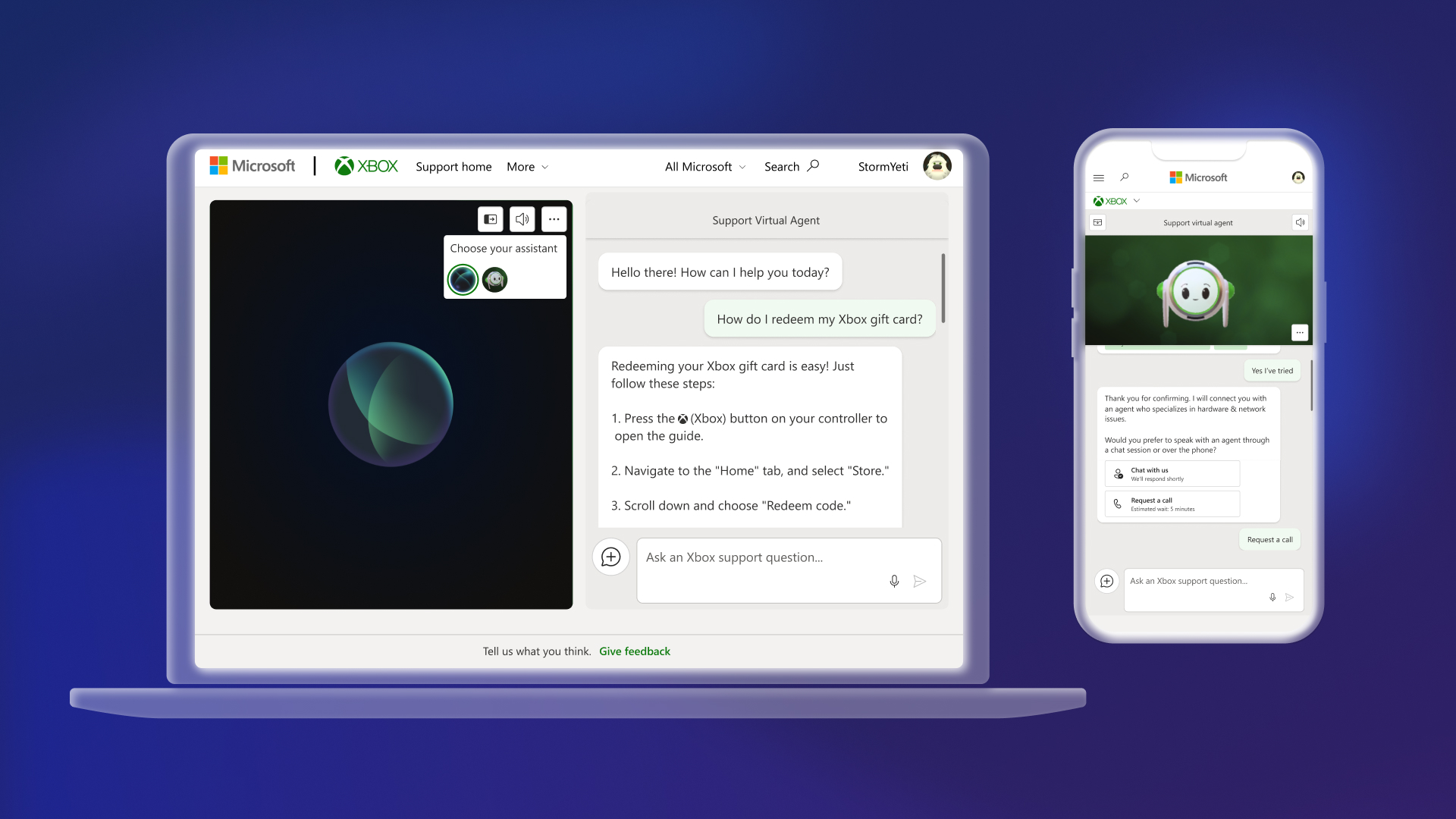
Support Virtual Agent is an AI-powered feature built to help Xbox players more efficiently solve their support-related gaming issues, and it is rolling out to select Xbox Insiders on support.xbox.com today. Support Virtual Agent can quickly access information from support.xbox.com to answer questions relevant to Xbox console and game support issues. Xbox Insiders located in the United States and with English selected as their preferred language can begin previewing the Support Virtual Agent today by visiting support.xbox.com while signed into an account that is registered with the Xbox Insider Program.


We value the feedback from Xbox Insiders for this preview experience and any feedback received will be used to improve the Support Virtual Agent. As you interact with the Support Virtual Agent, you can provide feedback via the “thumbs up” or “thumbs down” button on each of the responses or provide feedback directly via the “Give feedback” button at the bottom of the page.

How to Use Support Virtual Agent
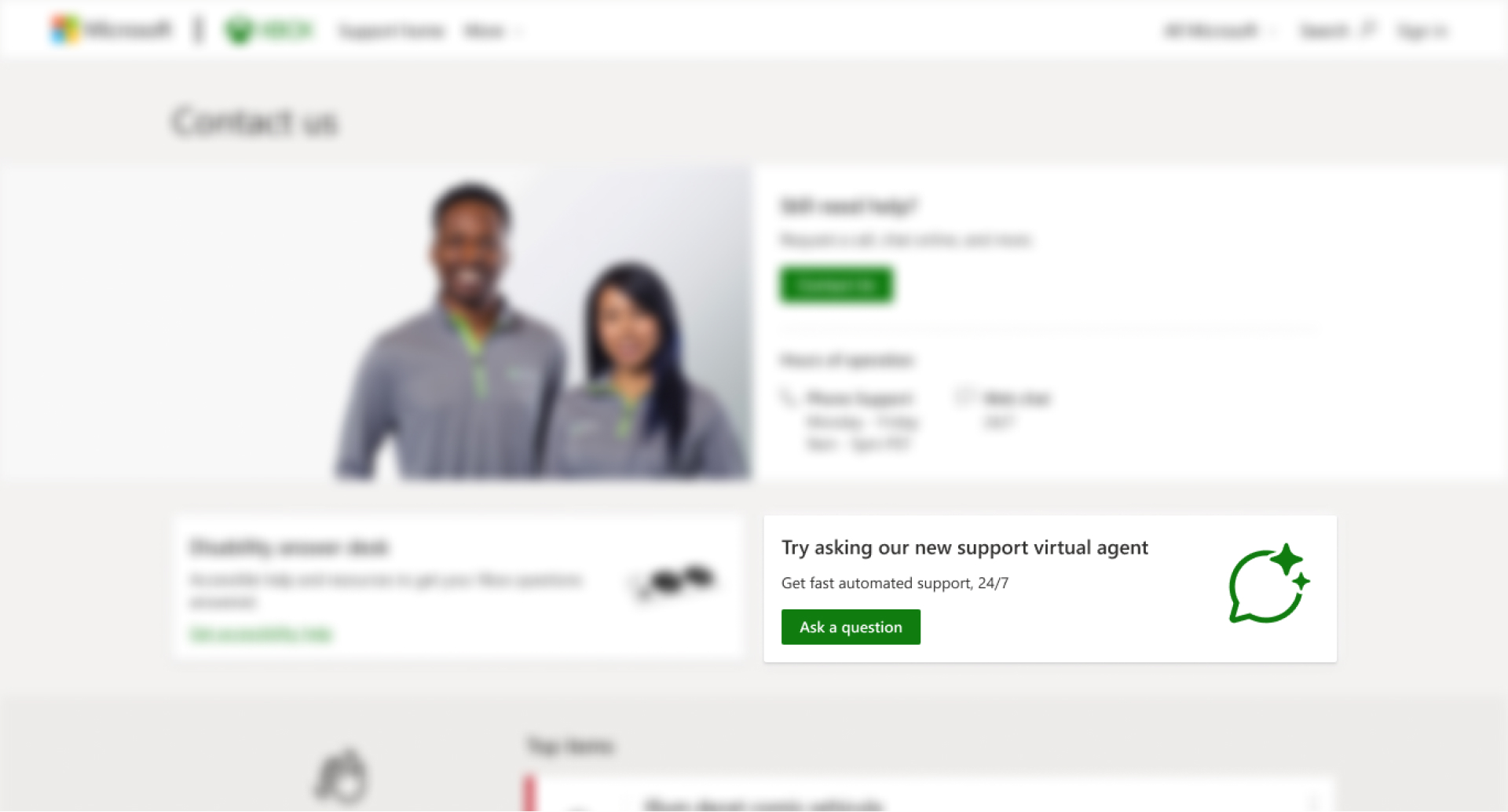
Starting today, Xbox Insiders will see the Support Virtual Agent on the “Contact us” page on support.xbox.com. Sign in with the same account you registered with the Xbox Insider Program, then you’ll see a new option to ask our new Support Virtual Agent a question.

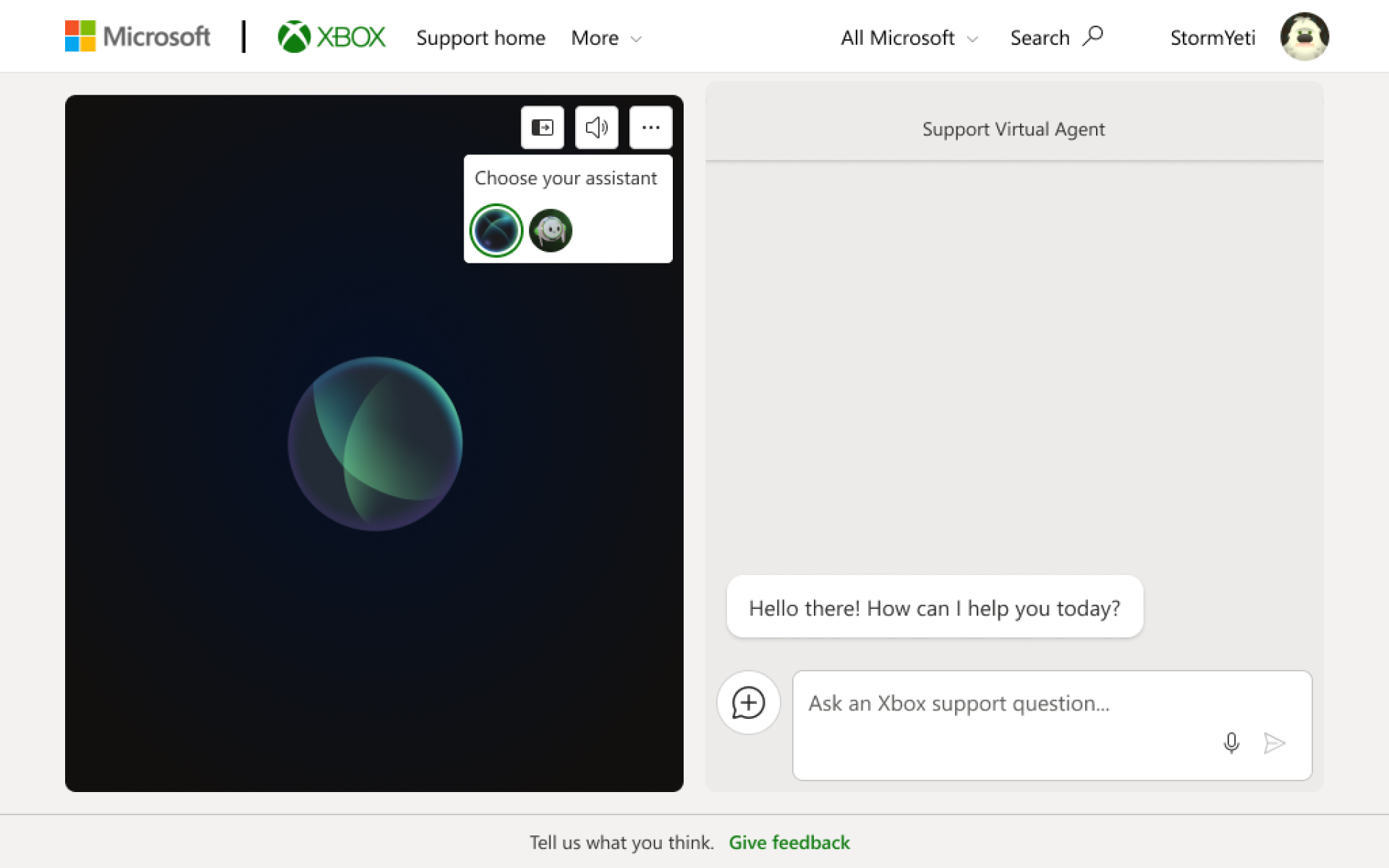
Once you click on “Ask a question,” you will see the Support Virtual Agent launch in a new browser window. You can ask the agent questions via text or voice, and it will answer with relevant information from support.xbox.com. If the Support Virtual Agent cannot solve the issue, you can request to speak with a live support agent as long as it is within Xbox Support’s normal hours of operation.

During this preview, you can also customize your support experience by clicking on the ellipsis menu icon and choosing between two different Support Virtual Agents.


DON'T FORGET TO SHARE:

Tuesday, October 8, 2019

NEWS: Introducing App and Game Limits for Family Settings

The new school year is well under way, and as families continue to balance homework and after school activities with screen time, Xbox is here to help. We’re continuously studying ways to improve children’s safety online and to give you, their parents or guardians, the tools to help ensure their well being throughout their online interactions in the digital world.

Late last year, we detailed the many easy-to-use features built into your Microsoft account to give you peace of mind with family settings for screen time limits, purchase limits, content filters, and privacy settings.


Today, we’d like to share with you some of the additional steps we’ve taken to improve our existing family settings. We’re giving you more control over what your children see and interact with on the devices in your home, which is part of our commitment to make gaming a fun, inclusive, and safe experience for everyone. For us, that means offering tools that provide choice so families can create the right balance of screen time in their lives.


Improved Family Settings
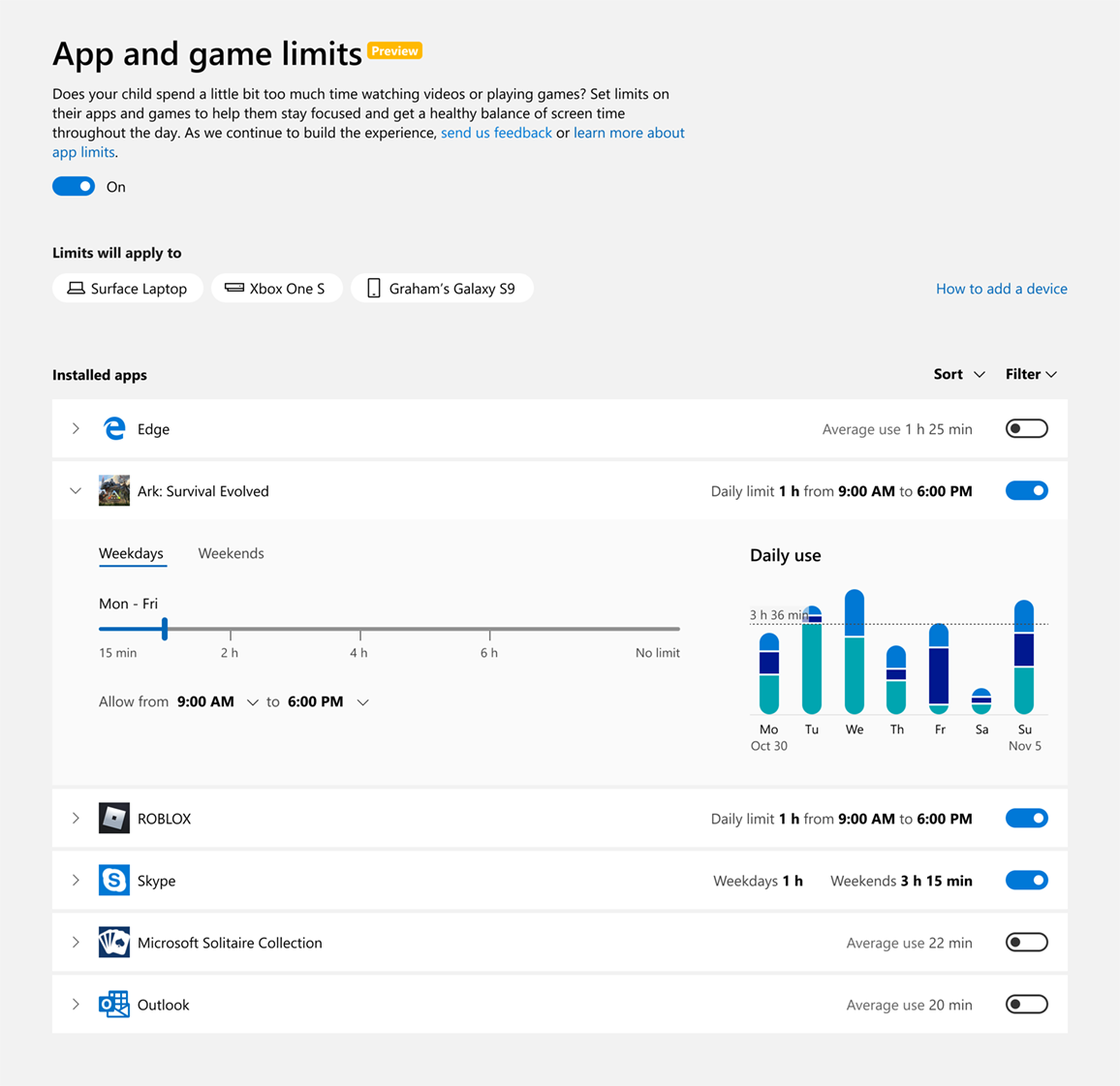
We’ve updated our existing family settings to now include app and game limits to cap how much time your children can use specific apps or games. You can activate this feature across the devices tied to your child’s account, which is connected to your Microsoft family group. Creating a family group is an easy and important first step! The feature is currently available in preview release, and we are eager to hear your feedback so we can continue to refine the experience for your family.

For example, you can choose to set one hour of game time for Ark: Survival Evolved each day and two hours for Netflix. Prior to this, you could set broad screen time limits (three hours on Xbox One), whereas now you can determine what specific apps or games are playable or not playable within that timeframe. These app and game limits are shared across Xbox One, Windows 10, and Android via Microsoft Launcher devices and work on all child and teen accounts. You may be wondering about accessing websites through a browser. While the new app and game limits only apply to apps and games – which does not include the app’s website – you can choose to filter websites through the currently available family settings.

Meeting the Needs of Parents Today
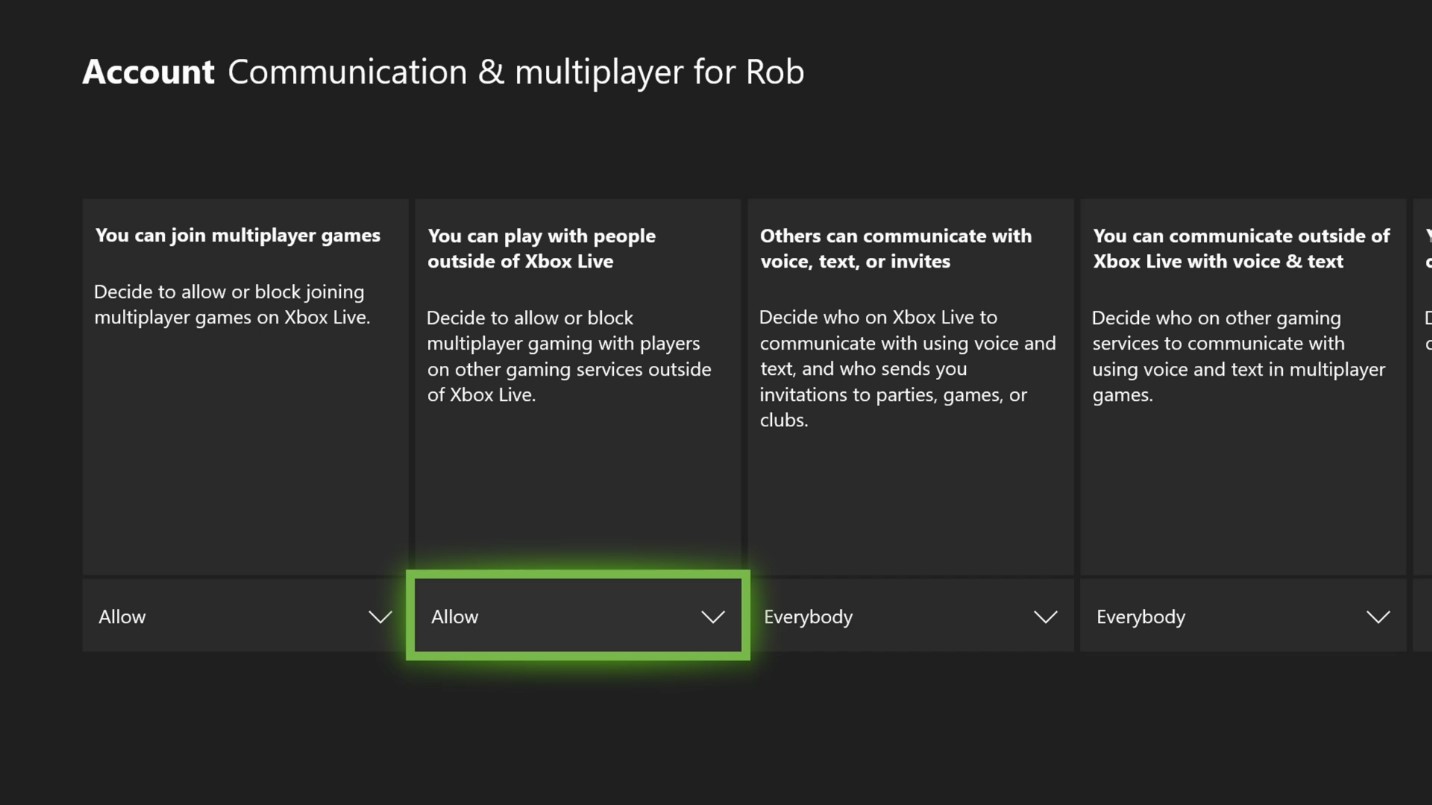
In the past year, we’ve also updated family settings on Xbox to empower parents and guardians to enable or block their child’s access to play or communicate with players on other networks. You can modify this setting in supported games on any child or teen account (defaulted to off for child accounts). These features can be found under your Microsoft account on Windows 10 or Xbox One. Simply select the account you’d like to update, and then enable or block cross-play/cross-network communication.

These cross-play settings are currently available for Fortnite, Rocket League, Dauntless and Call of Duty: Modern Warfare and we expect other games will enable them, as well.

We’ve also made it easier to set up a child account on Xbox One. You now only need to add your e-signature to provide consent for your child to have a Microsoft account — credit cards are no longer required for verification.

It’s important to us to continually update our family settings to ensure they fit the unique needs of families today.


Balancing Work and Play
Every Microsoft family account can choose to receive a weekly activity report — sent to both you and your child — which contains an overview of how much time was spent on apps, games, and websites. The activity reports provide transparency in how your children are engaging with Xbox One, Windows 10 devices and Android running with Microsoft Launcher and empower you to set limits and features that you feel are the best fit for your family.

When your child reaches the end of their screen time permitted for a specific app or game, they have the option to request additional time, which you can choose to allow or deny through your Microsoft account.

You know what’s best for your family; no technology can ever replace that. The right tools can help make parenting easier and family settings on Xbox does this by putting parents in control of what your children can access across the platform.

Please Don't Forget To Share:

Thursday, July 5, 2018

SYSTEM UPDATE: July Xbox Update Rolling Out Today

E3 may be in our rear view like a fall leaf in Forza Horizon 4, but we’ve been busy updating the Xbox experience and adding features that you’ve requested. The July Xbox Update adds features that make finding content even easier and offers a host of improvements to Mixer. Here’s what’s new:


FastStart Enabled for Select Titles
Announced back at E3 2018, FastStart is a new innovation from our Xbox Platform team that allows you to jump into your games twice as fast and play after downloading just a fraction of it. FastStart works by identifying which files are needed to begin playing and prioritizes the download of those files first, enabling you to quickly jump into full-fidelity gameplay while the remainder of your title downloads in the background. Simply find the FastStart-enabled title you want to play in our catalog, hit ‘Download’ and your console will take care of the rest. It’s that simple. What’s more, it’s now enabled for select English language titles in our Xbox Game Pass catalog, and will expand to more games in more languages over time. You can learn more about FastStart here.


Group Your Games and Apps
With so much content available, fans have asked for more options to organize libraries of games and apps.  Today, we’re introducing a powerful new enhancement to Pins, which we call “Groups.” With Groups, you can create multiple collections of content made up of anything from within My Games & Apps. You can also assign custom names to each Group, organize and order them, and add individual Groups to Home. Groups will appear across My Games & Apps, Home and Guide, so you’ll be able to access your Groups at a moment’s notice. Best of all, Groups are tied to your Xbox Live account, so they will automatically sync across multiple Xbox One consoles. We’ve started you off with a Group that should look very familiar — your Pins!

More Search Options
Searching for content is now even easier!  Now pressing the Y button anywhere in the dashboard will bring up the search dialog, allowing you to easily launch your content, sift through Settings, or find products in the Store.  This process is found in many apps, but now you can do it anywhere within the dashboard.  Not seeing enough results for your search? Hit enter or click the “more results” button to view a full page for your search results.


 Mixer Share Controller Improvements
We’ve made it easier to use Share Controller on the web. First, we’ve enabled full mouse and keyboard support for PC users, along with Share Controller Key Bindings.

Second, we’ve added multi-touch support for touch-enabled devices. This allows multiple controls to be used at the same time! For example, you can control the joystick and press A at the same time on your touch laptop.

And lastly, we’ve added a per-channel leaderboard that spotlights viewers who have contributed to a streamer’s channel the most during a Share Controller session.

Full Screen Broadcasting on Mixer
Mixer streamers can now go full screen with their webcam while broadcasting. You can switch to full screen webcam broadcasting at any time you want. While in this mode game audio is muted, making it perfect for talking to your audience while switching from game to game or setting up before you start playing. You can even do all IRL broadcasts!

For the best experience we recommend using one of these cameras:

  • Microsoft LifeCam Studio
  • Logitech HD Pro Webcam C922
  • Logitech Webcam C930e
  • Microsoft LifeCam HD-3000


Console broadcasting quality and stability improvements
We’ve made a number of changes and fixes to improve overall broadcast video quality.  You will now experience improved performance when broadcasting bandwidth-heavy multiplayer.

All of these updates are available because of the Xbox Insiders who have helped shape these features, so big thanks to all of you for your valuable input.  If you’d like to help create the future of Xbox and get access to early features, download the Xbox Insider Hub app on your Xbox One or Windows 10 PC.  You can also visit the Xbox Insider blog here for the latest release notes and to learn more. Happy gaming!


Tuesday, January 26, 2016

NEWS: Xbox 360 Preview Members Can Now Send Digital Gift Cards

Xbox 360 Preview members can now send digital gift cards (available in the US, Canada, France, Germany, and the UK).

You can send a gift from the Social twist or the Xbox Guide by selecting the profile of the person you want to gift to and then selecting ‘Send Gift’.  You will be asked for a gift amount and have an opportunity to confirm the purchase.  The gift will be delivered as a token in an Xbox Live message and can be redeemed by the recipient by simply selecting “Redeem Code”.