

Late last year, we detailed the many easy-to-use features built into your Microsoft account to give you peace of mind with family settings for screen time limits, purchase limits, content filters, and privacy settings.

Today, we’d like to share with you some of the additional steps we’ve taken to improve our existing family settings. We’re giving you more control over what your children see and interact with on the devices in your home, which is part of our commitment to make gaming a fun, inclusive, and safe experience for everyone. For us, that means offering tools that provide choice so families can create the right balance of screen time in their lives.
Improved Family Settings
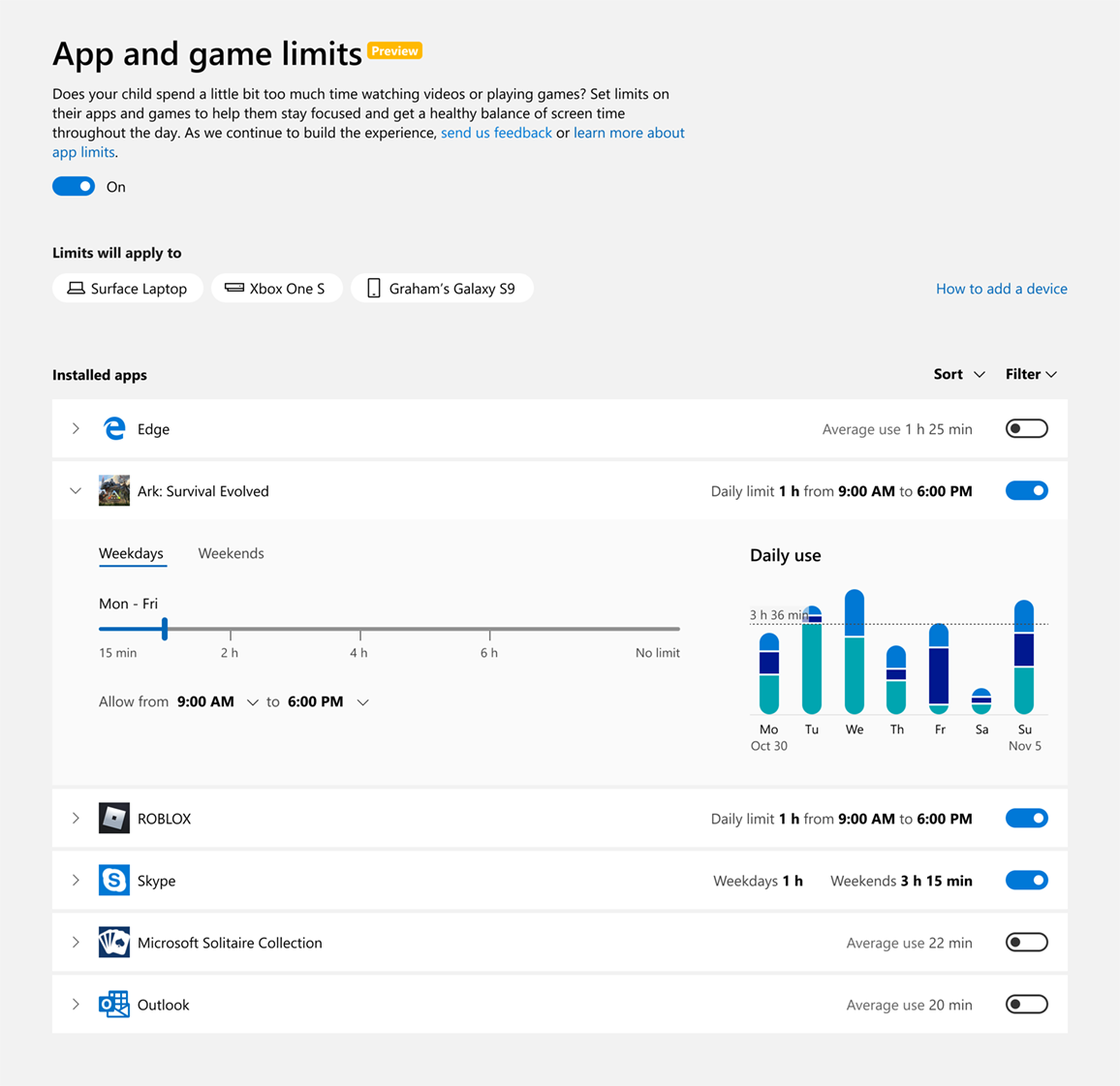
We’ve updated our existing family settings to now include app and game limits to cap how much time your children can use specific apps or games. You can activate this feature across the devices tied to your child’s account, which is connected to your Microsoft family group. Creating a family group is an easy and important first step! The feature is currently available in preview release, and we are eager to hear your feedback so we can continue to refine the experience for your family.
For example, you can choose to set one hour of game time for Ark: Survival Evolved each day and two hours for Netflix. Prior to this, you could set broad screen time limits (three hours on Xbox One), whereas now you can determine what specific apps or games are playable or not playable within that timeframe. These app and game limits are shared across Xbox One, Windows 10, and Android via Microsoft Launcher devices and work on all child and teen accounts. You may be wondering about accessing websites through a browser. While the new app and game limits only apply to apps and games – which does not include the app’s website – you can choose to filter websites through the currently available family settings.
Meeting the Needs of Parents Today
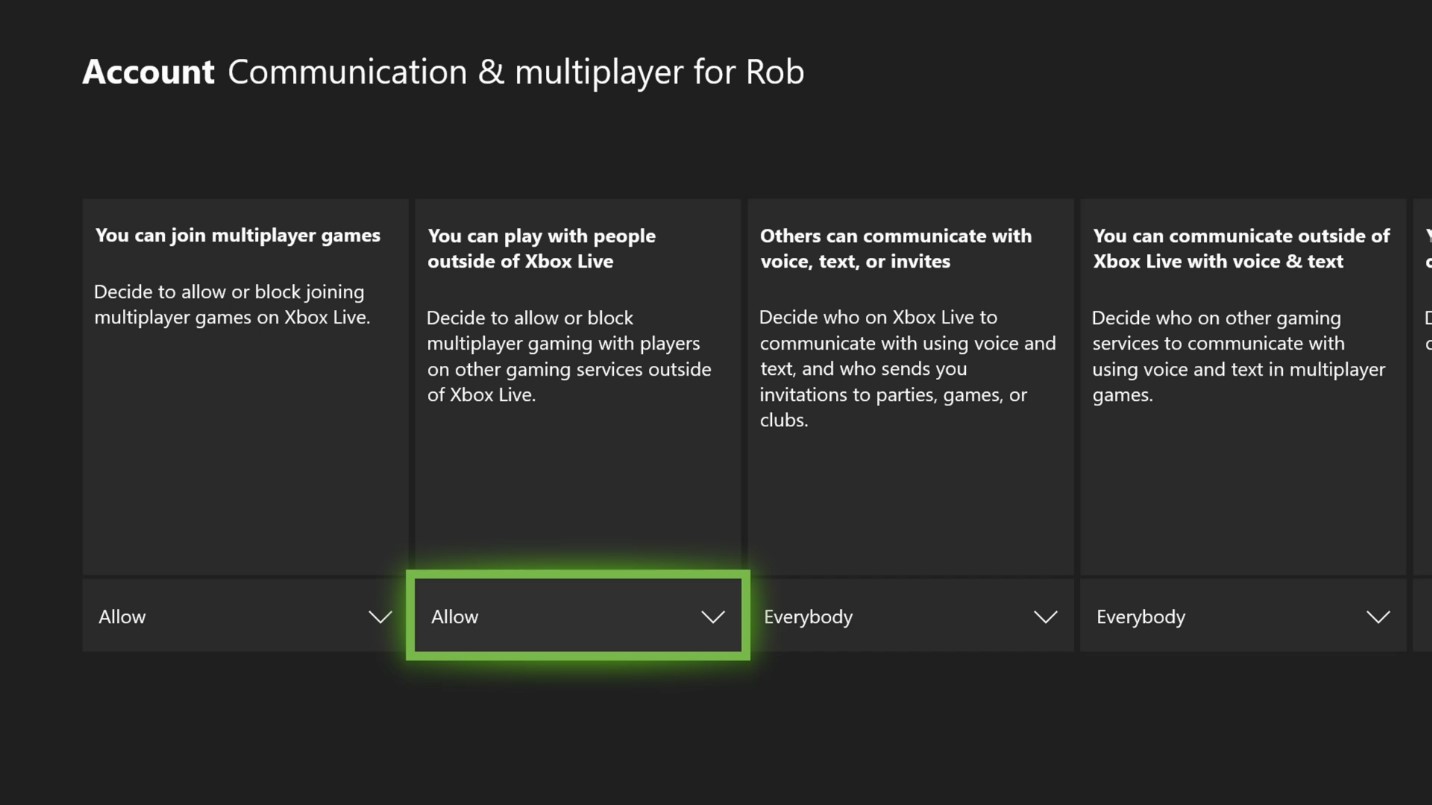
In the past year, we’ve also updated family settings on Xbox to empower parents and guardians to enable or block their child’s access to play or communicate with players on other networks. You can modify this setting in supported games on any child or teen account (defaulted to off for child accounts). These features can be found under your Microsoft account on Windows 10 or Xbox One. Simply select the account you’d like to update, and then enable or block cross-play/cross-network communication.
These cross-play settings are currently available for Fortnite, Rocket League, Dauntless and Call of Duty: Modern Warfare and we expect other games will enable them, as well.
We’ve also made it easier to set up a child account on Xbox One. You now only need to add your e-signature to provide consent for your child to have a Microsoft account — credit cards are no longer required for verification.
It’s important to us to continually update our family settings to ensure they fit the unique needs of families today.
Balancing Work and Play
Every Microsoft family account can choose to receive a weekly activity report — sent to both you and your child — which contains an overview of how much time was spent on apps, games, and websites. The activity reports provide transparency in how your children are engaging with Xbox One, Windows 10 devices and Android running with Microsoft Launcher and empower you to set limits and features that you feel are the best fit for your family.
When your child reaches the end of their screen time permitted for a specific app or game, they have the option to request additional time, which you can choose to allow or deny through your Microsoft account.
You know what’s best for your family; no technology can ever replace that. The right tools can help make parenting easier and family settings on Xbox does this by putting parents in control of what your children can access across the platform.
Please Don't Forget To Share:

