Welcome to XboxIssues

Welcome. I decided to make this blog after being a Xbox Ambassador for a number of years.

If you don't know an Ambassador is a Volunteer that Microsoft uses to help ease the load on the actual hard working support people.

I noticed that alot of the questions I would get could easily be solved by using Microsofts Xbox.com site.

Since some of the help articles may be hard to find, understand or the issue may be called something different in the gaming community making it more difficult to solve, I've decided to make this blog to make it easier for fellow gamers to get xbox assistance, news and all things Xbox.

If you have any Xbox related question you can find the answer to feel free to contact me on YouTube, twitter or in the comments.
Showing posts with label October Update. Show all posts

Wednesday, October 19, 2022

SYSTEM UPDATE: The Xbox October 2022 Update Rolls Out Today

Team Xbox is excited to continue bringing new ways to make Xbox better, with you at the center, as we refine the experience and deliver brand-new features based on your feedback. This month’s update will bring you the ability to change your TV volume from your Xbox Series X|S consoles, to mute all your startup sounds, improved setup screens to choose and change your home Xbox, an Xbox controller firmware update and more.

You’ll also notice a Search bar has been added to the top of your Xbox console home screen, making it easier to quickly search for games, apps, and media content.


Change your TV volume – New CEC feature for Xbox Series X|S 


Xbox Series X|S consoles can use an HDMI feature called Consumer Electronics Control (CEC) to send commands to and from CEC-enabled devices such as TVs that are connected to the console. Starting today, we’re enabling a new feature for Xbox Series X|S consoles connected to TVs over HDMI.

You can now change the TV volume within the audio and music section of the Xbox guide. To get started, press the Xbox button on your controller to pull up the guide and navigate to the Audio & music section, where you’ll see buttons for you to change your TV volume or mute it. This eliminates the need to reach for your TV remote to change the volume mid-game or movie. 


Mute your startup audio


We’re adding a fan-requested feature so that you have the option to choose a silent startup experience. Now you’ll be able to customize your settings so that you can mute all sounds when you start up your Xbox. Go to Profile & system > Settings > General > Volume & audio output > Additional options and select Mute startup sounds. You can also now adjust the power chime from this page.


Select or change your home Xbox 


Making a console your home Xbox gives friends and family access to your games and content when you’re not signed in. Your home Xbox also lets you play your digital games offline. We’re adding some new setup screens to make it easier for you to select and change your home console when you set up your new Xbox.


Changes to Xbox power mode names


You can configure your Xbox Series X|S or Xbox One console to use different power modes, depending on your preference. This month, you’ll notice that we’ve updated the information to help you choose the settings that will work best for you and renamed the options. “Standby” is updated to “Sleep” and “Energy saver” is updated to “Shutdown (energy saving)”. To see the power settings for your Xbox, press the Xbox button to open the guide and select Profile & system > Settings > General > Power options.


Xbox passkeys and guest keys are now Xbox PINs


Your Xbox passkey and guest keys are an added layer of security that is tied to your Xbox profile. While we’re updating the names from Xbox passkey and Xbox guest key to Xbox PIN and Xbox guest PIN, nothing else changes except the name. You can use your PIN with any Xbox console that you sign in to and limit access to things like purchases and parental controls.


Xbox controller firmware update


Keeping your controller updated with the latest software maximizes your controller’s capabilities and compatibility. Starting today, we’re rolling out a firmware update that includes bug fixes for USB flight sticks that connect to the Xbox Adaptive Controller and additional bug fixes for the following Xbox controllers:

  • Xbox Elite Wireless Controller Series 2
  • Xbox Series X|S Wireless Controllers
  • Xbox Adaptive Controllers
  • Xbox One Wireless Controllers with Bluetooth support

You can update your controller wirelessly or with a USB connection.


Xbox app – trim the length of your video clips


Is there an epic gaming moment you want to save and share? Now you’ll be able to trim the length of your Xbox gaming video clips with the Xbox app for Android and iOS. To get started, go to Library > Captures and select any of your clips. You’ll be able to adjust the start and end of the clip and then share it with your friends. Video trimming in the Xbox app will start rolling out today and be available for everyone soon.


Xbox Game Bar – share to Medal.tv and edit your clips


Xbox Game Bar works with most PC games on your Windows 11/10 PC, giving you instant access to widgets for screen capture and sharing—all without leaving your game. You can now directly import any clips you captured with Xbox Game Bar to Medal.tv where you can edit, post and share your favorite gaming moments.

While playing a game, press the Windows logo key + G on your keyboard to open Xbox Game Bar. If you have an Xbox controller plugged into your PC, press the Xbox button. In Captures > See all my captures you can select a clip and then “Share to Medal.tv”.


Please Don't Forget To Share:

Thursday, October 21, 2021

SYSTEM UPDATE: October Xbox Update 4K Dashboard and more

Team Xbox is excited to continue bringing new ways to make Xbox better, with you at the center, as we refine the experience and deliver brand new features based on your feedback. This month’s update includes the natively rendered 4K dashboard on Xbox Series X consoles, Xbox night mode, Quick Settings and more.

4K Dashboard on Xbox Series X
One of the ways Xbox Series X delivers next gen gaming is with true-to-life 4K gaming. Prior to today’s update, the Xbox Series X dashboard, Guide, and other menus were upscaled from 1080p to 4K. We know players with an eye for detail and an appreciation for 4K wanted a crisp experience even when navigating the dashboard. We heard your feedback and started testing increased resolution for the dashboard.

We’re excited to share that starting today, players with an Xbox Series X connected to a 4K display will see the dashboard natively rendered in 4K. You can experience 4K while browsing the Home, My Games & Apps, Guide, and many other experiences. UI elements on the screen, such as game art and buttons, will have increased sharpness and improved text readability.


Xbox Night Mode


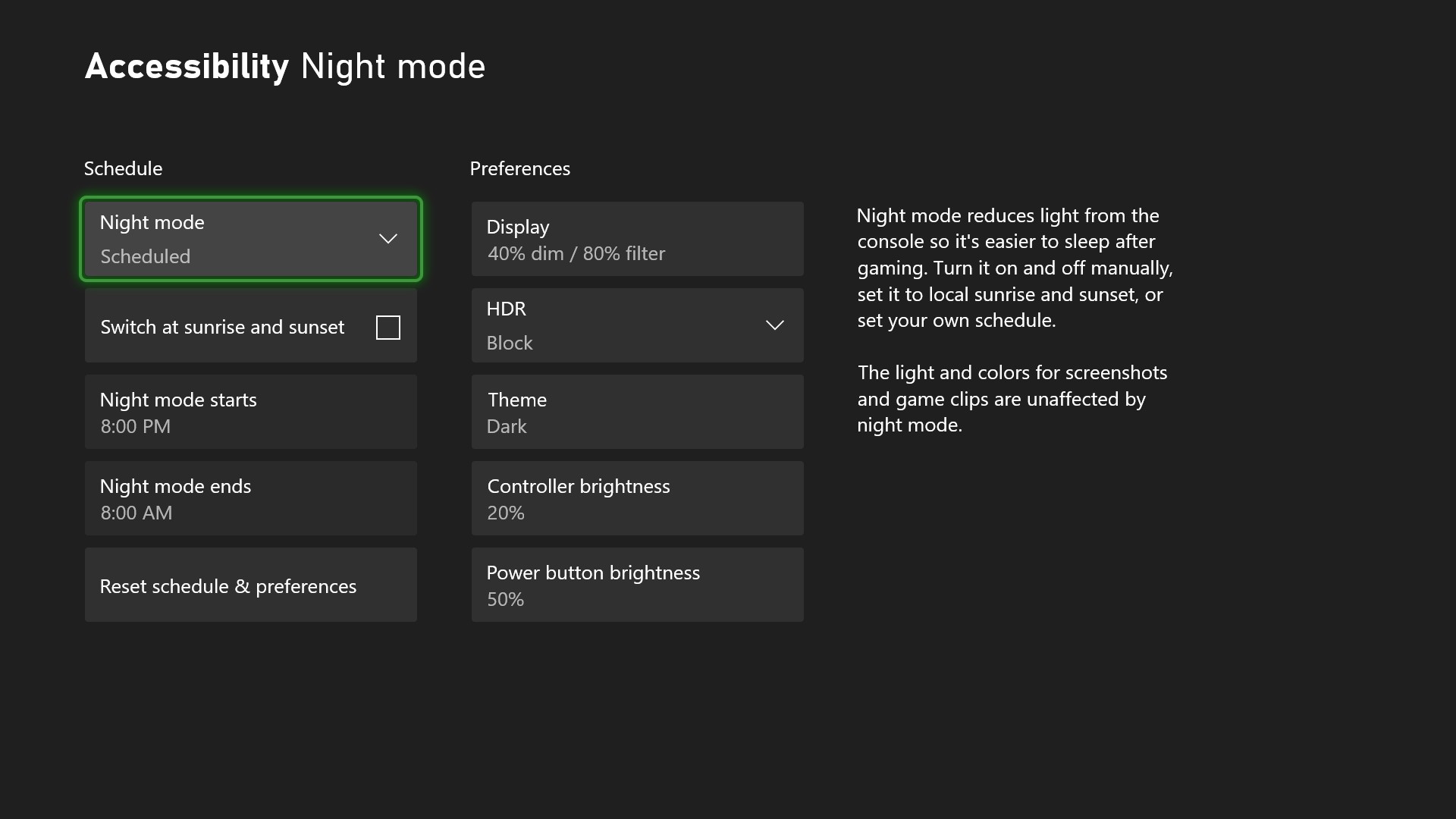
Xbox night mode is a suite of settings that adjusts light sources to help keep rooms dark at night and support gamers who are sensitive to light. You can dim and customize the light from the connected display, the power button on your controller, and the power light on your console. If you’re a movie fan, you can now enjoy theater-like total darkness while watching your favorite films!


In addition to dimming, Xbox night mode also adds a customizable blue light filter for your display. This feature is specific for Xbox Series X|S consoles.

All of this customization works across the Xbox system, apps, and games, and does not impact performance, screenshots or game clips.

You can also create a night mode schedule that will dynamically switch between Dark and Light theme. You can manually toggle night mode on and off, time it with the sunrise and sunset, or create your own schedule.


To start using Xbox night mode to dim and filter your screen, as well as dim your console & controller LED brightness, go to Settings > Accessibility > Night mode or Settings > TV & display options > Night mode.

Quick Settings
We are making it even easier for you to quickly access and customize your accessibility settings by adding the Quick Settings menu to the Xbox Guide. This allows you to quickly toggle accessibility features without leaving your game or app. It’s also a big benefit for families if you share a console with others who have different accessibility needs. You can use quick settings to switch features on or off, depending on who is currently using the console. That means everyone in the family can easily flip the settings to their tailored experience.


Please Don't Forget To Share:

Wednesday, October 3, 2018

UPDATE: Latest October 2018 Windows Update Gaming Features

This Fall, Windows has another major update to bring even more great features to your Windows 10 PC. Learn more here about the broader set of updates and features that arrived with the October Windows Update. And if you like gaming on your Windows 10 PC, we’ve got some specific updates that you’ll want to pay attention to!


Here are the latest improvements to Windows 10 for PC gamers in the recent October Windows Update:


Game bar Improvements
*New look: Enjoy a cleaner new look and layout.
*New audio controls: With the new audio control panel, get more control out of individual audio channels without ever having to leave your game.
*Game bar is now an app: Launching Game bar is now easier than ever, whether through the desktop, apps, the Start menu, or task bar.

Game Mode Improvements
*Fewer gaming interruptions: Based on feedback from gamers, we’ve simplified the way Game Mode works. Now auto-enabled for all games with a master On/Off toggle in Windows Settings, Game Mode suppresses Windows Update driver installs and blocks Windows Update interruptions such as restart notifications while you’re gaming. You may also see improved game performance with less FPS variability depending on the specific game and system.


Got a great idea for a Windows gaming feature? Let us know on the Xbox Ideas site!

Source


Please Don't Forget To Share: