Welcome to XboxIssues

Welcome. I decided to make this blog after being a Xbox Ambassador for a number of years.

If you don't know an Ambassador is a Volunteer that Microsoft uses to help ease the load on the actual hard working support people.

I noticed that alot of the questions I would get could easily be solved by using Microsofts Xbox.com site.

Since some of the help articles may be hard to find, understand or the issue may be called something different in the gaming community making it more difficult to solve, I've decided to make this blog to make it easier for fellow gamers to get xbox assistance, news and all things Xbox.

If you have any Xbox related question you can find the answer to feel free to contact me on YouTube, twitter or in the comments.
Showing posts with label Game Bar. Show all posts

Thursday, August 28, 2025

SYSTEM UPDATE: Xbox August 2025 Update Connects Your Play History, Adds Gaming Copilot, and Simplifies PC App Navigation

Xbox’s latest update introduces several new features aimed at enhancing the gaming experience across devices. Players can now sync their gameplay more easily with cross-device play history, while cloud-enabled games will also appear in their history. A new My Apps tab in the Xbox PC app allows quick access to favorite games and apps from multiple storefronts. Additionally, Gaming Copilot (Beta) is available in Game Bar on Windows 11, providing tips and guidance to help players navigate challenges. Controller navigation in the Xbox PC app has also been improved, making it smoother and more intuitive. The update also brings enhancements for Xbox Play Anywhere, game streaming, and access to Retro Classics.


Cross-Device and Cloud-Playable Play History Now Rolling Out

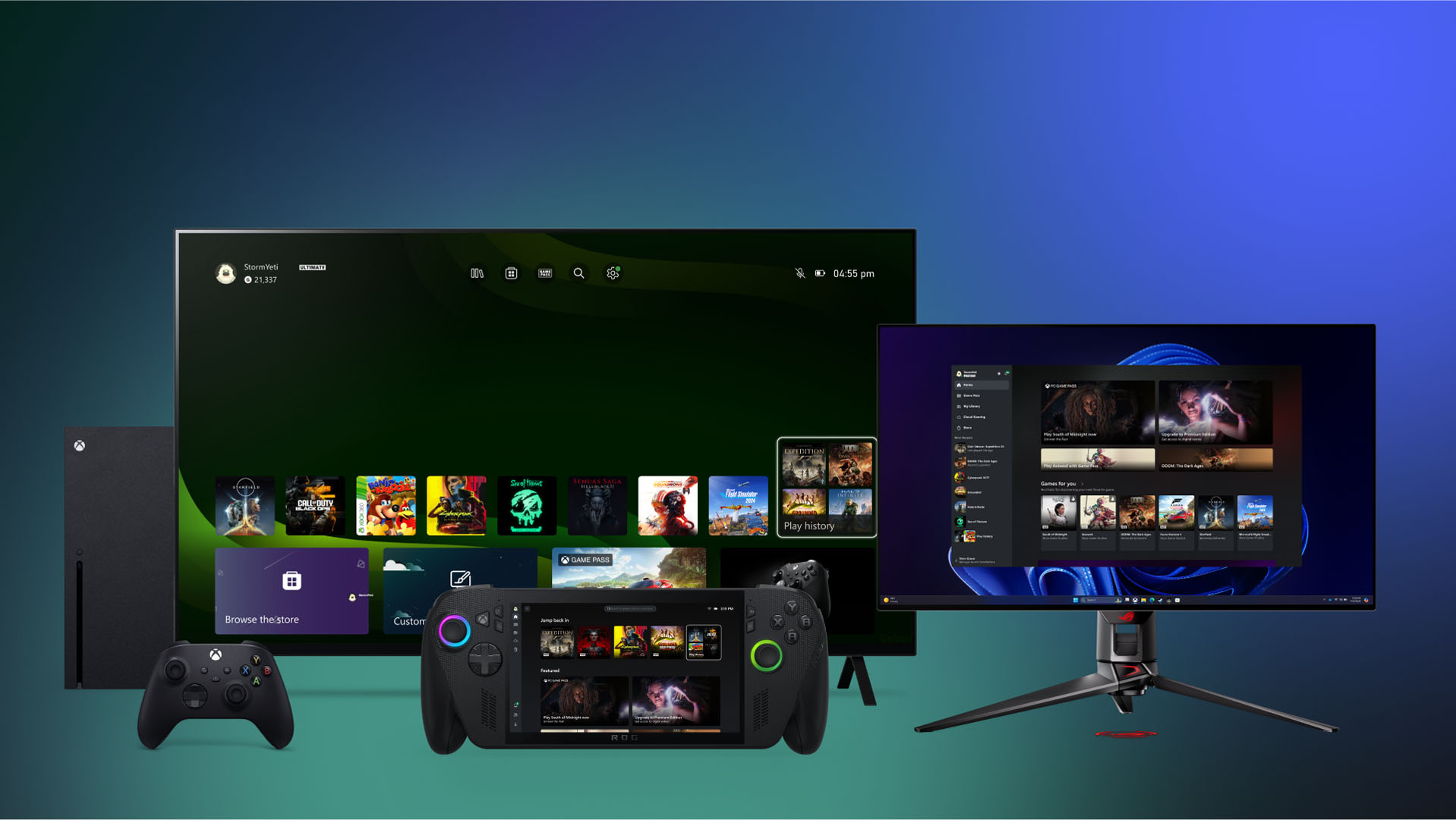
Xbox is expanding its cross-device play history and cloud gaming features, making it easier for players to continue their games anywhere. Initially available to Xbox Insiders, the rollout will soon reach all users. Play history now syncs across consoles and the Xbox PC app, allowing gamers to pick up right where they left off, whether moving between rooms or joining a friend’s session. Cloud-enabled games, including original Xbox classics and Xbox Series X|S titles, now appear in your history, streamlining access whether you own the game or play via Game Pass. Players can access their recent games from the Play History tile on console or the Most Recent section and Play History tab in the Xbox PC app, providing multiple convenient ways to resume gameplay.

PC Gaming Updates
Bring Everything Together with My apps – Available to Xbox Insiders
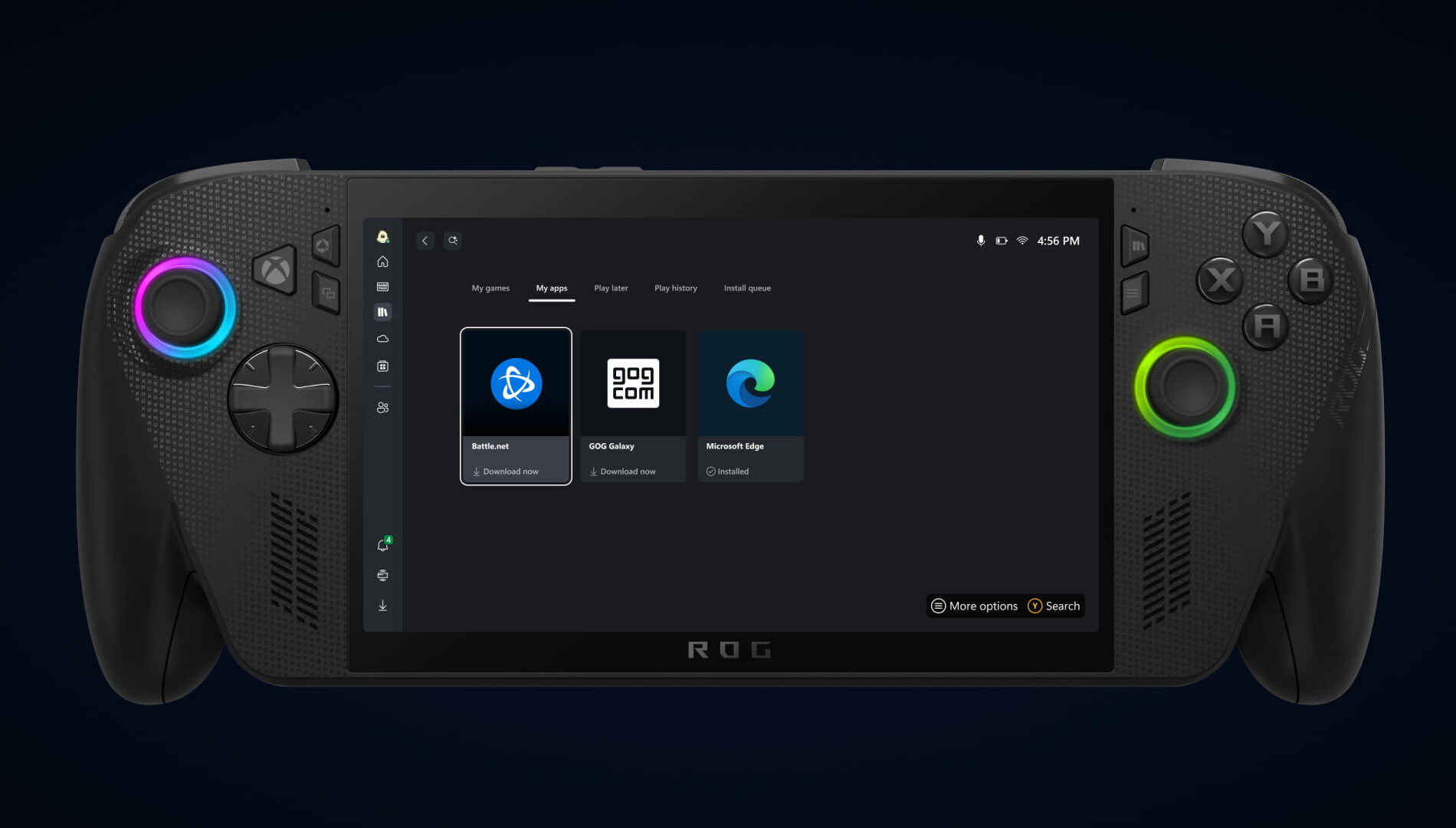

Xbox is enhancing the PC gaming experience with the introduction of My Apps, a new tab in the Xbox PC app currently available to Insiders. This feature allows users to quickly access their most-used apps and game launchers, including browsers and utilities, all from a single location—eliminating the need to switch between multiple windows. Building on the aggregated gaming library, My Apps makes it easier to find, download, and launch games from various storefronts directly within the Xbox PC app. Whether on a Windows 11 PC or a portable device, this update streamlines setup, letting players spend more time gaming and less time navigating menus.

Gaming Copilot (Beta) on Game Bar – In Preview to Xbox Insiders
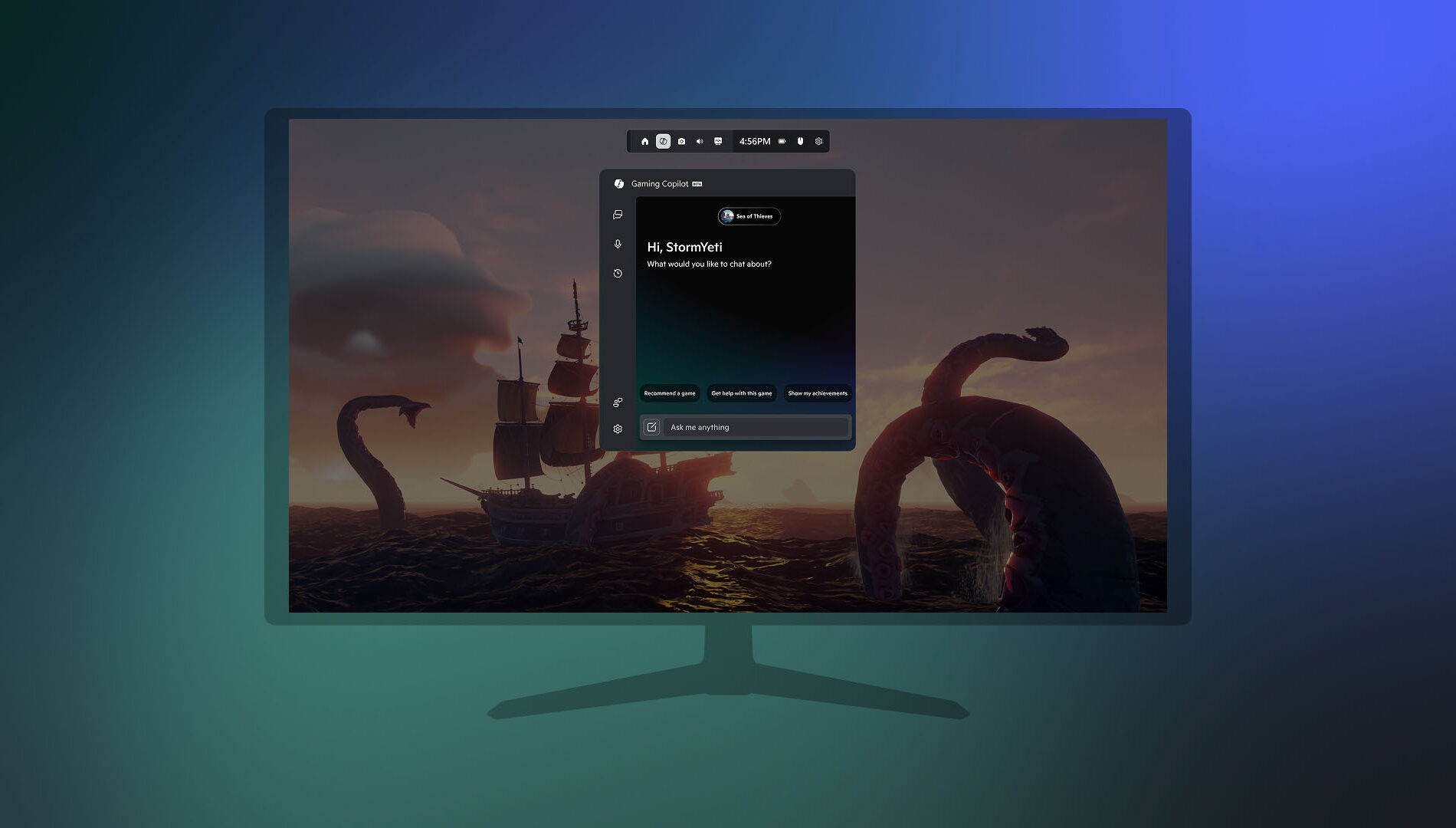
Xbox has introduced Gaming Copilot (Beta) in Game Bar for Windows 11, currently available to Insiders in the PC Gaming Preview. Designed as a personal gaming assistant, it provides guidance and tips to help players overcome challenges and stay focused on gameplay. Whether offering strategies for tough bosses or helping players jump into action more efficiently, Gaming Copilot adapts to your needs—assisting when required and remaining unobtrusive when not.

Controller Navigation in the Xbox PC App Just Got a Lot Smarter
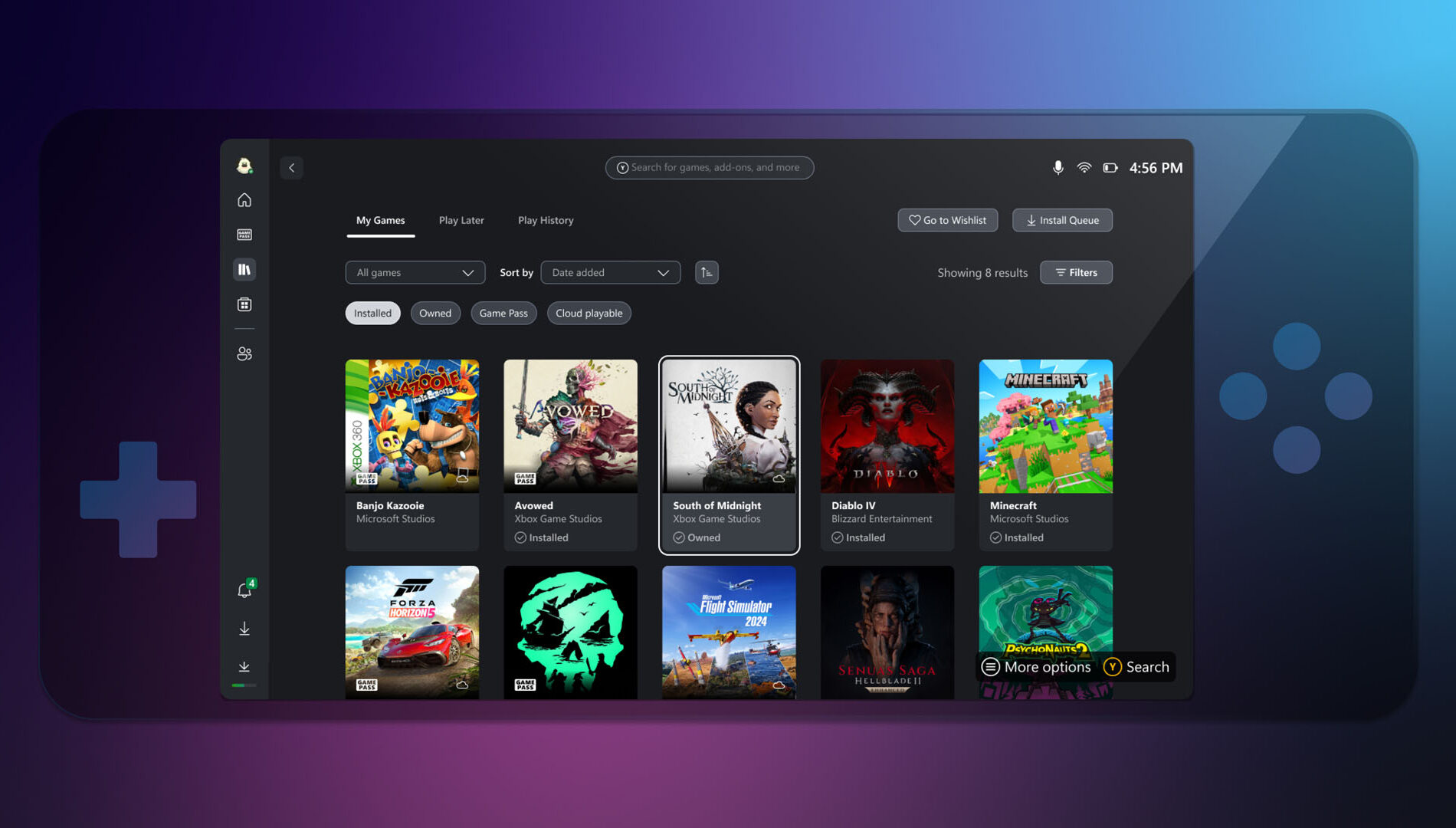
The Xbox PC app has received updates to improve navigation across controller, keyboard, and touch inputs. Controller and keyboard users will find the interface more intuitive and console-like, with familiar button mappings—A to select, B to go back, and Y to search—along with smoother trigger and bumper actions, faster scrolling, and smarter focus memory between pages. Keyboard navigation has also been enhanced. Visually, the app feels cleaner and more polished, featuring clearer focus indicators and subtle, purposeful animations, creating a more responsive and user-friendly experience.


DON'T FORGET TO SHARE:

Wednesday, September 21, 2022

SYSTEM UPDATE: Xbox September 2022 Update Starts to Roll Out Today

Team Xbox is excited to continue bringing new ways to make Xbox better, with you at the center, as we refine the experience and deliver brand new features based on your feedback. This month’s update offers customizable Xbox button colors on the Xbox Elite Wireless Controller Series 2, easy access to all your games and apps with a full library revamp, new storage and default installation options, and more. If you play on Windows 11/10 PCs, you’ll be able to share your epic moments with Xbox Game Bar. Xbox party chat noise suppression is rolling out to Xbox One consoles and Windows 11/10 PCs. Plus, the new Party Now feature lets you quickly set up parties on the Xbox app on Android and iOS.


Full library revamp on Xbox consoles means easier access to all your games and apps

Now it’s easier and faster to find all your games on your Xbox Series X|S and Xbox One consoles. The My games and apps Full library view has been redesigned to streamline access to all games you have access to install and play. All games now shows all the games you own as well as any games you have access to with your current Xbox subscriptions, including Xbox Game Pass, EA Access, and claimed Games with Gold. You also get easy access to catalogs of your subscriptions, editorial content, and all your apps.


Select storage locations for your games and apps on Xbox consoles

Starting today, you can select different default installation locations for all your games and apps on your Xbox Series X|S and Xbox One consoles. By providing separate default installation locations for different types of games, you can most effectively use your storage space and manage game installs.

In the settings for storage devices, select Change installation locations if you have external drives or a storage expansion card attached. You can select a specific drive as an installation location, or “Let Xbox decide” where to install the content for the fastest drive with available space.


Sharing with Xbox Game Bar on Windows PCs

Xbox Game Bar works with most PC games, giving you instant access to widgets for screen capture and sharing, finding new teammates with LFG, and chatting with Xbox friends across Xbox console, mobile, and PC—all without leaving your game.

Xbox Game Bar now allows you to get a shareable link for any capture you want. Share your captures anywhere – SMS, WhatsApp, Twitter, Messenger, and more. If your settings are set to Public, anyone who gets your link can see your shared captures.

While playing a game, press the Windows logo key + G on your keyboard to open Xbox Game Bar. If you have an Xbox controller plugged in to your PC, press the Xbox button.

You can click Copy link at the bottom of any selected gaming capture in the Xbox Game Bar gallery, which uploads the capture (if not uploaded already) and provides the shareable link once upload is completed.


Party chat noise suppression, now on Xbox One consoles and Windows 11/10 PCs

Last month we announced party chat noise suppression on Xbox Series X|S consoles. This month, we’re rolling it out to Xbox One consoles and Windows 11/10 PCs. If you use party chat, you may notice fewer unwanted noises and interruptions than before. Noise suppression helps remove noises like gamepad clicks, breathing, and background noise from your parties. 

If you want to keep some types of background noise like music in your parties, you can also turn noise suppression off. On Xbox consoles, just open the guide, scroll to Parties & chats, and select Options. There you can enable or disable noise suppression. And on Windows 11/10 PCs, go to Start a party, open Settings > Party audio, and enable or disable noise suppression from there.


Set up parties with your friends in a snap in the Xbox app

The new “Start party” button in the Xbox app makes it easy to jump right into the game with your friends. Now there’s no need to create a party from scratch each time you want to get your friends together.

To get started, look for the new Parties option on the Social tab. You’ll see a list of all your recent parties, from which you can restart a party or create a new one. You can also easily select which friends you want to invite.

Customize the Xbox button color on your Xbox Elite Wireless Controller Series 2

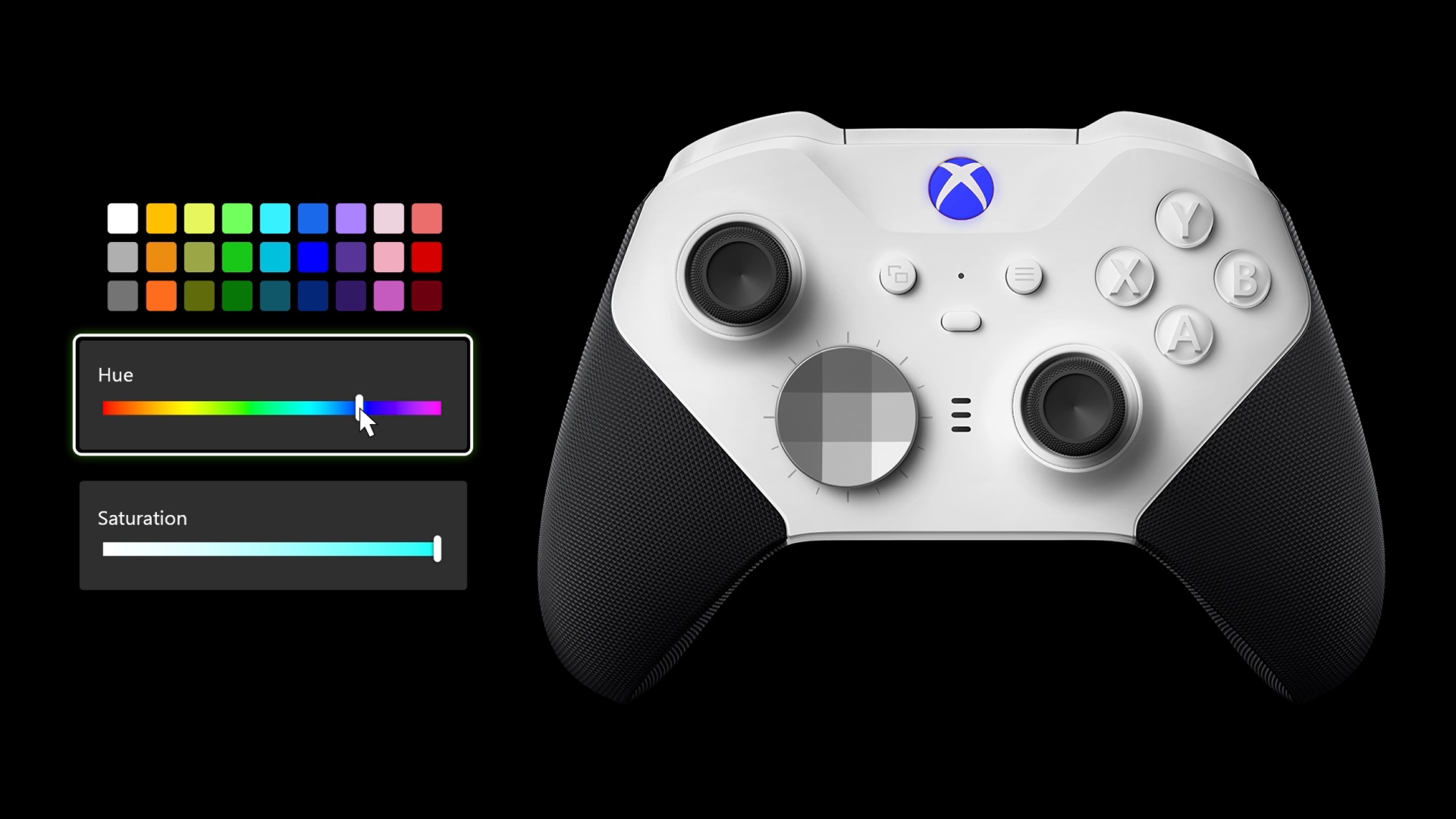
Providing fans with choice and opportunities to express themselves is a core part of our mission. That’s why we are excited to announce color customization for the Xbox button on Xbox Elite Series 2 controllers! Choose from a wide array of colors that combine red, blue, and green LEDs to produce over 16 million hues of light.

To configure the Xbox button color settings, open the Xbox Accessories app on your Xbox console or Windows PC while your controller is connected. From there, choose an existing profile or create a new one, then select the Color tab to see the full range of color options for the Xbox button. You can change the brightness, opting for a low-key glow rather than the traditional shine. Use the Custom menu sliders to see the full rainbow of color options. Don’t see the exact color you want? Don’t worry, this menu also offers Hex Code support, allowing for the precise color you’re after. You’ll need the latest version of the Xbox Accessories app and the Xbox September update to customize your Xbox button color. If you don’t see the option to choose your color, try restarting your Xbox console by navigating to Settings > General > Sleep mode and startup > Restart now to get the update.


Stay tuned to Xbox Wire for future updates and all the latest and greatest Xbox related news. For support related to Xbox updates, visit the official Xbox Support site.


Please Don't Forget To Share:

Wednesday, May 22, 2019

UPDATE: Introducing The New Xbox Game Bar

At Xbox, they put gamers at the center of their vision – enabling gamers to play the games they want, with the people they want, and on the devices they want. As part of Microsoft efforts and commitment to improve the gaming experience on Windows 10, Microsoft wants to bring PC players highly requested features based on their feedback. The first step in that is understanding how gamers engage on Windows and making the features and experiences they want easier to access, including social, music, performance and more. Today, we are excited to release a host of new features for PC gamers to the new Xbox Game Bar on updated versions of Windows 10.


Xbox Game Bar is the customizable gaming overlay built into Windows 10. Xbox Game Bar works with nearly all PC games, but may have some compatibility issues with games built using the Vulkan Graphics API. For these games, you may need to run the game in windowed mode in order for Xbox Game Bar to display.

Xbox Game bar gives you instant access to widgets for screen capture and sharing, controlling your music, finding new teammates with Looking for Group (LFG), and chatting with Xbox friends across Xbox console, mobile, and PC—all without leaving your game. You can access these new features by pressing the Windows key and the “G” key at the same time – “Win+G” – to bring up the Xbox Game Bar when playing nearly all PC games or choose your own custom keyboard shortcut.

Here’s a detailed rundown of all the features in Xbox Game Bar:

Spotify
Like many of you, we believe music is a very important part of the gaming experience. Now you can easily control music and podcasts on Spotify from the Spotify widget in the Xbox Game Bar, including favoriting, shuffling and selecting playlists recommended for you by Spotify. You’ll need the Spotify app for Windows installed to take advantage of this new feature, so be sure to get it from the Microsoft Store or Spotify.com.

You can get started in three simple steps:


  1. Press Win+G to bring up Xbox Game Bar
  2. Click on Spotify in the widgets menu
  3. Sign-in to your Spotify account

Want to tweak the volume of that song you just started listening to? Pull up the audio widget in Xbox Game Bar to change volume settings across apps quickly and easily without having to alt-tab out of your game.


Friends, Chat, Mixer, and Looking for Group (LFG)
The social features in Xbox Game Bar allow you to have conversations with friends who play on PC, Xbox One, and mobile, as well as watch their Mixer streams and send them your creations instantly. Players can use the Looking for Group (LFG) feature on Xbox Game Bar to find new teammates or a raid party with a common play style, all without using a third-party site. Gamers can chat with their friends, using voice or text, in Xbox Game Bar across Xbox One, mobile apps, and PC. Conversations are synched on all Xbox apps, so keep chatting after the game to share memes and coordinate your next session.

Press Win+G at any time to bring up Xbox Game Bar, send a quick message, and get back into the action without taking your eyes off the game.


Broadcast & Capture
Back in December, we promised to make it simple to capture your epic gaming moments Currently, you can easily capture and view your gameplay screenshots, then share directly to Twitter without leaving your game.

With today’s update, you can take this a step further by turning your captured screenshots into memes. During your game, hit Win+G to call up Xbox Game Bar, open the Broadcast & Capture widget in the widgets menu, and take a screenshot. Use the Captures widget to add overlay text to your screenshot and make a meme, which you can share with your friends via a message or with the world via Twitter.

Customizable UI
We recognize that customization is central to a rich gaming experience on PC. You can customize Xbox Game Bar to make the overlay your own. You can choose which widgets to show/hide, where you want them located, and pin specific widgets to be always visible. Build your own favorite Xbox Game Bar layout based on the way you prefer to play to enhance your gaming experience.


Please Don't Forget To Share:

Wednesday, October 3, 2018

UPDATE: Latest October 2018 Windows Update Gaming Features

This Fall, Windows has another major update to bring even more great features to your Windows 10 PC. Learn more here about the broader set of updates and features that arrived with the October Windows Update. And if you like gaming on your Windows 10 PC, we’ve got some specific updates that you’ll want to pay attention to!


Here are the latest improvements to Windows 10 for PC gamers in the recent October Windows Update:


Game bar Improvements
*New look: Enjoy a cleaner new look and layout.
*New audio controls: With the new audio control panel, get more control out of individual audio channels without ever having to leave your game.
*Game bar is now an app: Launching Game bar is now easier than ever, whether through the desktop, apps, the Start menu, or task bar.

Game Mode Improvements
*Fewer gaming interruptions: Based on feedback from gamers, we’ve simplified the way Game Mode works. Now auto-enabled for all games with a master On/Off toggle in Windows Settings, Game Mode suppresses Windows Update driver installs and blocks Windows Update interruptions such as restart notifications while you’re gaming. You may also see improved game performance with less FPS variability depending on the specific game and system.


Got a great idea for a Windows gaming feature? Let us know on the Xbox Ideas site!

Source


Please Don't Forget To Share: