Welcome to XboxIssues

Welcome. I decided to make this blog after being a Xbox Ambassador for a number of years.

If you don't know an Ambassador is a Volunteer that Microsoft uses to help ease the load on the actual hard working support people.

I noticed that alot of the questions I would get could easily be solved by using Microsofts Xbox.com site.

Since some of the help articles may be hard to find, understand or the issue may be called something different in the gaming community making it more difficult to solve, I've decided to make this blog to make it easier for fellow gamers to get xbox assistance, news and all things Xbox.

If you have any Xbox related question you can find the answer to feel free to contact me on YouTube, twitter or in the comments.

Wednesday, March 18, 2015

HOW TO: Manually eject a disc from your Xbox One console

So you need to send your Xbox One back for repairs or for some reason it will not power on, and you have a disc inside the needs to come out.

After looking at your console you may notice that there appears to be no manual eject button or hole anywhere on the One.  Don't fret there is a way to manually eject a disc from your Xbox One console.


1.  Disconnect the power cord and any other cables connected to the console.

2.  Uncoil a large paper clip.   Note A standard-sized paper clip is not long enough to eject the disc. You must use a large paper   clip because it must be inserted about 1.5 inches (nearly 4 centimeters) to successfully eject the disc.  

3.  Find the small orange rectangle behind the vents on the left side of the console.
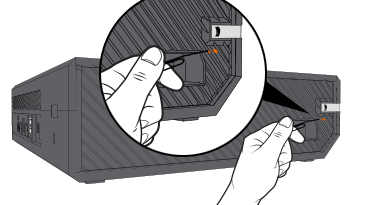


4.  Insert the straight end of the paper clip into the eject hole, which is located next to the orange rectangle. You may have to angle it slightly forward (toward the front of the console) as you insert it.
5.  The disc should pop out slightly. Pull out the disc the rest of the way with your fingers.
Note Make sure the disc isn’t sticky and doesn’t have a label that might prevent it from ejecting again in the future.

Release: Bladestorm: Nightmare Xbox One

Bladestorm: Nightmare


Play as a mercenary and take control of a multitude of different squad types in order to guide their side to victory on a dynamically evolving battlefield. In addition to the new Nightmare scenario, in which dragons and cyclops appear, players can control up to 4 units with a total of up to 200 troopers and freely swap between them on the battlefield in order to carry out player strategies.


Release: Final Fantasy Type-0 HD Xbox One

Final Fantasy Type-0 HD


Final Fantasy Type-0 makes its Western debut as Final Fantasy Type-0 HD. Step into the fray as Class Zero, a group of fourteen students from an elite military academy whose country is attacked by an aggressive neighboring Empire. Using the powerful abilities and magic of all fourteen characters in fast-paced action-RPG combat, players must face the brutality and injustices of war to uncover the secrets of its genesis.


Release: Battlefield Hardline for Xbox One


Battlefield Hardline

Be the law or break the law in Battlefield Hardline. In the single-player campaign you’ll play the role of Nick Mendoza, a young detective who embarks on a cross-country vendetta, seeking revenge against once trusted partners on the force. In multiplayer you’ll hunt criminals, raid vaults, and save hostages in new cop and criminal inspired modes like Heist and Rescue.


Release: Cabela’s African Adventures is Now Available for Xbox One

 Cabela’s African Adventures

Explore the vast wilderness of Africa on foot and by vehicle, where you’ll go head to head with the most ferocious beasts on the planet as you attempt to take down the biggest of the Big 5 – the Rhino, Lion, Leopard, Cape Buffalo & African Elephant. Features 5 different biomes and two modes – mission-based career progression and shooting galleries


Tuesday, March 17, 2015

Release: Sling TV Xbox One

Sling TV is basically a service separate from cable that nets you a number of channels for $20 a month, with a few extra special interest packages like sports, kids or news. The base package highlights include AMC, ESPN, Food Network, Travel Channel, CNN, and Cartoon Network, among others.


CEO of Sling TV Roger Lynch thinks the program will be a success, noting “Sling TV and Xbox are a natural pairing; two out of three millennials think of themselves as gamers, while nearly nine out of 10 watch live sports on TV." We'll see about that. While many people are keen on cutting the cord, there are still millions out there who can't live without it -- and with a limited amount of Sling TV channels featuring on-demand or live TV control, it may be harder for those folks to give it up.

HELP: I can’t hear my friends online, or I can’t join or host a multiplayer game with my Xbox One

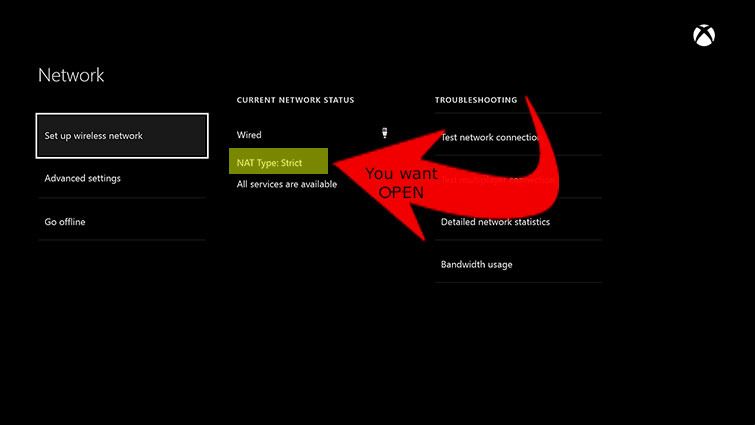
Can your Xbox One connect to Xbox Live, but you can’t hear your friends online within a game or a party? Or are you unable to host or join a particular multiplayer game? If so, then you may be encountering a Network Address Translation (NAT) related issue.


To check your NAT Type:


1. Press the Menu button on the Xbox One controller.
2. Select Settings.
3. Select Network.


On the Network settings screen, under Current Network Status, the NAT Type field will tell you your current NAT type.


If NAT type says anything other than Open you need to change that, before diving in to your router settings to try and Open your NAT thee are a few tricks that may work:

1. Try Hard Resetting the console

2.  Just simply reset your router.  Most router have a little button or a hole to poke with a paper clip labeled "RESET" or similar. Push it. when the router is back up check the NAT again as above.

3. The One has the ability to send a NAT Refresh code to your router has device discovery or UPnP on (you'll have to google your router info to check if you have this on).  To send the code:


  1. Press the Menu button on the Xbox One controller. 
  2. Select Settings.
  3. Select Network.
  4. On the Network Settings screen, select Test multiplayer connection on the right side of the screen.
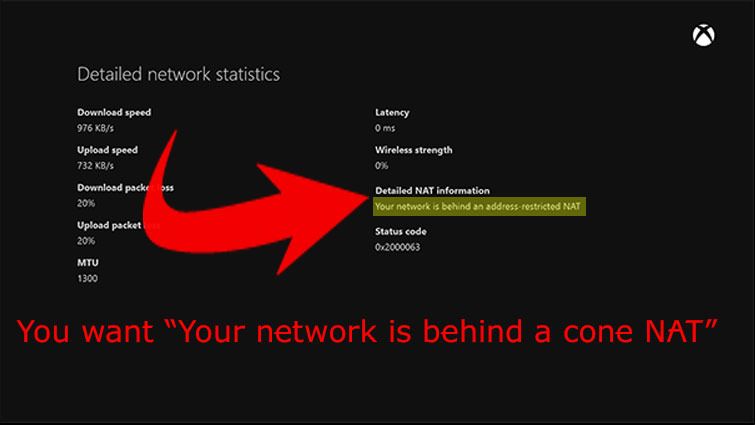
  5. Once the test completes do not go back to the home screen  simply Hold LT, RT, LB & RB all at once, and it will test NAT. A new screen will pop up:

If none of this works see: HOW TO: Open NAT XBOX One & 360

HOW TO: Open NAT XBOX One & 360


So you're trying to play multiplayer or chat with a friend but you get the warning that your NAT is strict and can not connect or your connection is limited.

Let me first tell you this is NOT an issue with your XBOX but an issue with your Router.  Having a Strict or Closed NAT has to do with settings in your router.  Because of the nature of how to Open NAT the best help I can give is to give you some resources to get your NAT Open. Ultimately it's up to you to figure out how to get into your router settings, your first step should be to GOOGLE  "your router maker & model + Open NAT"

What is NAT you ask? 
"Short for Network Address Translation, an Internet standard that enables a local-area network (LAN) to use one set of IP addresses for internal traffic and a second set of addresses for external traffic. A NAT boxlocated where the LAN meets the Internet makes all necessary IP address translations. 
NAT serves three main purposes:
  1. Provides a type of firewall (security) by hiding internal IP addresses
  2. Enables network to use more internal IP addresses. Since they're used internally only, there's no possibility of conflict with IP addresses used by other networks
  3. Allows a network to combine multiple  connections into a single Internet connection. (connect more than one device to your network)"

Monday, March 16, 2015

HOW TO: Clear The Cache on Xbox 360

Sometimes you have issues with your 360, for example corrupt downloads, messed up game saves etc.  One of the simplest troubleshooting tools is to Clear your cache.

The Xbox 360 system cache stores such items as game updates, system update installation packages, and gamer pictures of your friends. You can often resolve issues with your Xbox 360 by clearing the system cache.


The following are not removed when you clear the Xbox 360 cache:

  • Your gamertag 
  • Content that you have downloaded 
  • Game files 
  • Console software updates


Clearing the cache removes previously downloaded game updates. You must download these updates again the next time you play the game.

To clear the system cache

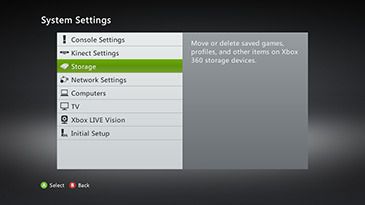
1.  Press the Guide button on your controller, go to Settings, and select System Settings.
2.  Select Storage.


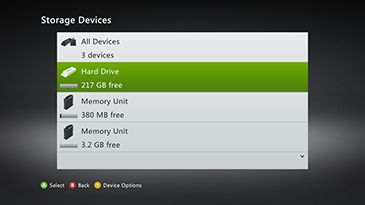
3.  Highlight (but don’t select) a storage device, and then press Y on your controller for Device Options.
Note It doesn't matter which storage device you choose. The cache will be cleared for all storage devices.


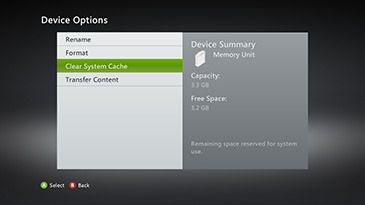
4.  On the Device Options screen, select Clear System Cache.


5. When prompted to confirm storage device maintenance, select Yes. 
Note When the system cache has been successfully cleared, you’re returned to the Storage Devices screen. You can then press the Guide button on the controller and return to Xbox Home.

HOW TO: Splitscreen Xbox 360 Minecraft

Splitscreen is a Console Edition-exclusive feature that allows up to four players to play on one screen at the same time. Using Splitscreen requires a screen with an output of at least 720p or higher. On television screens this can be achieved using either an HDMI or RGB component cable. Local Splitscreen can be played using Local, Silver and Gold accounts, while Online Splitscreen can only be played using Gold and Guest accounts. Guest accounts can only be signed in at the start of a session; they can not join existing sessions.

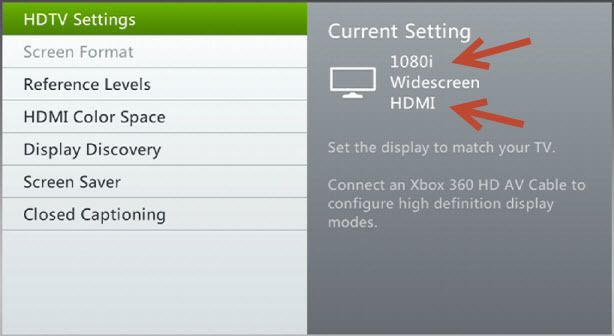
Because Splitscreen requires a screen with an output of 720p or higher, the console's video output needs to be configured accordingly. The video mode can be checked by going to Settings > System > Console Settings > Display - Make sure this is set to 720p or higher.


The following guide will show step by step how to setup and play a Local Splitscreen game


Step 1. Select play game and choose to either Create a New world or Load a previous world and make sure you are using 720p video.


Step 2. Make sure to uncheck the Online Game box.

Step 3. After entering the world, press start on the controller you wish to bring into the game.


Step 4. Sign in the player who will be using the controller.

Local splitscreen can be played with up to 4 players.

Online Splitscreen

The following guide will show step by step how to setup and play an Online Splitscreen game