Welcome to XboxIssues

Welcome. I decided to make this blog after being a Xbox Ambassador for a number of years.

If you don't know an Ambassador is a Volunteer that Microsoft uses to help ease the load on the actual hard working support people.

I noticed that alot of the questions I would get could easily be solved by using Microsofts Xbox.com site.

Since some of the help articles may be hard to find, understand or the issue may be called something different in the gaming community making it more difficult to solve, I've decided to make this blog to make it easier for fellow gamers to get xbox assistance, news and all things Xbox.

If you have any Xbox related question you can find the answer to feel free to contact me on YouTube, twitter or in the comments.
Showing posts with label Troubleshooting. Show all posts

Tuesday, March 17, 2015

HELP: I can’t hear my friends online, or I can’t join or host a multiplayer game with my Xbox One

Can your Xbox One connect to Xbox Live, but you can’t hear your friends online within a game or a party? Or are you unable to host or join a particular multiplayer game? If so, then you may be encountering a Network Address Translation (NAT) related issue.


To check your NAT Type:


1. Press the Menu button on the Xbox One controller.
2. Select Settings.
3. Select Network.


On the Network settings screen, under Current Network Status, the NAT Type field will tell you your current NAT type.
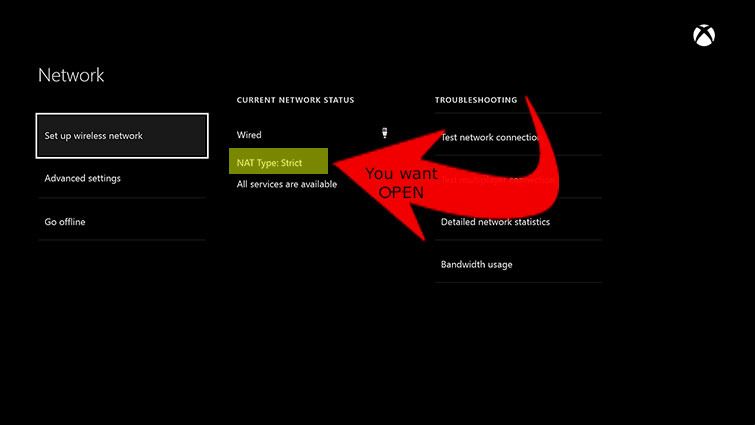

If NAT type says anything other than Open you need to change that, before diving in to your router settings to try and Open your NAT thee are a few tricks that may work:

1. Try Hard Resetting the console

2.  Just simply reset your router.  Most router have a little button or a hole to poke with a paper clip labeled "RESET" or similar. Push it. when the router is back up check the NAT again as above.

3. The One has the ability to send a NAT Refresh code to your router has device discovery or UPnP on (you'll have to google your router info to check if you have this on).  To send the code:


  1. Press the Menu button on the Xbox One controller. 
  2. Select Settings.
  3. Select Network.
  4. On the Network Settings screen, select Test multiplayer connection on the right side of the screen.
  5. Once the test completes do not go back to the home screen  simply Hold LT, RT, LB & RB all at once, and it will test NAT. A new screen will pop up:
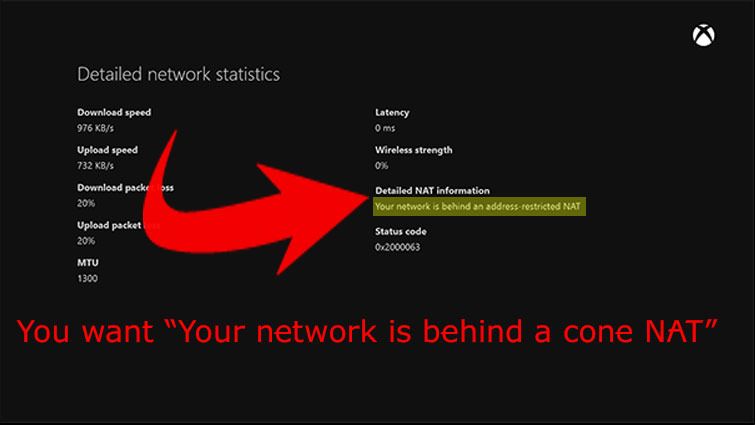
If none of this works see: HOW TO: Open NAT XBOX One & 360

HOW TO: Open NAT XBOX One & 360


So you're trying to play multiplayer or chat with a friend but you get the warning that your NAT is strict and can not connect or your connection is limited.

Let me first tell you this is NOT an issue with your XBOX but an issue with your Router.  Having a Strict or Closed NAT has to do with settings in your router.  Because of the nature of how to Open NAT the best help I can give is to give you some resources to get your NAT Open. Ultimately it's up to you to figure out how to get into your router settings, your first step should be to GOOGLE  "your router maker & model + Open NAT"

What is NAT you ask? 
"Short for Network Address Translation, an Internet standard that enables a local-area network (LAN) to use one set of IP addresses for internal traffic and a second set of addresses for external traffic. A NAT boxlocated where the LAN meets the Internet makes all necessary IP address translations. 
NAT serves three main purposes:
  1. Provides a type of firewall (security) by hiding internal IP addresses
  2. Enables network to use more internal IP addresses. Since they're used internally only, there's no possibility of conflict with IP addresses used by other networks
  3. Allows a network to combine multiple  connections into a single Internet connection. (connect more than one device to your network)"

Monday, March 16, 2015

HOW TO: Clear The Cache on Xbox 360

Sometimes you have issues with your 360, for example corrupt downloads, messed up game saves etc.  One of the simplest troubleshooting tools is to Clear your cache.

The Xbox 360 system cache stores such items as game updates, system update installation packages, and gamer pictures of your friends. You can often resolve issues with your Xbox 360 by clearing the system cache.


The following are not removed when you clear the Xbox 360 cache:

  • Your gamertag 
  • Content that you have downloaded 
  • Game files 
  • Console software updates


Clearing the cache removes previously downloaded game updates. You must download these updates again the next time you play the game.

To clear the system cache

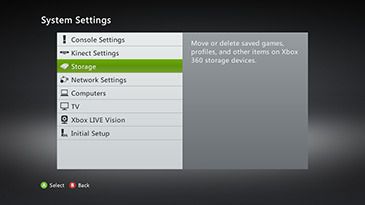
1.  Press the Guide button on your controller, go to Settings, and select System Settings.
2.  Select Storage.


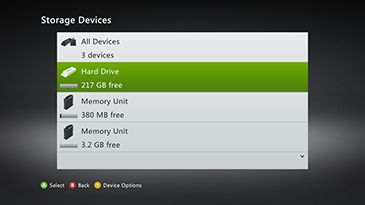
3.  Highlight (but don’t select) a storage device, and then press Y on your controller for Device Options.
Note It doesn't matter which storage device you choose. The cache will be cleared for all storage devices.


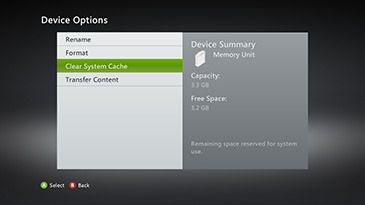
4.  On the Device Options screen, select Clear System Cache.


5. When prompted to confirm storage device maintenance, select Yes. 
Note When the system cache has been successfully cleared, you’re returned to the Storage Devices screen. You can then press the Guide button on the controller and return to Xbox Home.