Welcome to XboxIssues

Welcome. I decided to make this blog after being a Xbox Ambassador for a number of years.

If you don't know an Ambassador is a Volunteer that Microsoft uses to help ease the load on the actual hard working support people.

I noticed that alot of the questions I would get could easily be solved by using Microsofts Xbox.com site.

Since some of the help articles may be hard to find, understand or the issue may be called something different in the gaming community making it more difficult to solve, I've decided to make this blog to make it easier for fellow gamers to get xbox assistance, news and all things Xbox.

If you have any Xbox related question you can find the answer to feel free to contact me on YouTube, twitter or in the comments.
Showing posts with label Chat. Show all posts

Tuesday, April 24, 2018

NEWS: Microsoft And Discord Team Up To Connect Gamers Across Xbox Live And Discord

PC and console gamers, unite! Today we are excited to announce a new collaboration between Xbox and Discord.

Connecting with friends is such a big part of why people game. Gamers all over the world use Discord to easily chat and connect with friends while they game. In the coming weeks, this collaboration will make it easier for gamers to choose do just that – make it easier to connect and see what friends are playing across console and PC. It’s part of the work we are doing to provide gamers with more choice, allowing them to play how and where they want to.


In response to feedback, you will now have the option to link your Discord account to your Xbox account, making it easier than ever to see what your friends are playing. If you are playing Sea of Thieves on your Xbox, you can now choose to give your Discord friends the ability to see that and decide whether they want to hop on their Xbox and join you.

How will it work?

From Xbox One 
As an Xbox Insider, starting soon in preview, you will also have the added option to link your Xbox Live account to your Discord account directly from your Xbox One, which will become available to the broader Xbox community soon. Open the Account Settings menu on Xbox One, and select “Linked social accounts.” Here, you will see a new option for linking your Discord account. Once you receive your unique code from Xbox, open the Discord app and insert the code within the Connections tab.


From PC
From the Discord app on PC or on a mobile device, in the coming weeks you will see an option to link your Xbox account with your Discord account through the Connections tab under User Settings. Click on the Xbox Live option and sign in to your account. After enabling permission, your accounts will be linked.


After following these few simple steps, your accounts will be linked and your Xbox Live game presence can be shared across Discord, enabling friends and users in your same Discord servers to see what you’re playing on Xbox Live.

Friday, March 20, 2015

UPDATE: First Wave of Xbox One April System Updates Now in Preview

This month, they are rolling out updates to the Xbox One Preview program members in two waves, with the first set coming today and more to come next week. Check out the list below for features in this first April system update preview that is starting to roll out this afternoon:


  • Party chat improvements – Party chat is being improved with troubleshooting guidance for Xbox One owners. The Party App will help you get your microphone enabled and show you when privacy settings or networking issues are blocking communication with particular party members.
  •  Game hub links – Members can more easily discover game hub content from activity feed items. You’ll see activity feed items when any of your friends follow a game, and you’ll also be able to get back to a game’s hub from activity feed posts related to the game – including feed items about the game’s achievements, game clips and screenshots. Finally, we’ve added a link to game hubs from the game’s page in the achievements app.
  •  Achievement notifications – With this preview release, you’ll also see the achievement’s description in the notification so you know what you did to earn this achievement without having to open the achievements app. If you do choose to open up the notification to see the achievement details, we’ve also made some performance improvements to make loading the achievements app from a notification faster.

Tuesday, March 17, 2015

HELP: I can’t hear my friends online, or I can’t join or host a multiplayer game with my Xbox One

Can your Xbox One connect to Xbox Live, but you can’t hear your friends online within a game or a party? Or are you unable to host or join a particular multiplayer game? If so, then you may be encountering a Network Address Translation (NAT) related issue.


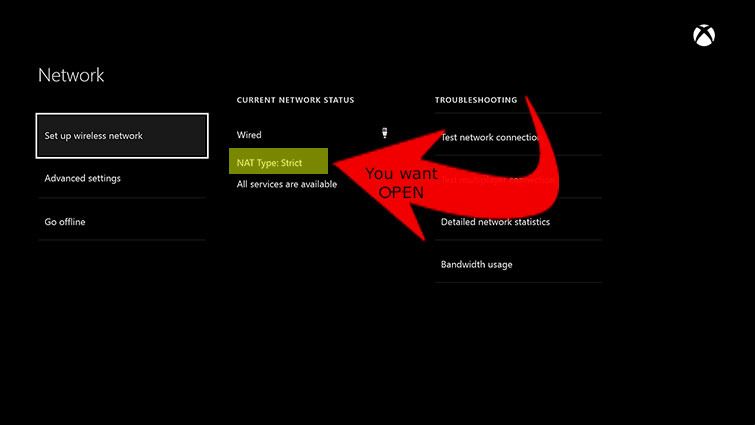
To check your NAT Type:


1. Press the Menu button on the Xbox One controller.
2. Select Settings.
3. Select Network.


On the Network settings screen, under Current Network Status, the NAT Type field will tell you your current NAT type.


If NAT type says anything other than Open you need to change that, before diving in to your router settings to try and Open your NAT thee are a few tricks that may work:

1. Try Hard Resetting the console

2.  Just simply reset your router.  Most router have a little button or a hole to poke with a paper clip labeled "RESET" or similar. Push it. when the router is back up check the NAT again as above.

3. The One has the ability to send a NAT Refresh code to your router has device discovery or UPnP on (you'll have to google your router info to check if you have this on).  To send the code:


  1. Press the Menu button on the Xbox One controller. 
  2. Select Settings.
  3. Select Network.
  4. On the Network Settings screen, select Test multiplayer connection on the right side of the screen.
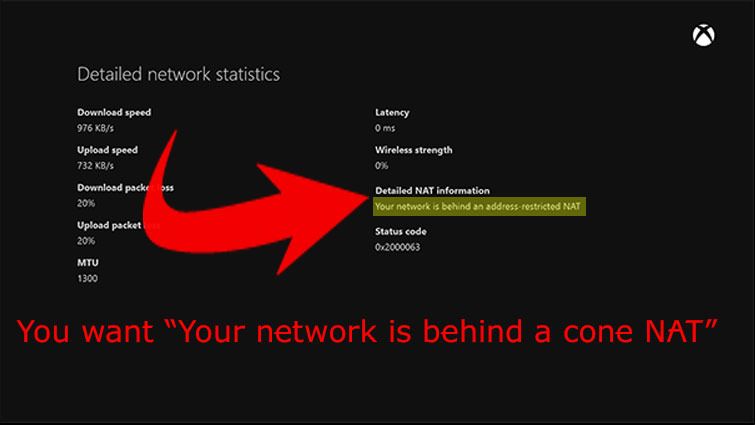
  5. Once the test completes do not go back to the home screen  simply Hold LT, RT, LB & RB all at once, and it will test NAT. A new screen will pop up:

If none of this works see: HOW TO: Open NAT XBOX One & 360