Welcome to XboxIssues

Welcome. I decided to make this blog after being a Xbox Ambassador for a number of years.

If you don't know an Ambassador is a Volunteer that Microsoft uses to help ease the load on the actual hard working support people.

I noticed that alot of the questions I would get could easily be solved by using Microsofts Xbox.com site.

Since some of the help articles may be hard to find, understand or the issue may be called something different in the gaming community making it more difficult to solve, I've decided to make this blog to make it easier for fellow gamers to get xbox assistance, news and all things Xbox.

If you have any Xbox related question you can find the answer to feel free to contact me on YouTube, twitter or in the comments.
Showing posts with label PC. Show all posts

Wednesday, July 22, 2026

NEWS: XBOX Backward Compatibility Come to PC

Today, Microsoft introduced XBOX Backward Compatibility on PC, making it easier for players to enjoy classic XBOX games across PC and handheld devices, including the ROG XBOX Ally and XBOX Ally X.

A player's game library is more than just a collection of titles—it represents years of memorable stories and gaming experiences. As technology continues to evolve, XBOX believes those libraries should move forward with players, allowing them to enjoy classic games in new ways.

Rolling out today in early release, XBOX Backward Compatibility on PC launches with four original XBOX games, now playable on PC and handhelds for the first time. This marks the beginning of a broader initiative to preserve classic XBOX games and gradually bring more titles to PC. Alongside compatibility, XBOX is introducing new features designed to enhance the experience while preserving the original gameplay.


Players in supported regions can begin playing the following titles on PC and supported handheld devices today:

  • BLiNX: The Time Sweeper
  • Conker: Live and Reloaded
  • Crimson Skies®: High Road to Revenge
  • Fuzion Frenzy®

Each title is available for purchase on PC and is included with all XBOX Game Pass plans. Players who already own a digital console license for these games will automatically have access on PC and handheld devices. Through XBOX Play Anywhere and XBOX Cloud Gaming, these classic games can now be played across XBOX consoles, the cloud, PC, and handheld devices.


To see more information click READ MORE

Monday, November 22, 2021

HOW TO: Turn off Cross Play on Xbox Series X|S & Xbox One

If you don't know a lot of modern video games have cross play.  Cross play is an option that allows you to play games with other systems, like Xbox playing with Play Station or PC users.  Even though  this is a great feature, you may want to turn it off.  Sometimes one system may have an advantage over another, some people think PC players have an advantage in FPS games when playing with console players. Some games give you the option to turn off cross play in their settings, however some games like Battlefield 2042 and MLB the Show 2021 do not, and you have to turn cross play off in the system settings.


Please Don't Forget To Share:

Saturday, August 3, 2019

Wednesday, July 31, 2019

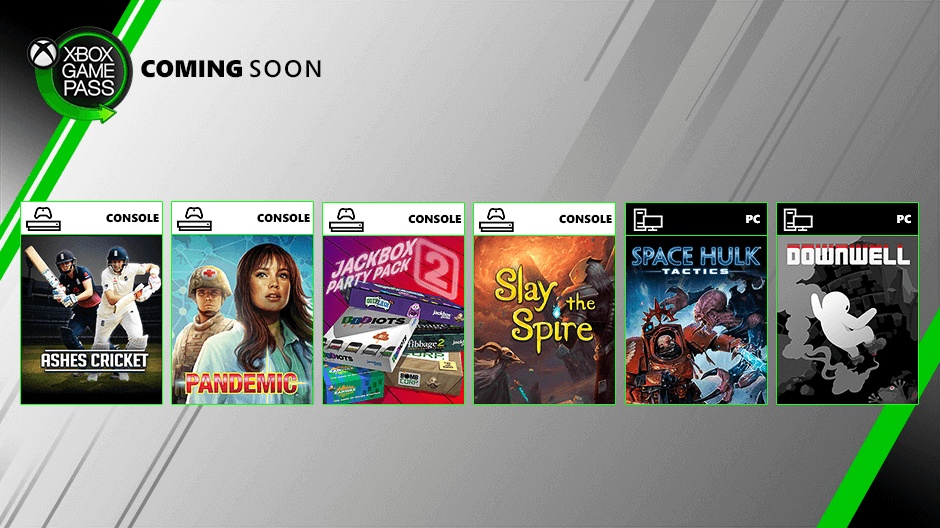
NEWS: Coming to Xbox Game Pass in August

How do you choose what you’re going to play next in your backlog? Go for what gets you the most achievements? Pick the games that have animals you can pet? Prioritize the fighting games so you can prove that you are a better fighter and not just a button masher no matter what your brother says? (that last one might just be us).

Let’s look at the games we’re adding to your backlog now. Reminder that you can install games directly to your console from the Xbox Game Pass mobile app! Get the games installed while you’re out, that way you’re that much closer to catching up with all those games.


August 1

Ashes Cricket (Xbox Game Pass for Console, Xbox Game Pass Ultimate)
Ashes Cricket brings all the fast-paced action, big hits, and skill that you see in the greatest cricket competition in the world, in both a more realistic and authentic way than ever before.

Pandemic (Xbox Game Pass for Console, Xbox Game Pass Ultimate)
As members of an elite disease control team, you’re the only thing standing in the way of the four deadly diseases spreading across the world. Travel the globe protecting cities, contain infections from spreading, and discover the cure for each disease. The fate of humanity is in your hands!

Downwell (Xbox Game Pass for PC, Xbox Game Pass Ultimate)
Venture down into a darkness filled with nasty creatures (and mysterious secrets) to collect spectacular red gems scattered about the rocks in search of untold treasures. Armed only with your Gunboots for protection, battle well-dwelling monsters and uncover hidden caves filled with riches and relics.

August 8

Jackbox Party Pack 2 (Xbox Game Pass for Console, Xbox Game Pass Ultimate)
The sequel to the party game phenomenon The Jackbox Party Pack, featuring five fresh, rib-tickling party games supporting up to eight players. It’s a game-night riot in a box… without the box!

Space Hulk Tactics (Xbox Game Pass for PC, Xbox Game Pass Ultimate)
A faithful adaptation of the board game “Space Hulk” bringing a unique twist to the cult classic formula. Engage in bloody battles through an immense Space Hulk — a twisted mass of asteroids, wrecked star ships, and debris – as either a squad of Terminator Space Marines or the deadly alien Genestealers.

August 14

Slay the Spire (Xbox Game Pass for Console, Xbox Game Pass for PC, Xbox Game Pass Ultimate)
Fusing card games and roguelikes together in an original single-player, deckbuilder adventure. Craft a unique deck, encounter bizarre creatures, and discover relics of immense power to slay the spire!


Please Don't Forget To Share:

Thursday, May 30, 2019

NEWS: Introducing Xbox Game Pass Designed for PC

From Xbox Wire:

"We believe the player should be at the center of their gaming experience and be able to harness the unique benefits of the devices they choose to play on.

Nowhere is that belief more important than on the PC. As the creators of Windows, we have a unique responsibility to ensure we’re investing in experiences that benefit players everywhere, while respecting the PC community’s preference for an open, highly customizable platform.

We’ve not always lived up to our aspiration of keeping gamers at the center of everything we do when it comes to the experience they’ve had on Windows.

Today I’d like to share three steps we are taking to contribute to the thriving PC gaming ecosystem:


Introducing Xbox Game Pass Designed for PC Players
Two years ago, we launched Xbox Game Pass on Xbox One, and since then we’ve seen how valuable a curated library of high-quality games can be for players and game developers alike. It offers a great way to discover and play your next favorite game. We researched whether a similar opportunity exists for PC players and PC game developers, and we believe that it does. We also considered the importance of bringing something new and additive to the PC gaming ecosystem, and we believe that we can. So, we designed a service specifically for the needs of PC gamers and PC game developers. It’s called Xbox Game Pass, just like the original, but it’s a new experience that we are building together with the PC community.


Read more at Xbox Wire


Please Don't Forget To Share:

Wednesday, January 13, 2016

NEWS: Xbox Exclusive EA Access now on PC

Electronic Arts has launched a new PC gaming subscription service, promising 'endless PC gaming' for just US$4.99

The new plan is called Origin Access and it’ll offer everything that EA Access on Xbox One does: Free versions of old games; early access to brand new games; and a 10% discount on games, DLC, and other add-ons.

Of course, you’ll have to play all of these games through EA’s Origin client, which may be a game-changer to some Steam devotees. But it’s good to see a big company taking these kind of experiments.


Monday, March 30, 2015

HOW TO: Connect your Xbox One to Live with a Windows PC instead of a router

So you have found your self away from home but managed to smuggle your Xbox One with you.  You want to connect to live but do not have a router or access to one.  Well you can use your Windows PC as a router in a pinch see how:


There are two ways you can connect to Xbox Live without using a router:

Use Windows Internet Connection Sharing 

Create a network bridge connection
Use Windows Internet Connection Sharing

You can use Windows Internet Connection Sharing to share your Internet connection between your computer and your Xbox One console. If you do this, both the console and the computer can access the Internet at the same time.

To use Windows Internet Connection Sharing, you must have the following:

  • A computer that has two network adapters 
  • Note Most laptop computers have two network adapters, one for a wired connection and one for a wireless connection. 
  • A USB modem that has at least one Ethernet connection 
  • Windows XP, Windows Vista, Windows 7, or Windows 8 
  • Note The Windows 7 Starter edition does not support this feature. 
  • High-speed Internet access 
  • A standard Ethernet cable 


Set up Windows Internet Connection Sharing


Note The following steps show Windows 7 and Windows 8 screen images. However, the steps are the same for earlier versions of Windows unless otherwise indicated.

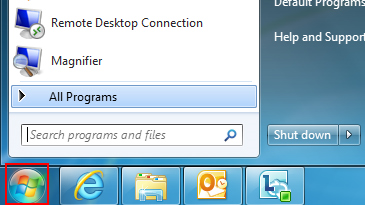
1.  Click the Start button.
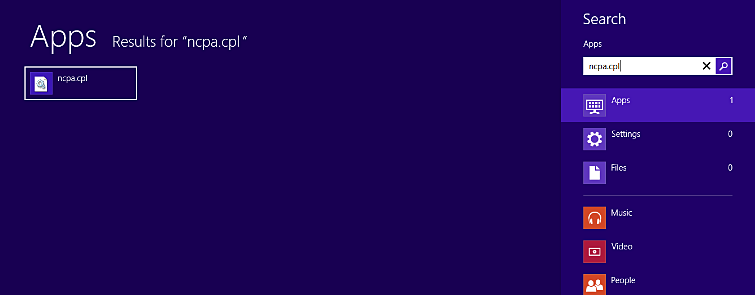
2.  In the Search programs and files box, type ncpa.cpl, and then press Enter.

For Windows XP: Click the Start button, click Run, type ncpa.cpl in the Open box, and then click OK.

Windows 7
Windows 8


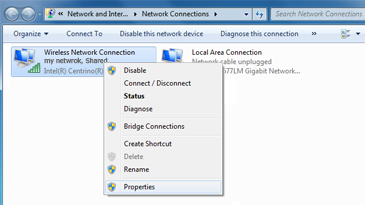
3.  Right-click the network connection that you want to share, and then click Properties. The appropriate network connection to share is the one between your computer and your modem, not the one between your computer and your Xbox One console.


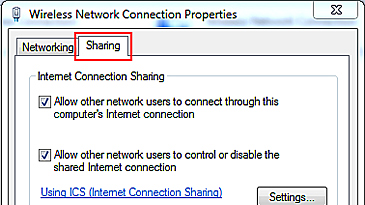
4.  Click the Sharing tab. If you are using Windows XP, select the Advanced tab.


5.  Select Allow other network users to connect through this computer's Internet connection, and then click OK.

6.  Wait for the network connection status to change to Shared.


7.  Start your web browser and try to connect to the Internet. If you can’t connect, make sure that you’re sharing the primary Internet connection in step 3.

8.  Plug one end of the Ethernet cable into the network port on your computer. Plug the other end into the back of your console.

9.  On your console, make sure that all network settings are set to Automatic.
Here's how:

Note If you’re connecting to a wireless network, or if you have PPPoE settings entered, note the settings because you might have to enter them later. 

  1. Press the Menu button on your Xbox One controller, and then select Settings. 
  2. Select Network. 
  3. Select Advanced settings. 
  4. Select IP settings, then select Automatic. 
  5. Select DNS settings, then select Automatic. 
  6. Select Alternate MAC address, then select Clear. 
  7. Select Restart.

10.  Test your Xbox Live connection. To do this, follow these steps: 
  1. Press the Menu button on your Xbox One controller, and then select Settings. 
  2. Select Network. 
  3. Select Test network connection.
Troubleshooting Internet Connection Sharing issues

Solution 1: Make sure Windows Internet Connection Sharing is set up correctly

If the Sharing tab isn’t displayed or, in Windows XP, you don’t see the option “Allow other network users to connect through this computer's Internet connection,” one of the following might be true:
Your computer doesn’t have two network adapters. To resolve this problem, install a second network adapter in your computer or check to see if your existing network adapters are functioning correctly. 
You might be trying to share the wrong network connection. To resolve this problem, repeat step 3 above, and select a different network connection. 

Solution 2: Set your console's IP settings manually

If you receive either of the following error messages, try the steps below:

Can't obtain an IP address from your router or modem 

  1. Your DNS server can't resolve Xbox Live server names 
  2. Press the Menu button on your Xbox One controller, then select Settings. 
  3. Select Network. 
  4. Select Advanced settings, then select IP settings. 
  5. Select Manual. You’ll be prompted for the IP address. Enter 192.168.0.2, and then select Enter. 
  6. You‘ll then be prompted for the Subnet mask. Enter 255.255.255.0, and then select Enter. 
  7. Next, you’ll be prompted for the Gateway. Enter 192.168.0.1, and then select Enter. 
  8. Select DNS settings. 
  9. Select Manual. You’ll be prompted for the Primary DNS and then the Secondary DNS server. Enter 192.168.0.1 for both servers. 
  10. Press B on your controller, and then select Test network connection.

Thursday, March 19, 2015

HOW TO: Use your Xbox One Controller on PC

The Xbox One Wireless Controller can work with your PC if you download one of the following driver packages:
PC drivers for Xbox One Controller (x86) 
PC drivers for Xbox One Controller (x64).

These drivers are compatible with Windows 7, Windows 8, and Windows 8.1.

Note For your controller to work with your PC, it needs to be connected using a micro-USB cable. It will not work wirelessly with your PC. 

After you install the drivers on your PC, connect your Xbox One wireless controller to a powered USB port on your PC using a standard micro-USB cable. When you do, the controller will vibrate to let you know that it's connected.

Note To use your Xbox One controller with your console after using it with a PC, you must re-sync the controller to the console. You can do this by using the wireless sync button or a USB cable. For details, see Connect a wireless Xbox One controller to your console.

If you want to use an Xbox 360 Controller with your PC, you can use an Xbox 360 Controller for Windows. Or, you can use an Xbox 360 Wireless Controller together with an Xbox 360 Wireless Gaming Receiver for Windows.