Welcome to XboxIssues

Welcome. I decided to make this blog after being a Xbox Ambassador for a number of years.

If you don't know an Ambassador is a Volunteer that Microsoft uses to help ease the load on the actual hard working support people.

I noticed that alot of the questions I would get could easily be solved by using Microsofts Xbox.com site.

Since some of the help articles may be hard to find, understand or the issue may be called something different in the gaming community making it more difficult to solve, I've decided to make this blog to make it easier for fellow gamers to get xbox assistance, news and all things Xbox.

If you have any Xbox related question you can find the answer to feel free to contact me on YouTube, twitter or in the comments.
Showing posts with label Live. Show all posts

Tuesday, April 21, 2015

YSK:How to get free money in your Microsoft Account

You can earn free Microsoft Money and Live access amount other things by using Bing.  Bing is Microsoft's version of Google.

What is Bing Rewards and how does it work?
Bing Rewards lets you earn credits for searching on Bing or trying new features from Bing or other Microsoft products and services. Bing Rewards credits can be redeemed for a variety of gift cards and other rewards. Join Bing Rewards.

How do I join Bing Rewards?
There are three ways to join Bing Rewards:

  1. Go to Bing (using Internet Explorer 7 or later, or the latest version of Firefox, Chrome or Safari) and sign up. Visit your dashboard to find out how to start earning credits. Use the Bing Rewards credit counter, in the top-right corner of any Bing.com page, to see your available credit balance.
  2. Download and install Bing Bar on your PC. Click on the Bing Rewards button to join. The Bing Rewards credit counter on the Bing Bar shows you how many credits you've earned.
  3. On a mobile device, go to bing.com/explore/rewards in your default web browser and sign up. Earn credits by taking advantage of offers in your dashboard, such as using Bing to search the web on your device.


Are there any age restrictions on participating?
You must be 13 or older to join Bing Rewards. Check your Microsoft account to make sure your birthdate and age are correct.

How do I earn credits?
To earn credits, just search on Bing. For more ways to earn and discover more about Bing:
  • On a PC or mobile device, go to your Bing Rewards dashboard.
  • On Bing.com, click your credit counter.
  • On Bing Bar, click the Bing Rewards credit counter.
Searches on Bing Maps, Bing blogs, and Bing Help don't earn credits.


How do I know I'm earning credits?
Watch your Bing Rewards credit balance increase as you search and when you take advantage of offers that earn you credits.

Just An Example of what you can get


Monday, March 30, 2015

HOW TO: Connect your Xbox One to Live with a Windows PC instead of a router

So you have found your self away from home but managed to smuggle your Xbox One with you.  You want to connect to live but do not have a router or access to one.  Well you can use your Windows PC as a router in a pinch see how:


There are two ways you can connect to Xbox Live without using a router:

Use Windows Internet Connection Sharing 

Create a network bridge connection
Use Windows Internet Connection Sharing

You can use Windows Internet Connection Sharing to share your Internet connection between your computer and your Xbox One console. If you do this, both the console and the computer can access the Internet at the same time.

To use Windows Internet Connection Sharing, you must have the following:

  • A computer that has two network adapters 
  • Note Most laptop computers have two network adapters, one for a wired connection and one for a wireless connection. 
  • A USB modem that has at least one Ethernet connection 
  • Windows XP, Windows Vista, Windows 7, or Windows 8 
  • Note The Windows 7 Starter edition does not support this feature. 
  • High-speed Internet access 
  • A standard Ethernet cable 


Set up Windows Internet Connection Sharing


Note The following steps show Windows 7 and Windows 8 screen images. However, the steps are the same for earlier versions of Windows unless otherwise indicated.

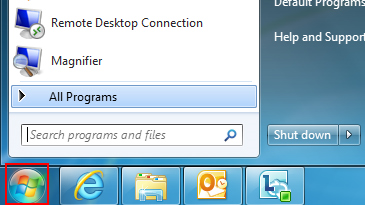
1.  Click the Start button.
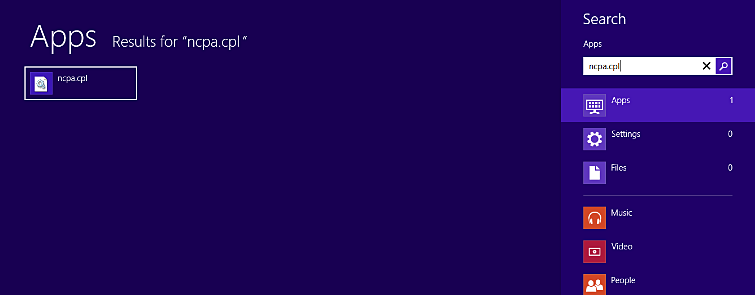
2.  In the Search programs and files box, type ncpa.cpl, and then press Enter.

For Windows XP: Click the Start button, click Run, type ncpa.cpl in the Open box, and then click OK.

Windows 7
Windows 8


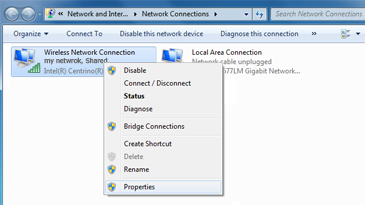
3.  Right-click the network connection that you want to share, and then click Properties. The appropriate network connection to share is the one between your computer and your modem, not the one between your computer and your Xbox One console.


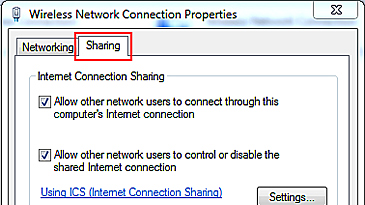
4.  Click the Sharing tab. If you are using Windows XP, select the Advanced tab.


5.  Select Allow other network users to connect through this computer's Internet connection, and then click OK.

6.  Wait for the network connection status to change to Shared.


7.  Start your web browser and try to connect to the Internet. If you can’t connect, make sure that you’re sharing the primary Internet connection in step 3.

8.  Plug one end of the Ethernet cable into the network port on your computer. Plug the other end into the back of your console.

9.  On your console, make sure that all network settings are set to Automatic.
Here's how:

Note If you’re connecting to a wireless network, or if you have PPPoE settings entered, note the settings because you might have to enter them later. 

  1. Press the Menu button on your Xbox One controller, and then select Settings. 
  2. Select Network. 
  3. Select Advanced settings. 
  4. Select IP settings, then select Automatic. 
  5. Select DNS settings, then select Automatic. 
  6. Select Alternate MAC address, then select Clear. 
  7. Select Restart.

10.  Test your Xbox Live connection. To do this, follow these steps: 
  1. Press the Menu button on your Xbox One controller, and then select Settings. 
  2. Select Network. 
  3. Select Test network connection.
Troubleshooting Internet Connection Sharing issues

Solution 1: Make sure Windows Internet Connection Sharing is set up correctly

If the Sharing tab isn’t displayed or, in Windows XP, you don’t see the option “Allow other network users to connect through this computer's Internet connection,” one of the following might be true:
Your computer doesn’t have two network adapters. To resolve this problem, install a second network adapter in your computer or check to see if your existing network adapters are functioning correctly. 
You might be trying to share the wrong network connection. To resolve this problem, repeat step 3 above, and select a different network connection. 

Solution 2: Set your console's IP settings manually

If you receive either of the following error messages, try the steps below:

Can't obtain an IP address from your router or modem 

  1. Your DNS server can't resolve Xbox Live server names 
  2. Press the Menu button on your Xbox One controller, then select Settings. 
  3. Select Network. 
  4. Select Advanced settings, then select IP settings. 
  5. Select Manual. You’ll be prompted for the IP address. Enter 192.168.0.2, and then select Enter. 
  6. You‘ll then be prompted for the Subnet mask. Enter 255.255.255.0, and then select Enter. 
  7. Next, you’ll be prompted for the Gateway. Enter 192.168.0.1, and then select Enter. 
  8. Select DNS settings. 
  9. Select Manual. You’ll be prompted for the Primary DNS and then the Secondary DNS server. Enter 192.168.0.1 for both servers. 
  10. Press B on your controller, and then select Test network connection.

Monday, March 23, 2015

HELP: Where can I accept the Terms of Use?

This one comes up a lot.  "I received a pop up that said please accept the terms of use" or something similar. This has a real quick and easy solution.

You can accept the Terms of Use by signing at xbox.com/account.  Once signed in you should get a notification or pop up that allows you to see the TOS and accept.

If I don’t accept the new Terms of Use, what happens?
Accepting the Terms of Use is a requirement for accessing the Xbox Live service. Customers must agree to the newest version of the Terms of Use to continue using Xbox Live.

Friday, March 13, 2015

Help: Find Out Why You Were Banned or Suspended

Oh no.  Did you just try to use your Xbox One or Xbox 360 and receive a notice that you were suspended or worse even banned?

I'm pretty sure you know what you did to get a punishment and Chances of having your suspension shortened or your ban lifted is very very slim and I can't help with that, but I'll tell you how you can find out more information about your ban or suspension.

First off check out the Xbox Policy & Enforcement Site here you will find all the rules you must abide by in order to not be suspended or banned. You can easily find out what infraction you may have done. You can also input your consoles serial number and see if the console was banned.  If a console is banned you will never be able to use that console on live again.  This is also good if you are going to buy a used console and want to check and make sure it is not banned before purchase.

When you are banned or suspend you will receive an e-mail to the account your gamertag is registered under.  If you think you never received your e-mail check you SPAM folder it might be there.

If you can't find the e-mail or don't have access to your account anymore the best thing to do is post in the forums on http://xbox.com for more info, do not call support they will be little or no help.

Use these links to reach the correct forum

Xbox 360 Account Suspensions & Console Bans

Xbox One Account & Console Enforcement Actions