Welcome to XboxIssues

Welcome. I decided to make this blog after being a Xbox Ambassador for a number of years.

If you don't know an Ambassador is a Volunteer that Microsoft uses to help ease the load on the actual hard working support people.

I noticed that alot of the questions I would get could easily be solved by using Microsofts Xbox.com site.

Since some of the help articles may be hard to find, understand or the issue may be called something different in the gaming community making it more difficult to solve, I've decided to make this blog to make it easier for fellow gamers to get xbox assistance, news and all things Xbox.

If you have any Xbox related question you can find the answer to feel free to contact me on YouTube, twitter or in the comments.
Showing posts with label Windows. Show all posts

Thursday, May 30, 2019

NEWS: Introducing Xbox Game Pass Designed for PC

From Xbox Wire:

"We believe the player should be at the center of their gaming experience and be able to harness the unique benefits of the devices they choose to play on.

Nowhere is that belief more important than on the PC. As the creators of Windows, we have a unique responsibility to ensure we’re investing in experiences that benefit players everywhere, while respecting the PC community’s preference for an open, highly customizable platform.

We’ve not always lived up to our aspiration of keeping gamers at the center of everything we do when it comes to the experience they’ve had on Windows.

Today I’d like to share three steps we are taking to contribute to the thriving PC gaming ecosystem:


Introducing Xbox Game Pass Designed for PC Players
Two years ago, we launched Xbox Game Pass on Xbox One, and since then we’ve seen how valuable a curated library of high-quality games can be for players and game developers alike. It offers a great way to discover and play your next favorite game. We researched whether a similar opportunity exists for PC players and PC game developers, and we believe that it does. We also considered the importance of bringing something new and additive to the PC gaming ecosystem, and we believe that we can. So, we designed a service specifically for the needs of PC gamers and PC game developers. It’s called Xbox Game Pass, just like the original, but it’s a new experience that we are building together with the PC community.


Read more at Xbox Wire


Please Don't Forget To Share:

Monday, November 13, 2017

NEWS: Experience Your Games in Full Audio Immersion with Windows Sonic and Dolby Atmos Spatial Sound

This holiday, not only can you play your games on Xbox One X, the world’s most powerful console, but you also have a broad and diverse lineup of new games to experience – including Forza Motorsport 7, Middle-earth: Shadow of War, Assassins’s Creed Origins, Super Lucky’s Tale, and PlayerUnknown’s Battlegrounds. While the power of Xbox One X will immerse you in the beautiful visuals of your games, you can take that immersion even further by simply enabling spatial sound for your headphones or compatible home theater system. By using Windows Sonic or Dolby Atmos spatial sound, you’ll hear your games in a whole new way.


What is Spatial Sound?
Spatial sound is an enhanced audio experience where sounds can flow around, above, and below you in a three-dimensional virtual space that simulates a more realistic environment. Spatial sound provides an immersive atmosphere that traditional channel-based surround sound formats cannot replicate. Imagine playing Gears of War 4 and a Raven helicopter flies overhead. With surround sound, you’d hear the helicopter flying around you, but with spatial sound, you’ll hear it flying directly above you.

What is Windows Sonic and Dolby Atmos?
Both Windows Sonic and Dolby Atmos are technologies that enable spatial sound on your Xbox One and Windows 10 devices. They both provide support for immersive surround and elevation audio cues. Windows Sonic is Microsoft’s platform-level solution for spatial sound. As the platform evolves, it will support more endpoints and different technologies.

How do I enable them on Xbox One?
Windows Sonic for Headphones, Dolby Atmos for Headphones, and Dolby Atmos for home theater are the three audio formats available on your Xbox One to experience the immersion benefits mentioned above.

Windows Sonic for Headphones and Dolby Atmos for Headphones both enable spatial sound for all headphones, earbuds, and audio headsets. Windows Sonic for Headphones is available out of the box, while Dolby Atmos for Headphones is $14.99 USD and provides additional support for Dolby Atmos movies. To enable either of these on your Xbox One, navigate to [Settings > All settings > Display & sound > Audio output > Headset format] and select either Windows Sonic for Headphones or Dolby Atmos for Headphones. If you select Dolby Atmos for Headphones, you will be prompted to install the Dolby Access app and either purchase Dolby Atmos for Headphones or start a free 30-day trial.

Dolby Atmos for home theater can be experienced for free through your Dolby Atmos supported home theater system, sound bar, or TV. To enable on your Xbox One, install and open the Dolby Access app, and follow the instructions provided.

Which headsets work with Spatial Sound on Xbox One?
Xbox gamers can use any Xbox supported headset to take advantage of spatial sound. If your headphones support other virtualization or equalization audio technologies, it is important you turn these features off to avoid double processing.

If you’re picking up a new headset, we recommend checking out the latest Xbox Wireless headsets such as Turtle Beach STEALTH 700 or Razer Thresher, which will connect directly to your Xbox One without the need for wires, a base station, or an adapter. For Dolby fans, it’s worth noting that the Plantronics RIG 400LX, RIG 600LX, and RIG 800LX each come with a Dolby Atmos for Headphones Xbox activation code in the box.

What games and movies support Spatial Sound?
Any traditional surround sound content is automatically upscaled with Windows Sonic or Dolby Atmos to provide an enhanced audio experience – making that content more immersive than before. Games that natively support Windows Sonic and Dolby Atmos offer the highest level of audio immersion and location accuracy, including Gears of War 4, Super Lucky’s Tale, Rise of the Tomb Raider, and Assassin’s Creed Origins. Additionally, there are over 250 movies for Dolby Atmos that you can watch on Blu-ray, UHD Blu-ray, or on major streaming services such as Netflix, Vudu, and Microsoft’s own Movies & TV app.

This holiday, experience your games and movies in full audio immersion by enabling spatial sound with Windows Sonic or Dolby Atmos on your Xbox One or Windows 10 PC.

Tuesday, October 20, 2015

NEWS: Xbox One Wireless Adapter For Windows Begins Shipping Today

In June, we announced the Xbox Wireless Adapter for Windows as part of our commitment for designing Xbox accessories to support both Xbox and Windows. Starting today, we’ve started shipping the adapter to retailers in most markets around the world, including the U.S.

With the Xbox Wireless Adapter for Windows, you’ll simply plug the Adapter into the USB 2.0 or 3.0 port of your Windows 10 PC laptop or tablet and bind the Adapter to your Wireless Controller to enable the same gaming experience you’re used to on Xbox One, including in-game chat and high-quality stereo audio. The Xbox Wireless Adapter for Windows accommodates up to eight controllers per unit, and up to four chat headsets or two stereo headsets.


If you haven’t had a chance to try game streaming just yet, check out these step-by-step instructions. And be sure to try some of this year’s blockbuster games with built-in controller support including Gears of War: Ultimate Edition, Minecraft: Windows 10 Edition Beta, and Fable Legends.

The Xbox Wireless Adapter for Windows will be available for $24.99 USD (MSRP) or bundled with an Xbox One Wireless Controller for $79.95 USD (MSRP).

Friday, April 17, 2015

NEWS: Star Wars: Battlefront is coming to Xbox One and Windows PC on November 17th

Star Wars: Battlefront is coming to Xbox One and Windows PC on November 17th and today we get a first look at the official reveal trailer.


Monday, March 30, 2015

HOW TO: Connect your Xbox One to Live with a Windows PC instead of a router

So you have found your self away from home but managed to smuggle your Xbox One with you.  You want to connect to live but do not have a router or access to one.  Well you can use your Windows PC as a router in a pinch see how:


There are two ways you can connect to Xbox Live without using a router:

Use Windows Internet Connection Sharing 

Create a network bridge connection
Use Windows Internet Connection Sharing

You can use Windows Internet Connection Sharing to share your Internet connection between your computer and your Xbox One console. If you do this, both the console and the computer can access the Internet at the same time.

To use Windows Internet Connection Sharing, you must have the following:

  • A computer that has two network adapters 
  • Note Most laptop computers have two network adapters, one for a wired connection and one for a wireless connection. 
  • A USB modem that has at least one Ethernet connection 
  • Windows XP, Windows Vista, Windows 7, or Windows 8 
  • Note The Windows 7 Starter edition does not support this feature. 
  • High-speed Internet access 
  • A standard Ethernet cable 


Set up Windows Internet Connection Sharing


Note The following steps show Windows 7 and Windows 8 screen images. However, the steps are the same for earlier versions of Windows unless otherwise indicated.

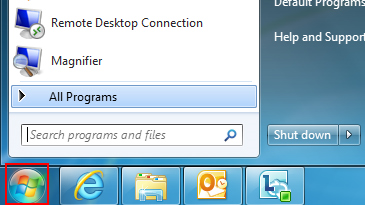
1.  Click the Start button.
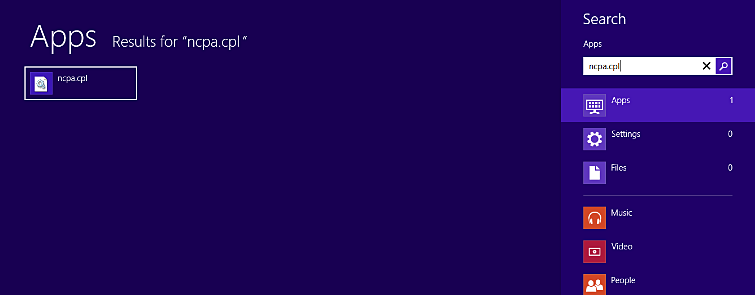
2.  In the Search programs and files box, type ncpa.cpl, and then press Enter.

For Windows XP: Click the Start button, click Run, type ncpa.cpl in the Open box, and then click OK.

Windows 7
Windows 8


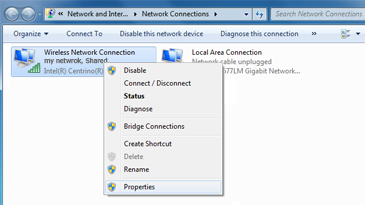
3.  Right-click the network connection that you want to share, and then click Properties. The appropriate network connection to share is the one between your computer and your modem, not the one between your computer and your Xbox One console.


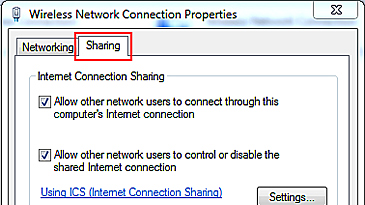
4.  Click the Sharing tab. If you are using Windows XP, select the Advanced tab.


5.  Select Allow other network users to connect through this computer's Internet connection, and then click OK.

6.  Wait for the network connection status to change to Shared.


7.  Start your web browser and try to connect to the Internet. If you can’t connect, make sure that you’re sharing the primary Internet connection in step 3.

8.  Plug one end of the Ethernet cable into the network port on your computer. Plug the other end into the back of your console.

9.  On your console, make sure that all network settings are set to Automatic.
Here's how:

Note If you’re connecting to a wireless network, or if you have PPPoE settings entered, note the settings because you might have to enter them later. 

  1. Press the Menu button on your Xbox One controller, and then select Settings. 
  2. Select Network. 
  3. Select Advanced settings. 
  4. Select IP settings, then select Automatic. 
  5. Select DNS settings, then select Automatic. 
  6. Select Alternate MAC address, then select Clear. 
  7. Select Restart.

10.  Test your Xbox Live connection. To do this, follow these steps: 
  1. Press the Menu button on your Xbox One controller, and then select Settings. 
  2. Select Network. 
  3. Select Test network connection.
Troubleshooting Internet Connection Sharing issues

Solution 1: Make sure Windows Internet Connection Sharing is set up correctly

If the Sharing tab isn’t displayed or, in Windows XP, you don’t see the option “Allow other network users to connect through this computer's Internet connection,” one of the following might be true:
Your computer doesn’t have two network adapters. To resolve this problem, install a second network adapter in your computer or check to see if your existing network adapters are functioning correctly. 
You might be trying to share the wrong network connection. To resolve this problem, repeat step 3 above, and select a different network connection. 

Solution 2: Set your console's IP settings manually

If you receive either of the following error messages, try the steps below:

Can't obtain an IP address from your router or modem 

  1. Your DNS server can't resolve Xbox Live server names 
  2. Press the Menu button on your Xbox One controller, then select Settings. 
  3. Select Network. 
  4. Select Advanced settings, then select IP settings. 
  5. Select Manual. You’ll be prompted for the IP address. Enter 192.168.0.2, and then select Enter. 
  6. You‘ll then be prompted for the Subnet mask. Enter 255.255.255.0, and then select Enter. 
  7. Next, you’ll be prompted for the Gateway. Enter 192.168.0.1, and then select Enter. 
  8. Select DNS settings. 
  9. Select Manual. You’ll be prompted for the Primary DNS and then the Secondary DNS server. Enter 192.168.0.1 for both servers. 
  10. Press B on your controller, and then select Test network connection.