

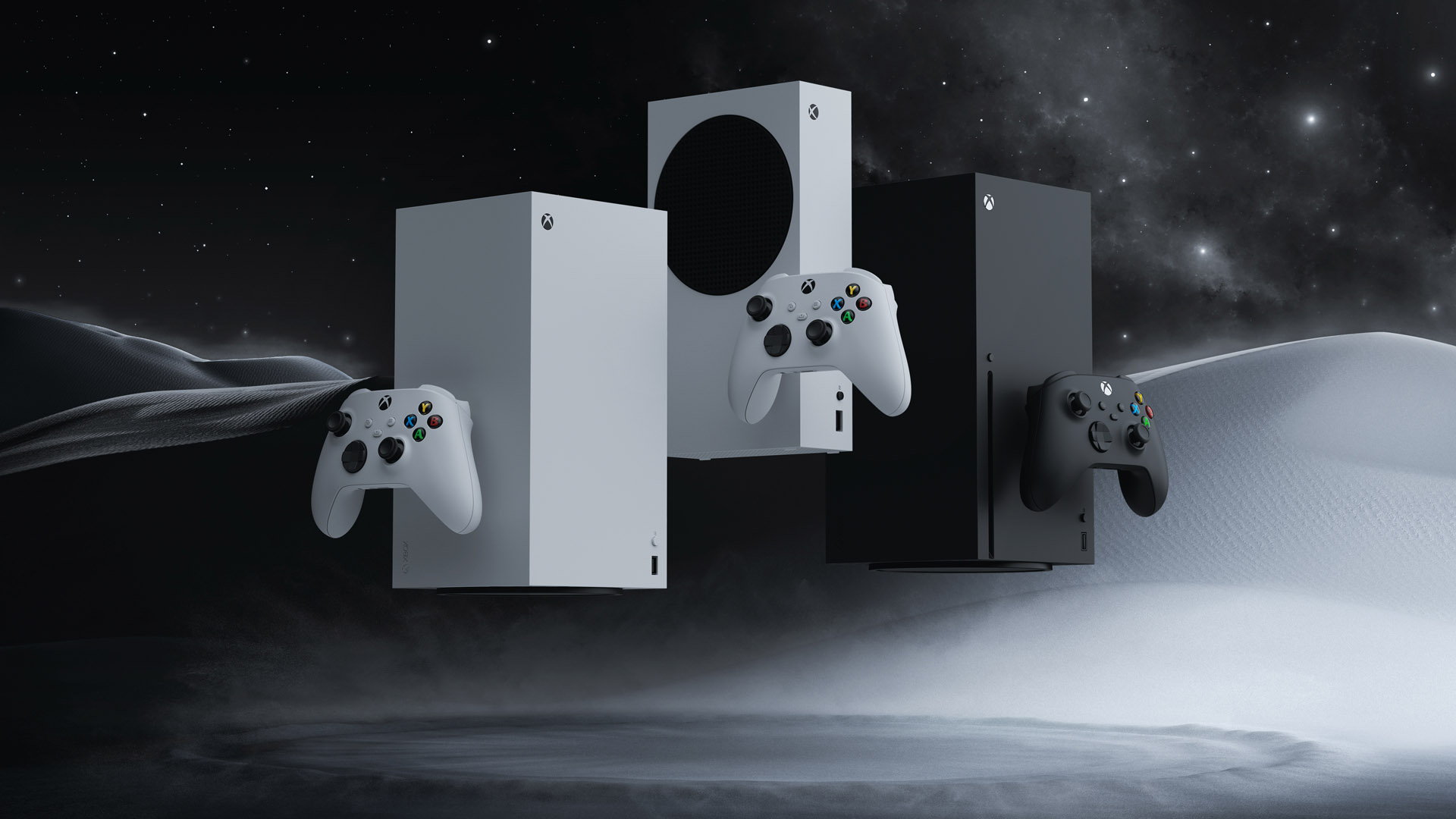
Console Updates
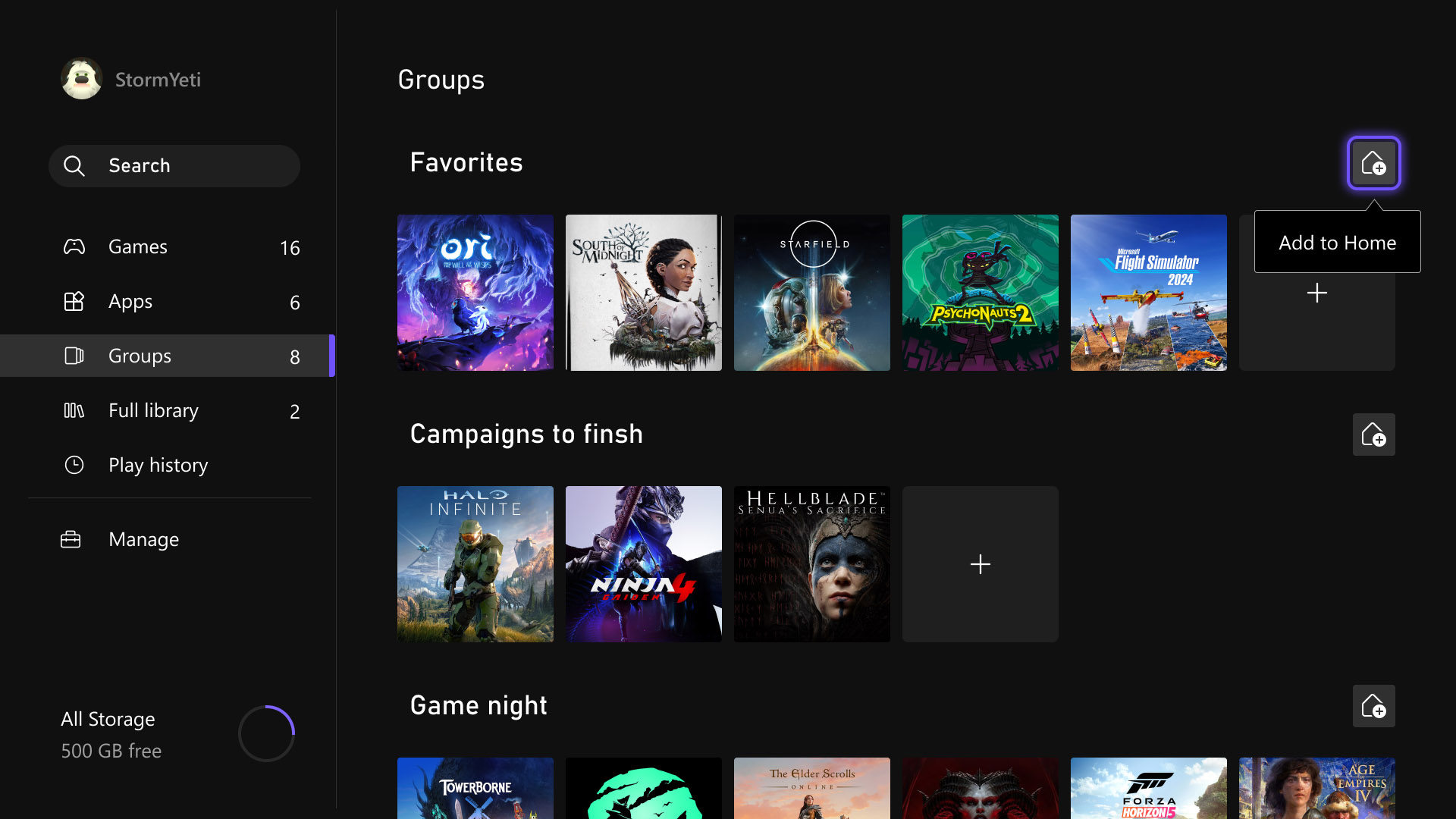
More Groups on Home
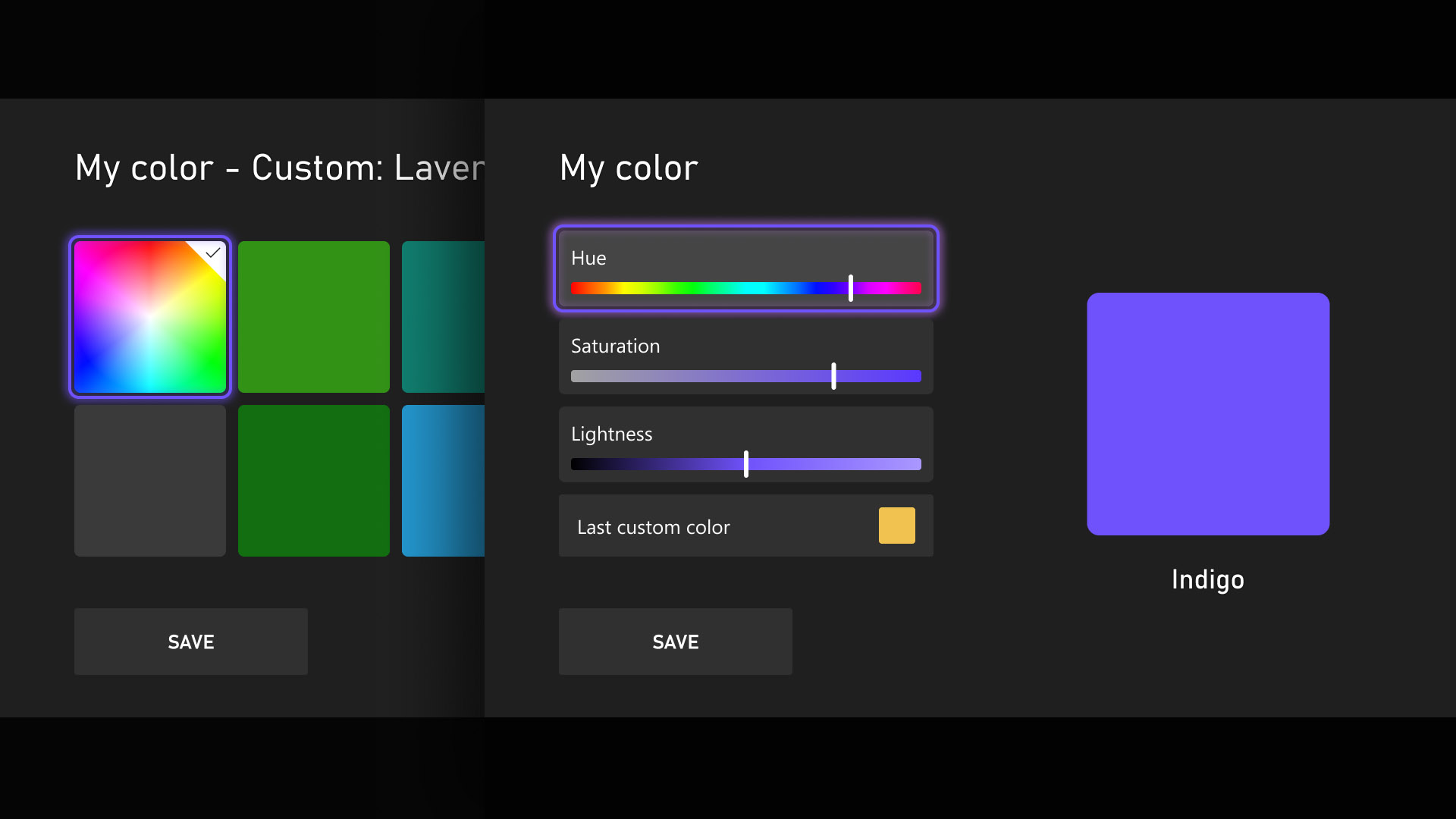
Custom Color
Quick Resume Settings
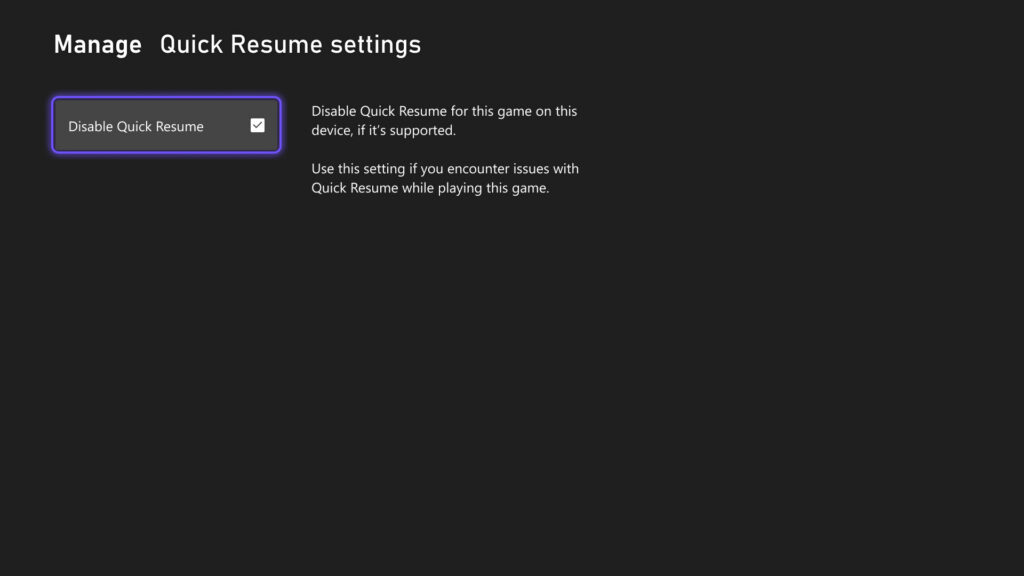
Quick Resume remains one of Xbox’s most popular features, though feedback has highlighted performance issues after long inactivity or with games that depend heavily on online connectivity. To address this, users can now disable Quick Resume on a per-game basis, ensuring selected games always start fresh. This option is accessible by opening More options on a game tile within the Quick Resume group and selecting Manage Quick Resume, or by navigating to any game tile and choosing Manage game and add-ons > Quick Resume settings.
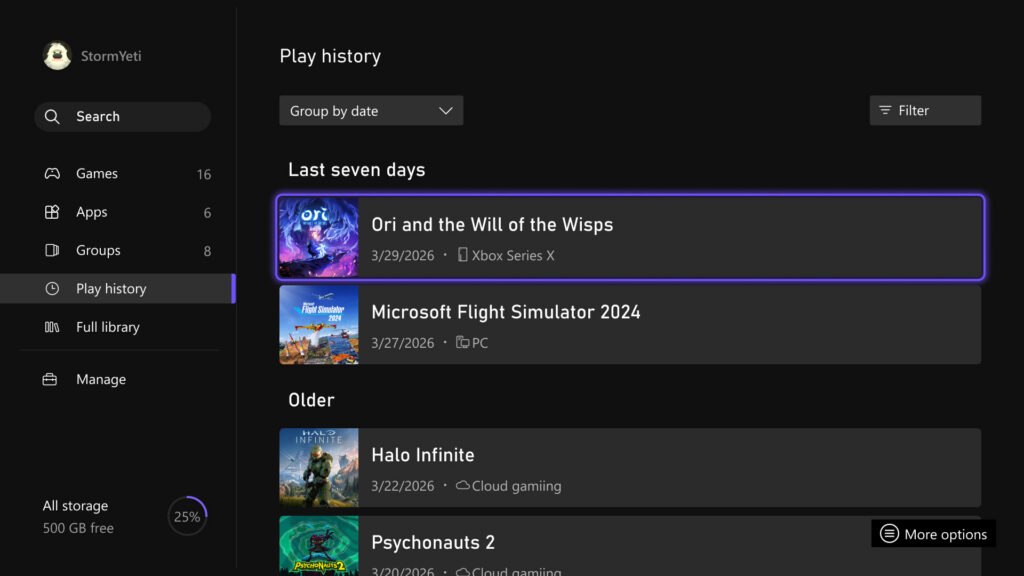
Play History Update
User Selected Resolution and Network Quality Indicator
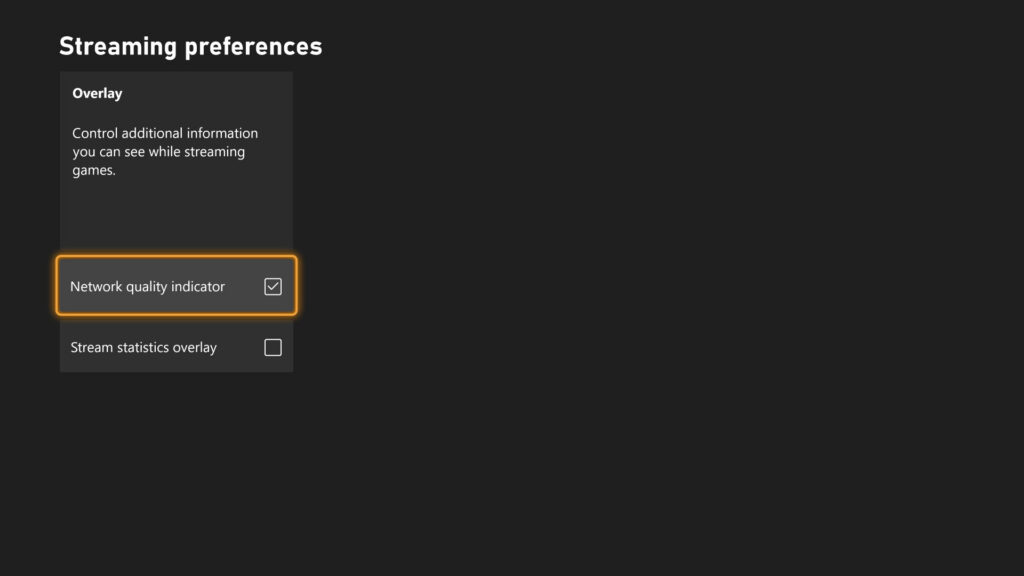
Streaming settings have been updated to provide clearer control and improved transparency over the gaming experience. New options include User Selected Resolution (USR), allowing players to choose their preferred streaming resolution in Console Settings > Cloud Settings before starting a session. A Network Quality Indicator (NQI) has also been introduced, offering real-time feedback on network performance while streaming to help users understand how their connection affects gameplay. These changes are designed to give players more insight and control, resulting in a more consistent and confident streaming experience.
CLICK "READ MORE" to See the Rest of the Updates
PC Updates
Manually Add a Game or App to Xbox Library
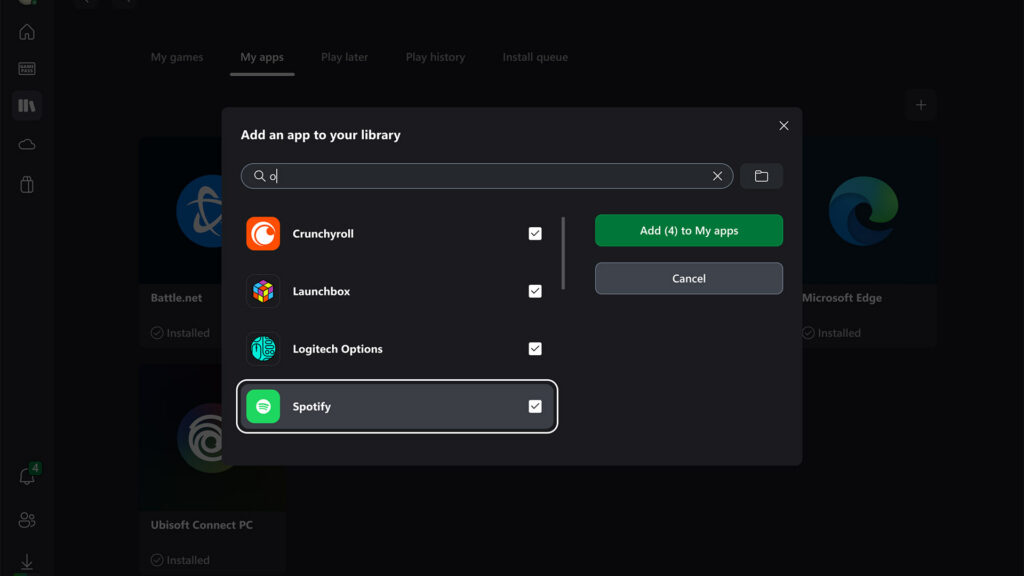
The Xbox PC app has been updated to make it easier to manage all games and apps in one unified library, especially on handheld devices. Users can now manually add any installed game or application, regardless of where it was downloaded, allowing for a centralized library that can be launched from a single place. Customization options also allow players to adjust names, icons, and launch settings to better suit their preferences, with support for advanced configurations such as mod parameters and custom launch commands. The update focuses on creating a more organized and flexible library experience tailored to individual play styles.
Pin Your Favorite Games
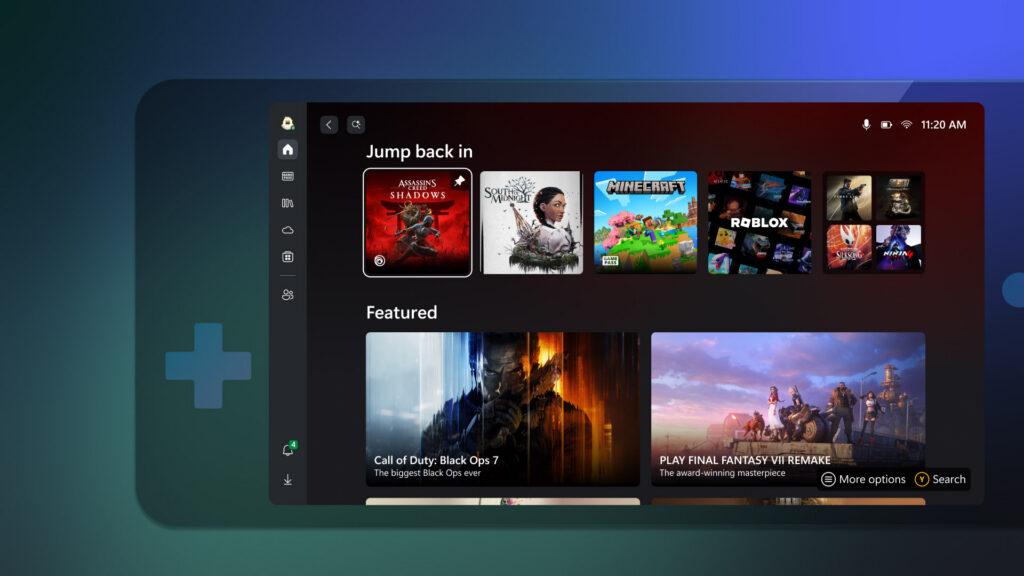
Personalization options on Windows 11 PCs and gaming handhelds have been expanded to help users access their favorite games more quickly. Players can now pin up to three games to the “Jump back in” or “Most Recent” lists, ensuring preferred titles stay at the front for easy access. This feature works across installed games, cloud titles, and other supported content, keeping frequently played games readily available. Pinning is done by right-clicking a game in either list and selecting “Pin to this list,” after which the game is prioritized until it is manually unpinned.
Gamepad Cursor
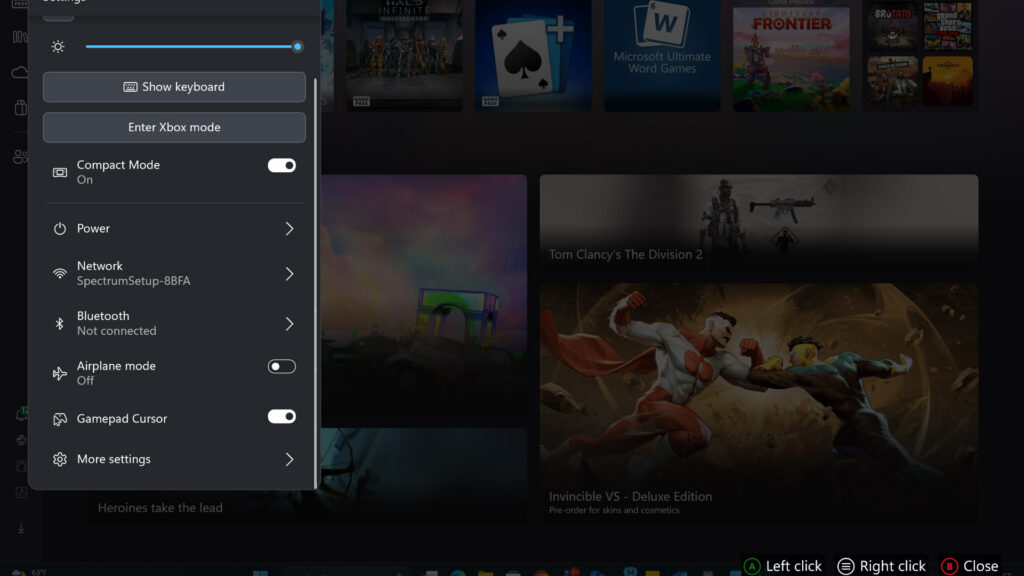
Navigation in non-controller-optimized apps has been improved through a new Gamepad Cursor feature, which allows a controller to function like a mouse pointer. Any controller can now move an on-screen cursor using the left stick, enabling interaction with apps that typically require a mouse or touchscreen. This is particularly useful for tasks such as managing music in Spotify or navigating chats in Discord when no other input devices are available. The feature can be enabled through Game Bar by opening the Settings widget and selecting More settings > General.
Reposition Notifications on Game Bar
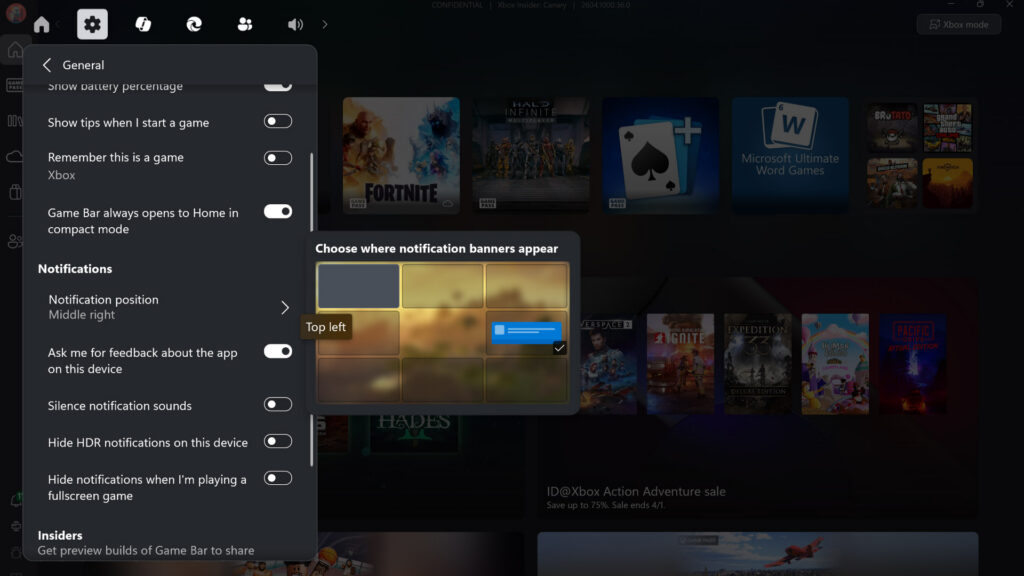
Notification placement during gameplay has been made more customizable, allowing users to choose where Xbox notifications appear on the screen. This setting can be adjusted through Game Bar by opening the Settings widget, navigating to More settings, and selecting the General tab to choose the preferred notification position. The update is designed to improve usability by keeping alerts visible and useful while minimizing disruption during gameplay.
No comments:
Post a Comment
In order to keep this page civil and clean all comments will need approval.