Welcome to XboxIssues

Welcome. I decided to make this blog after being a Xbox Ambassador for a number of years.

If you don't know an Ambassador is a Volunteer that Microsoft uses to help ease the load on the actual hard working support people.

I noticed that alot of the questions I would get could easily be solved by using Microsofts Xbox.com site.

Since some of the help articles may be hard to find, understand or the issue may be called something different in the gaming community making it more difficult to solve, I've decided to make this blog to make it easier for fellow gamers to get xbox assistance, news and all things Xbox.

If you have any Xbox related question you can find the answer to feel free to contact me on YouTube, twitter or in the comments.
Showing posts with label Security. Show all posts

Tuesday, December 15, 2020

HOW TO: Use Two Step Verification With Your Xbox Live Account (Don't Get Hacked)

Two-step verification helps protect you by making it more difficult for someone else to sign in to your Microsoft account. It uses two different forms of identity: your password, and a contact method. Even if someone else finds your password, they'll be stopped if they don't have access to your other devices or accounts. (This is also why it's important to use different passwords for all your accounts.)

You set up two-step verification with an email address, phone number, or authenticator app. When you sign in on a new device or from a new location, we'll send you a security code to enter on the sign-in page.


Please Don't Forget To Share:

Thursday, March 1, 2018

NEWS: Three New Security Features On The Xbox

Microsoft  announces 3 new security features on the Xbox. These updates will help keep you safe, and they will also come in handy if you ever forget your account name or become a target for malicious activity.

For more ways to help protect your account, check out our security tips.


Get help remembering your username
Some customers only know their Xbox Gamertag, and they have trouble remembering their Microsoft account. This becomes a problem when signing in to a new console. Previously, you’d have to call Xbox support for help with this issue. Now there’s a self-help flow from the sign in screen. Just select “Forgot your account?” and follow the steps.


Remember to update your recovery options
Security info is an alternate email address or phone number that you add to your account. If you forget your password, or if someone else is trying to access your account, we send a security code to that alternate email or phone number. When you give the code back to us, we know that you’re really you and we can get you back into your Microsoft account. Now on the Xbox, we’ll remind you to double check your recovery options if you haven’t used them for a while.


Recover your account if a malicious user may have gained access
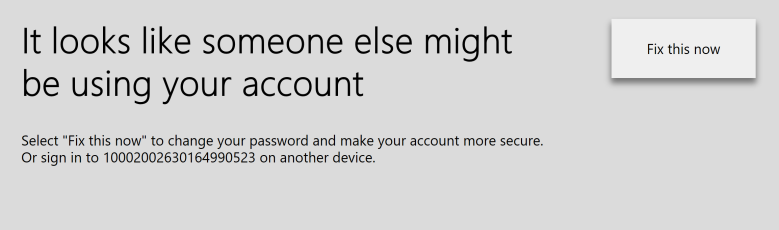
If Microsoft has identified any suspicious activity on your account, we’ll lock the account for your security. If this happens, you’ll see the message “It looks like someone else might be using your account.” Before, you’d have to go to another device (like your phone or computer) to solve the problem. Many people would end up calling Xbox Support. Now, we support the full recovery flow on the Xbox console. So you’ll be able to change your password and review your security settings, then get back to gaming.




Sunday, November 12, 2017

HOW TO: Set up a guest key and limits on your Xbox One

When no one is signed in on your Xbox One, you can use a guest key to allow access to content, and set parameters around what can be viewed on your Xbox One.

To manage these limits, you'll need to create a guest key. The guest key is a 6-digit code that you set up on the con sole, and only those who have the guest key can make changes.

There may be people you want to allow to bypass these limits. For example, friends or family members who will be staying in your house during holidays. If they don’t have their own Xbox account, leave them the guest key.

It's easy to create a guest key on Xbox One. Here's how:

  1. Press the Xbox button  to open the guide. 
  2. Select Settings. 
  3. Select All Settings. 
  4. Select System > Signed-out content restrictions.  
  5. Select Create a guest key.  
  6. Use your controller to create a 6-digit passkey. Be sure to use something you'll remember but that can't be guessed by others.  


Grant access to content & apps
After you create your guest key, you can set parameters around what content can be viewed on your Xbox One when no one is signed in. Here's how:

  1. Select Access to content & apps.  
  2. Scroll down to select the age-appropriate content level you want to allow your guests to use. Age-appropriate ratings are determined by your location. A description of what is available at each age level is shown on the right of the screen. Press B  on your controller when finished.  
  3. For any setting other than “Unrestricted,” you have the option to choose whether to hide age-inappropriate listings in searches for apps and content or in Microsoft Store. Press B  on your controller when finished.  
  4. Explicit TV is blocked by default. If you want to change this setting, select Unblock explicit TV, and then press B  on your controller when finished.  
  5. By default, your console allows new accounts to be downloaded or created when no one is signed in to the console. To block this feature, make sure that the Let people download & make new accounts option is not selected.