Welcome to XboxIssues

Welcome. I decided to make this blog after being a Xbox Ambassador for a number of years.

If you don't know an Ambassador is a Volunteer that Microsoft uses to help ease the load on the actual hard working support people.

I noticed that alot of the questions I would get could easily be solved by using Microsofts Xbox.com site.

Since some of the help articles may be hard to find, understand or the issue may be called something different in the gaming community making it more difficult to solve, I've decided to make this blog to make it easier for fellow gamers to get xbox assistance, news and all things Xbox.

If you have any Xbox related question you can find the answer to feel free to contact me on YouTube, twitter or in the comments.
Showing posts with label Screen Captures. Show all posts

Thursday, October 26, 2023

SYSTEM UPDATE: Xbox October Update is Rolling Out: Keyboard Mapping for Controllers and More

Team Xbox continues to bring new ways to make Xbox better, with players at the center, as we refine the experience and deliver brand-new features based on player feedback. This month’s update includes keyboard mapping for Xbox controllers, offers an easy way to import game captures from Xbox to edit in Clipchamp, and gives the ability to set your preferences for optional diagnostic data across your Xbox devices. Also, a subset of people will see an experiment in which we’re making it easier to jump into a game with your friends from your profile.


Keyboard mapping for Xbox controllers
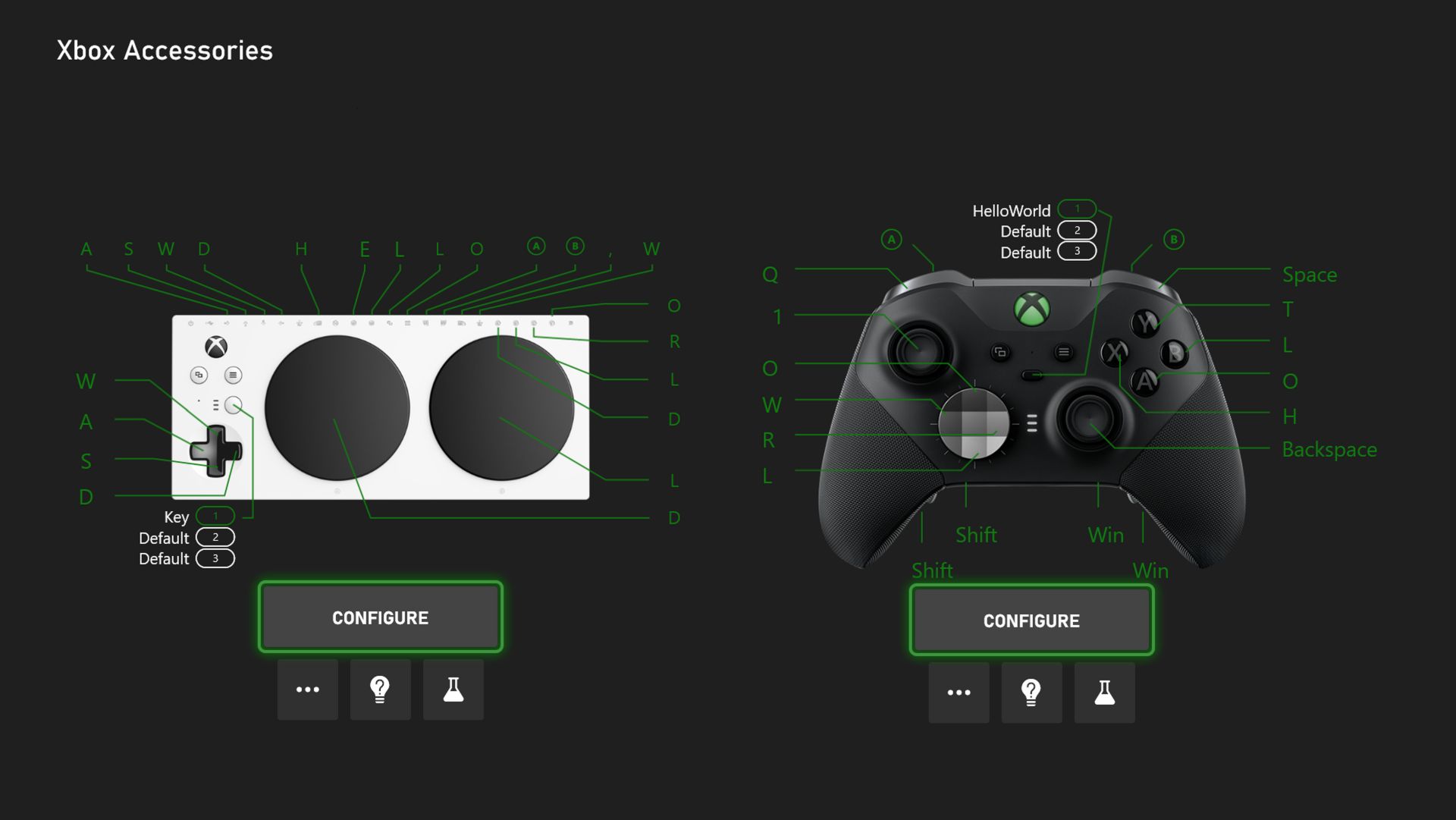
You will now be able to map controller buttons for your Xbox Elite Wireless Controller Series 2 and the Xbox Adaptive Controller to your keyboard. Keyboard remapping has been a requested feature in the PC gaming and accessibility communities. It helps expand controller input capabilities in games that have many commands, have limited remapping capabilities, or do not support controllers.

Starting this week the Xbox Accessories app will support controller-to-keyboard input mapping on both PC and console. Choose any button on your Elite Series 2 or port on your Xbox Adaptive Controller and remap it to your desired keyboard key. For instance, Sea of Thieves can take keyboard input for something like quick select of a tool or weapon, while using controller for most other actions. For more tips and tricks check out Keyboard Mapping for Xbox Controllers

Easily import Xbox game captures to edit in Clipchamp
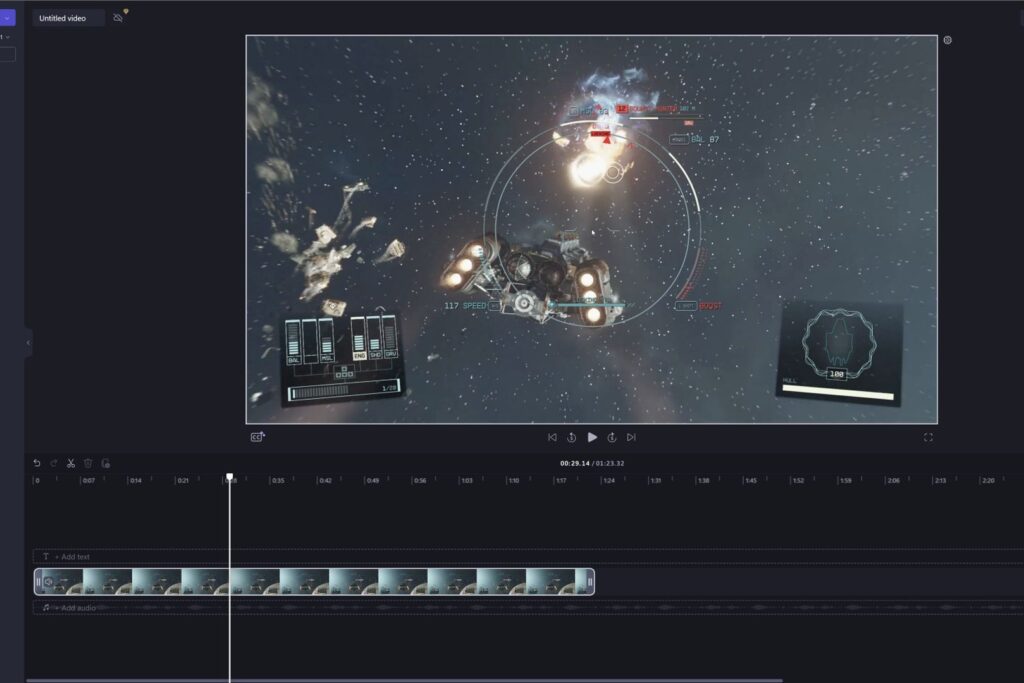
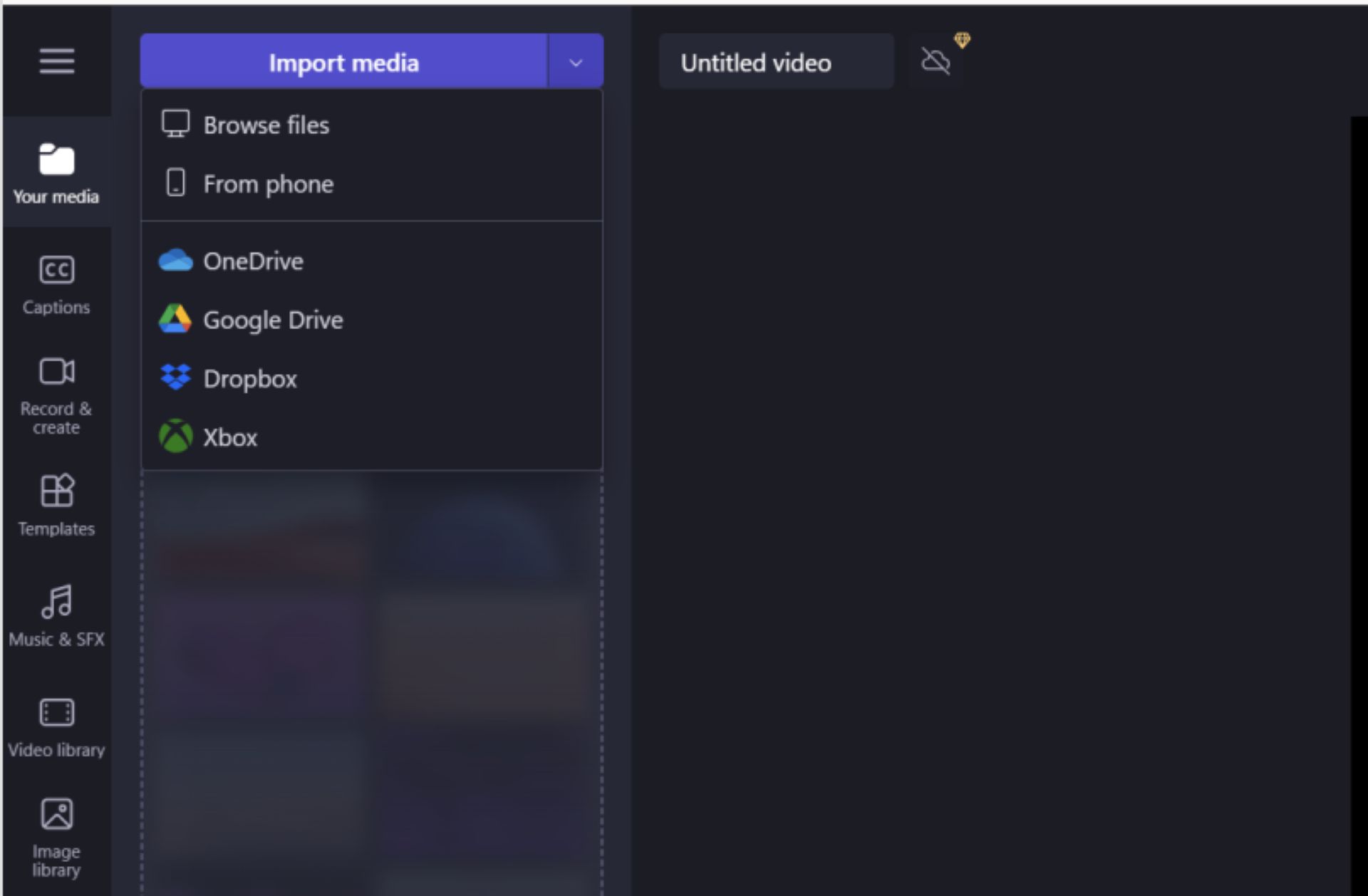
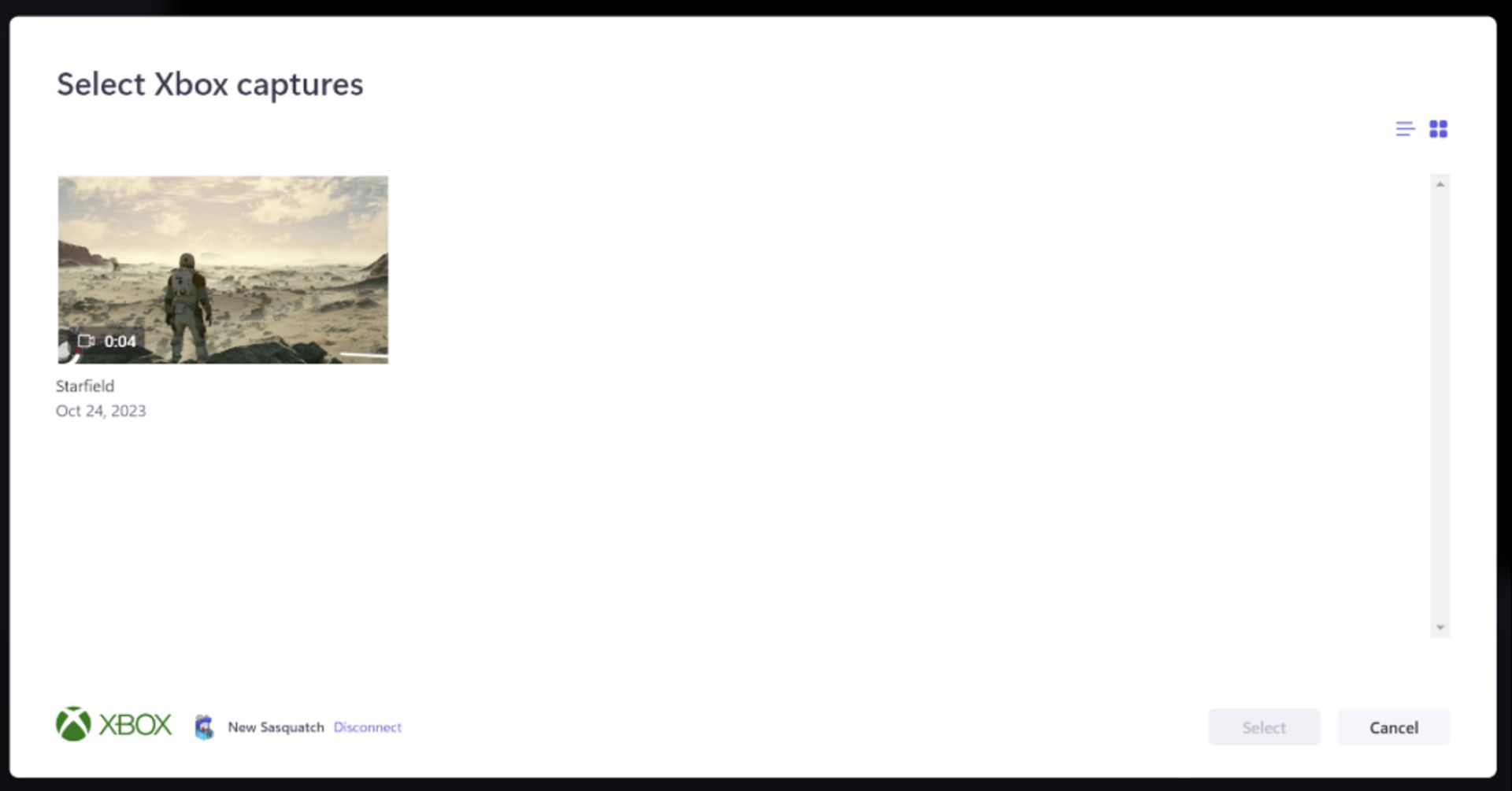
Now you will be able to easily import your game captures from the Xbox network directly to Microsoft Clipchamp, the built-in video editor for your Windows PC and browser. From Clipchamp, you’ll see a new “Xbox” option in the import panel. After you sign-in to the Xbox network, you’ll be able to select and import game captures into Clipchamp for editing. Once imported, you’re ready to create videos of your epic gaming moments by trimming, cropping, adding text, transitions, and other effects. Afterward, you can easily share these videos with your friends, family, and followers.


Choose your preferences to share diagnostic data across any Xbox device
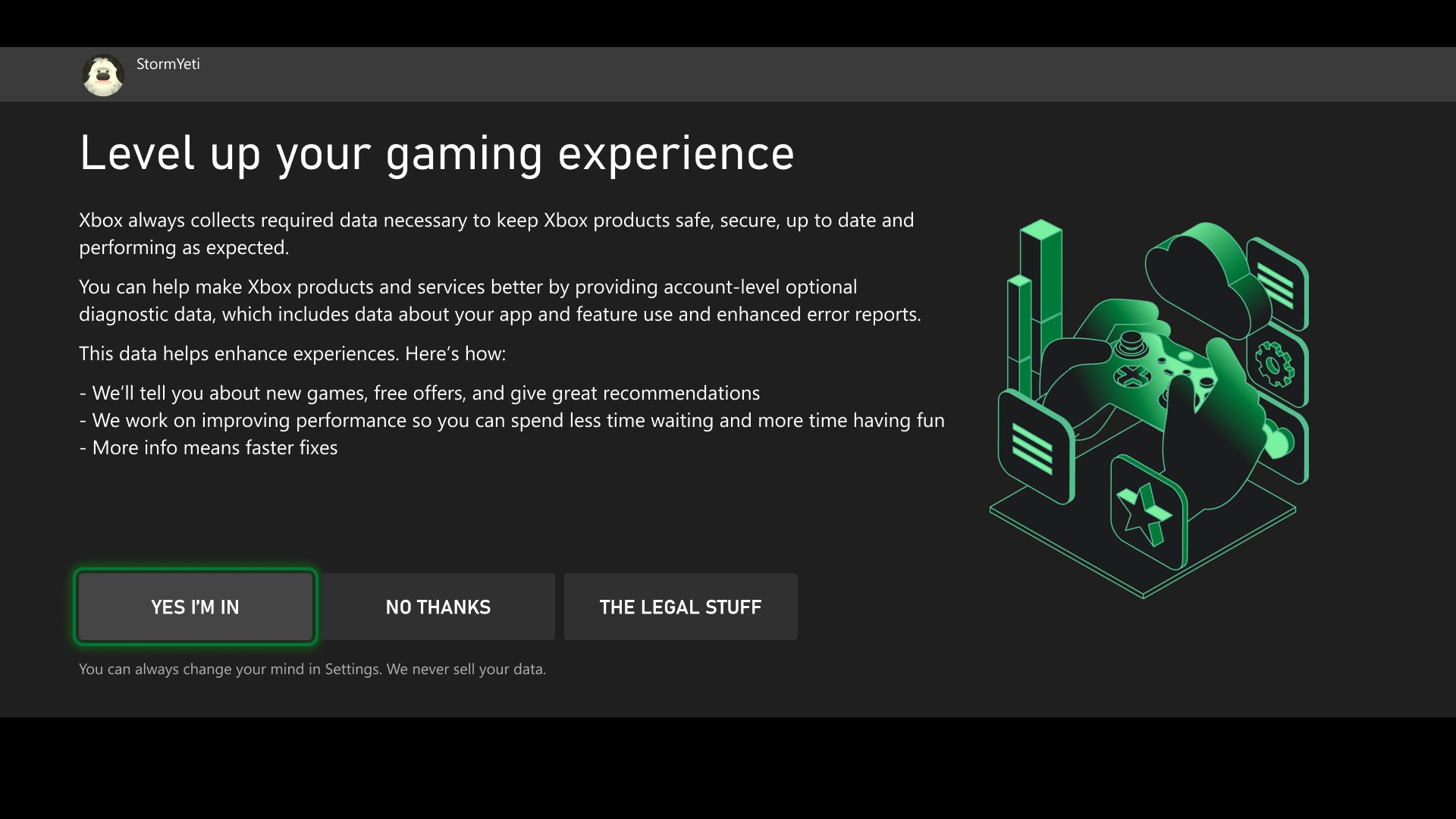
Offering choice is a priority, and we’ve built our existing controls to provide you with preferences. If you choose to share your optional diagnostic data, it helps Xbox further improve your console experience. Examples of optional diagnostic and usage data include app and feature use, enhanced error reporting to help provide console performance, troubleshooting, and more.

Starting this week, Xbox is updating the optional diagnostic data controls to be account-based, so once you select your preferences on one gaming device, you won’t need to do it on any other gaming device, including Xbox consoles, Xbox Cloud Gaming (beta), PC, and mobile. You’ll get a prompt to choose your settings when you sign in or set up a new account and will be able to manage your settings from any Xbox gaming device.

To view your optional diagnostic data settings at any time, press the Xbox button to open the guide, and then go to Settings > Account > Privacy & online safety > Data collection. For more information about diagnostic data in Xbox, and how to control what data you provide, go to Manage settings for optional data sharing.


Jump in a game with your friends from your profile – experiment
We’re experimenting with making it easy to see what your friends are playing and jump into a game together. From your profile page, you’ll be able to invite friends to a party and join a game. As we roll this out, a random subset of users will be able to give it a try.


DON'T FORGET TO SHARE:

Wednesday, September 27, 2023

UPDATE: Bonus Xbox Update for September

Starting today Microsoft is updating the way the Xbox network retains game captures. Game captures stored on the Xbox network will be deleted after 90 days. To back up any clips or screenshots you wish to keep indefinitely, follow the steps listed in the Back up your clips article. To double check the status of your game captures, go to the Captures app to view your game captures stored on the Xbox network to see if any are marked for an upcoming deletion.

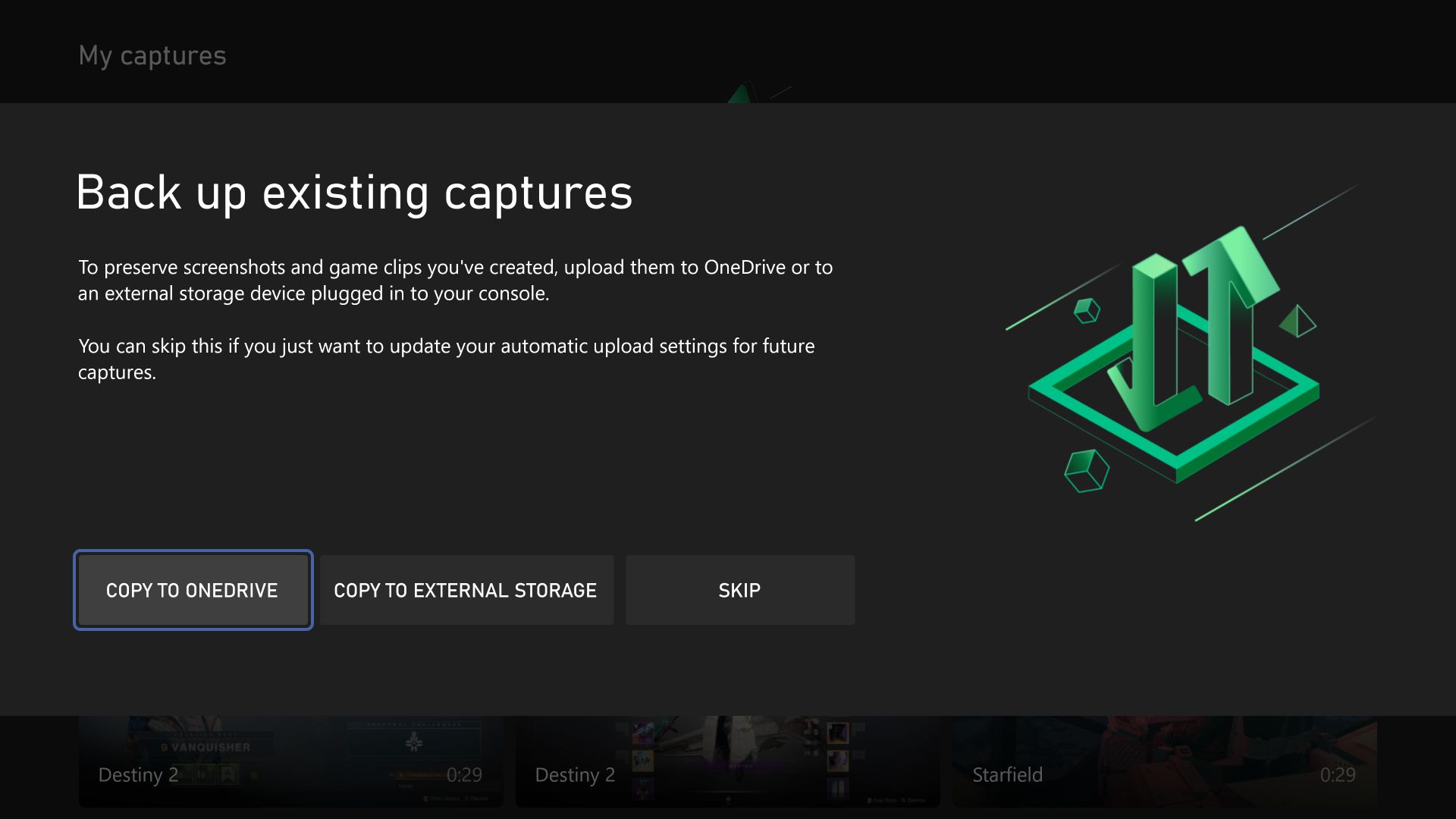
Alongside this new retention approach, they are making it easier than ever to backup all your game captures to either OneDrive or an external storage device of your choice.


You can move, manage, and bulk upload where you store your captures on your Xbox console. To do so, press the Xbox button, and then go to My games & apps > See all > Apps > Captures. You’ll see a “Tell me more” button where you can get started. You’ll also be able to set up future captures to automatically back up to OneDrive so you never have to wonder if everything is backed up.


Thanks to the built-in Microsoft Clipchamp video editor on your PC, you can also create videos of your epic gaming moments for the game captures you save to OneDrive. Trim, crop, add text, transitions, and other effects. Afterward, you can easily share these videos with your friends, family, and followers.
Find events for your favorite games 

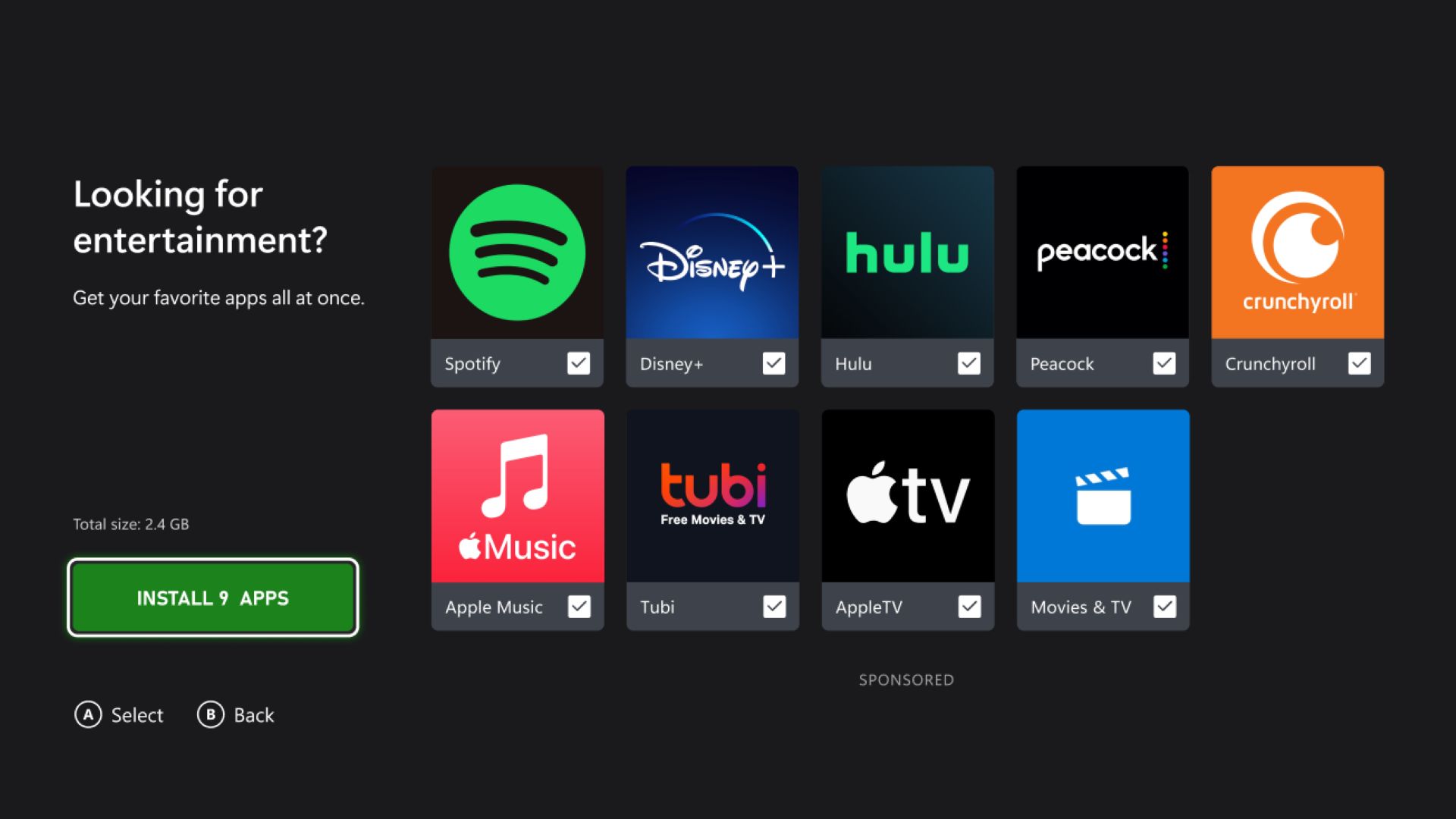
We’re making it easier for players to find and download popular apps when setting up a new console. Now when you set up a new console either from the Xbox mobile app or directly on the console, you’ll get the option to download popular apps like Apple Music, AppleTV, Crunchyroll, Disney+, Hulu, Movies & TV, Peacock, Spotify, and Tubi. Downloading apps during setup saves you time later—your favorite apps will be ready to go when you are. Separate subscriptions may be required.


Watch and play your favorite fall sports

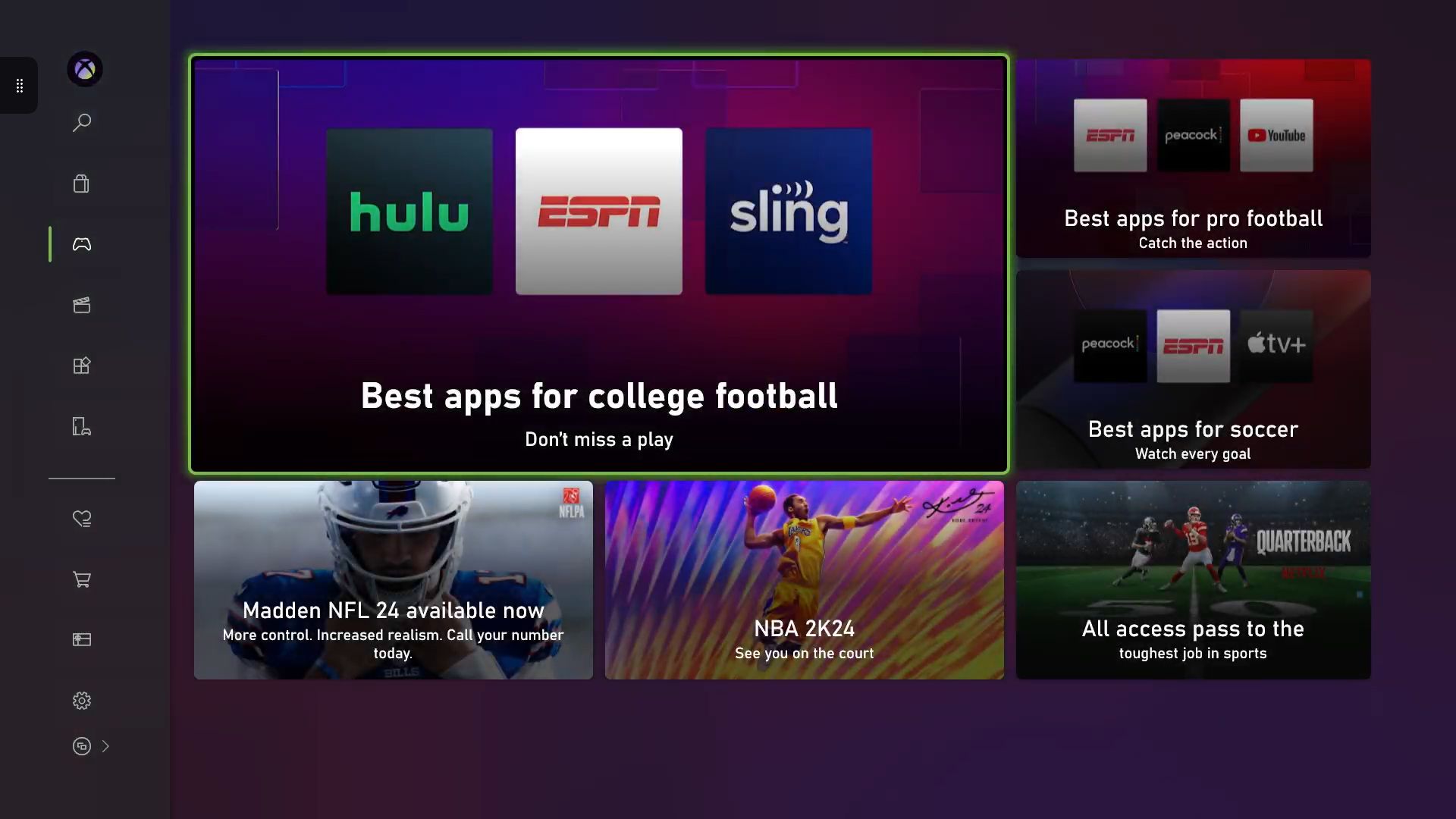
What’s your favorite sport? Football, soccer, hockey, basketball? All of them? This September and October, Xbox consoles in the United States will be able to try a one-stop-shop for sports fans to find your favorite sports games to play and to watch your teams on Xbox streaming apps. Navigate from your Xbox to the Store > Apps Home, and then scroll down to go check it out!


DON'T FORGET TO SHARE:

Tuesday, October 8, 2019

SYSTEM UPDATE: October 2019 Xbox Update Delivers New Features

October is here and we know many gamers are already spending quality time with their favorite horror games (we won’t judge if you turn the brightness up). But never fear, we’re here to share lots of new features and improvements with the October 2019 Xbox One Update, which begins rolling out to everyone today. This month’s update unveils new Family Settings options to balance your family’s screen time, Wish List notifications, improvements to the Mixer viewing experience on Xbox One, the ability to refer Xbox Game Pass titles to friends, and even more improvements based on your feedback. Read on for a breakdown on each new feature and update.


App and game limits for Family Settings
With the October 2019 Xbox Update, we’re taking additional steps to improve our existing family settings that work across Xbox One and Windows devices. We’re giving parents more control over what their children see and interact with on the devices in your home, which is part of our commitment to make gaming a fun, inclusive, and safe experience for everyone. For us, that means offering tools that provide choice so families can create the right balance of screen time in their lives.

With the new app and game limits feature, we introduce two new key elements to screen time:Parents can now set how much time their children spend within specific apps or games in addition to the total time spent on a device. Parents have the added option to set limits at the app or game level, enabling you to be more specific with how your kids are spending their time with technology.
The app and game limits you set will apply across Windows devices and Xbox One. We want to provide families the convenience of setting this up once, and letting it carry over across your child’s devices. This means one hour of a specific game or app per day is one hour of that game or app – no trying to sneak in extra screen time by switching from one device to another.
Check out today’s Family Settings announcement for a full overview.

Wish List notifications
We’re excited to see everyone enjoying the Wish List feature on the Microsoft Store! The October 2019 Xbox Update enhances this feature with notifications to alert you when an item in your Wish List has a price discount. The new Wish List notifications will make sure you never miss a great deal on games you want. Check out and update your current Wish List here.


Mixer viewing improvements
Mixer is integrating even further into the Xbox One experience with the October update. We’ve built a full Mixer viewing experience right into the dashboard with a focus on speed and simplicity. Viewers will no longer have to navigate to a separate app to enjoy Mixer streams, so getting to the content you want to watch has never been easier! Simply click the stream you’d like

Recommend an Xbox Game Pass title
Games are more fun when shared with friends. Xbox Game Pass for Console has a curated library of over 100 high-quality games, so you may find a gem that you want to share with your friends. You can now recommend a game from Xbox Game Pass for Console directly to your friend via a message or to your whole community via your activity feed or share to a club. Your friends will be able to easily get to the page for the games you recommend and can start downloading right away if they are an Xbox Game Pass member.

Recent Players improvements
Thanks to your feedback, we’ve made significant improvements to the Recent Players experience, making the service more reliable and allowing you to connect with the gamers you play with instantly. We understand the popularity of this feature and know it can be especially helpful with large-scale multiplayer games. You can now more quickly and easily engage with your Recent Players, whether you are sending a message, inviting players to a party, or adding them to your Friends List.

Under-the-hood game update improvements
Players can jump into their favorite games even faster with the October update. We’ve added improvements to automatic game updates, significantly reducing when you encounter the “update required” screen when launching a title.

Events app
Later this month, you may notice the Events app installed on your console. With Events, we will be introducing new ways for gamers to discover and be reminded of events happening within your favorite Xbox games or gaming communities such as a start of a new season or in-game holiday events. We’ll have more to share soon about how we plan to evolve this feature, so stay tuned for future announcements.

More flexible Capture Settings and Capture & Share experiment
The “Allow game captures” setting now has multiple options, giving you more control over your game capture experience. Previously, game capture could either be enabled or disabled in Settings, with certain games automatically recording memorable moments when this feature was enabled. With the October update, you may now select between “Captures by me,” “Captures by me or games,” or “Don’t capture” settings, providing you more choice over how you build your highlight reel.
In addition to the above, some people may also see an experimental update we are making to improve the Capture & Share experience. For now, we’re rolling out an improved “Capture & Share” tab for a limited portion of the Xbox One audience to gauge interest and collect feedback. We’re eager to hear their feedback before we share more.

The renamed “Capture & Share” Guide tab aims to improve usability by elevating your three capture options, “Record what happened,” “Start recording,” and “Capture screenshot,” to the top of the screen as well as allowing you to quickly revisit your last capture. When you’re ready to share, the following “Share to” menu has also been updated to focus more on what you want to do with your content – quickly and easily share it with your friends, the world via Twitter or your Xbox Activity Feed, or save it in your collection for safekeeping.


Please Don't Forget To Share:

Monday, October 29, 2018

NEWS: New changes to Captures (GameDVR)

Major Neslon announced today on twitter, that tere is going to be a change with game captures, or the Xbox One GameDVR.  The tweet was a little vague but here is what it says:

"New changes to Captures (GameDVR) means x2 storage space for all! Existing clips older than 90 days w/o views will be deleted, as will new clips unviewed after 30 days. Learn how to backup your favorite Captures here"


If you wish to backup all your captures see the How-To Here: https://xboxoneguide.blogspot.com/2018/10/how-to-backup-or-download-xbox-one.html


Please Don't Forget To Share:

HOW TO: Backup or Download Xbox One Captures & Screenshots

Xbox One captures and clips older than 90 days w/o views will be deleted, as will new clips unviewed after 30 days. You may wish to save your clips to the cloud (OneDrive) or download them to your PC,

Here is: How to: Backup or Download  Xbox One Captures & Screenshots


Please Don't Forget To Share:

Friday, March 31, 2017

HOW TO: Delete Multiple Clips or Screen Captures on Xbox One

From time to time, you may want to clean out all the screen shots and video clips you have recorded on the Xbox One.  Up until an update we received a few months back we had to delete the clips one by one.  Now we can select multiple clips and delete them all at once.


Here is How To Delete Multiple Clips or Screen Captures on Xbox One:


  1.  Load the Upload Studio App
  2. Click on Manage Clips
  3. Now just click the tick boxes next to the files you want to delete, or click the tick box in the upper right to select all.
  4. Click the Delete or Trashcan icon next to any selected file, and after you confirm you want to delete the files they will be removed.


REMEMBER: Once deleted from the cloud or your Xbox One Console, they are gone for ever, there is no way to recover delete files on Xbox One.