Welcome to XboxIssues

Welcome. I decided to make this blog after being a Xbox Ambassador for a number of years.

If you don't know an Ambassador is a Volunteer that Microsoft uses to help ease the load on the actual hard working support people.

I noticed that alot of the questions I would get could easily be solved by using Microsofts Xbox.com site.

Since some of the help articles may be hard to find, understand or the issue may be called something different in the gaming community making it more difficult to solve, I've decided to make this blog to make it easier for fellow gamers to get xbox assistance, news and all things Xbox.

If you have any Xbox related question you can find the answer to feel free to contact me on YouTube, twitter or in the comments.
Showing posts with label Hard Reset. Show all posts

Thursday, July 13, 2017

How To: Hard Reset or Power Cycle Xbox One (updated for Newest Xbox One System Update)

The first step to fix any Xbox One issue is to correctly "Hard Reset" your console. The technical term used by Xbox Support is  "Power Cycle your Xbox One." Think of this like Clearing the Cache on the 360

I know you're thinking "yeah buddy I did turn it off and back on, I'm not an idiot & can turn a console off and on."  Well I bet you didn't do it correctly.

To correctly  "Hard Reset" or Power Cycle your Xbox One" follow these steps:


How To Hard Reset or Power Cycle Xbox One  (New Way)

  1. Scroll left on the Home screen to open the guide. 

  2. Select Settings. 
  3. Select Restart console. 
  4. Select Yes to confirm. 

Note If you're unable to access the guide or if the console appears to be frozen, press and hold the Xbox button  on the console for about 10 seconds until the console turns off. After the console shuts down, touch the Xbox button  on the console again to restart.


How To Manually Hard Reset ot Power Cycle Xbox One (The Old Way)
  1. Turn off your console by holding the Xbox button on the front of the console for approximately 10 seconds. The console will power down.
  2. Turn your console back on by pressing the Xbox button on the console or the Xbox button on your controller. 
  • Note If you don't see the green boot-up animation when the console restarts, repeat these steps. Make sure that you hold the power button until the console completely shuts down. 

Again if you do not see the above screen on boot you did not do it correctly.

  • Important If your console is in Instant-On power mode, the above steps will shut the console completely off. Instant-On mode, or the ability to turn on your console by saying "Xbox on," won't be enabled until you restart the console.
This is not a "Factory Reset" you will NOT lose any data.  This simply clears the cache or temporary storage on the Xbox One


Friday, May 22, 2015

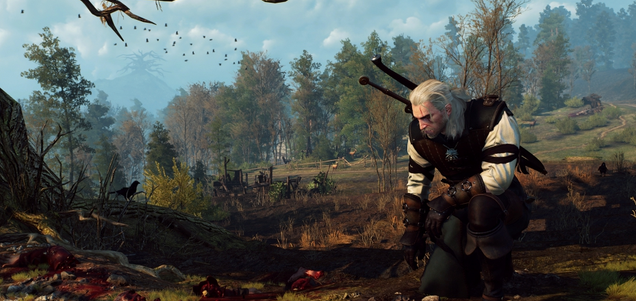
NEWS: Nasty Witcher 3 Bug Is Corrupting Saves On Xbox One

If you’re playing The Witcher 3: Wild Hunt on Xbox One, you should watch out for this.

Players are reporting a couple of ways save games are becoming corrupted. For some, it happens out of nowhere, after dying. Others are convinced it’s related to a specific mission. But for most, it happens after leaving The Witcher 3 suspended for several hours.


Game Informer executive editor Andrew Reiner ended up writing a whole rant about it:


"I’m now playing the game scared. Kill a monster. SAVE! Talk to a villager. SAVE! Pick berries off of a bush. SAVE! Losing progress in a game like The Witcher 3, which heavily favors choice and emergent storytelling, can be crushing. Getting a second chance to correct a wrong or see a story play out in a different way is something no player should experience unless they are playing the game for a second time. I now feel like I’m Bill Murray in Groundhog Day, sick of hearing the same conversations, bored of the same events, and praying that my game saves and I can see new content again."

CD Projekt RED ended up sending Reiner a few temporarily solutions, which I’ll pass on below:

One, avoid suspending the game. (That’s a shitty solution!)

Two, perform a hard reset of the Xbox One, which involves removing the power cable:
  • Power down your console
  • Unplug the power cable from the back of the Xbox One.
  • Wait for two minutes
  • Plug the power cable back into the back of the Xbox One
  • Monitor the power brick, waiting for it to cycle from a white light to an orange light
  • Turn the power on.
  • This will perform a hard reset of the system.


Three, swap your local saves with your cloud saves:


  • WARNING! There is another possible solution, however, this may result in losing progress if cloud saving s not on 
  • Go to the console’s settings / system / clear local saved games.
  • Upon re-starting the game should re-sync, become functional, and progress should be retained as long as the cloud is on.


A spokesperson for CD Projekt RED told me the studio is aware of the issue, and while there’s no timeframe for a fix, it’s a “priority.”

“We are aware of this issue and we are working to address it as soon as possible,” said the company in a statement. “Everyone affected should contact our consumer service as there’s a temporary solution which can help them.”

Source